Let’s calmly figure out how to enable the floating video window so that YouTube doesn’t disappear when you minimize the app. I’ll explain in plain language, without complicated terms, and add a couple of little stories from real life. There will be steps for Android, iPhone and iPad, as well as for computers running Windows and macOS.
Short answer
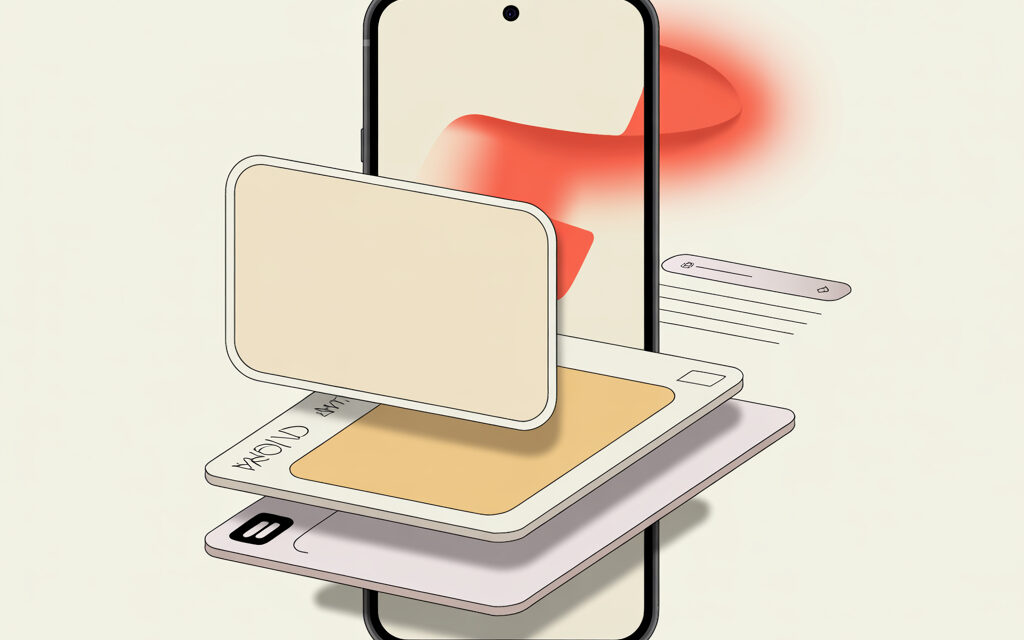
In short: enable picture-in-picture mode, and the video will appear on top of other apps. That’s the answer to the question “How to make YouTube stay on top of all windows?”. To find out How to make YouTube full screen?, use picture-in-picture mode: on mobile devices, PiP creates a floating window of any size that can be stretched to about half the screen, and on a computer, via browser PiP, the window size is adjusted manually. On Android, this is enabled in the system settings and in the YouTube app; on iPhone and iPad, Picture in Picture helps; on a computer, it works through browser PiP.
How to make YouTube appear over other apps on Android
Many people wonder: “How to enable YouTube over other apps?” and “How to make YouTube always stay on top?”. On Android, the answer almost always involves picture-in-picture. And if you need the exact key — “How to make YouTube over other apps” on Android is solved by enabling PiP in the system and in YouTube itself.
Check if your phone supports picture-in-picture
Almost all modern Android phones support PiP. Go to Settings – Apps – Special access – Picture-in-picture and see if YouTube and your browser are listed. If they are there, then it’s all good, just need to enable it.
Enable PiP in system settings
Open Settings – Apps – Special access – Picture-in-picture. Find YouTube and enable the permission. If the item isn’t there, use the Settings search for the word “picture” or “PiP”. On some skins, the path might differ slightly, but the meaning is the same.
Enable PiP in YouTube and what about Premium
In the YouTube app, go to Profile – Settings – General and make sure “Picture-in-picture” is enabled. On Android, PiP is most often available with YouTube Premium for videos, but sometimes it works without it for short clips. If you have Premium, everything becomes simpler: you minimize the app – the window pops up.
If it doesn’t work in the app — use the browser
Open youtube.com in Chrome, start the video, click on the video, then the three-dot menu, and select “Open in picture-in-picture window”. In Chrome, this works even where the YouTube app struggles. I’ve noticed that this workaround helps when system restrictions get in the way.
Mini-story: how it went for a friend on Xiaomi
A friend of mine on Xiaomi couldn’t get the video to pop up at all. It turned out the system was saving battery and cutting privileges. The fix was: Settings – Battery – No restrictions for YouTube, plus enabling “Floating windows”. After a reboot, PiP worked steadily.
How to know that everything is set up correctly
Play any video, then go to the home screen. If you see a small window in the corner – it worked. You can drag the window and resize it with a pinch gesture. If you only hear audio without video – check permissions and Premium.
Right after this step, you can learn How to make YouTube appear in a small window? On Android and iOS, you can resize the floating window with your fingers using pinch-to-zoom: pinch the corner of the window to make it smaller, or stretch it to enlarge. On computers, in browser PiP, the window size is usually adjusted manually via the window corners or through extension settings. This way, you can easily make the window compact so it doesn’t interfere with working in other apps.
Useful: the official Google help on picture-in-picture on Android helps verify the steps: link.
How to make YouTube appear over other apps on iPhone and iPad
If you’re wondering, “How to enable YouTube over other apps?” on iOS, know this: it all revolves around Picture in Picture. To keep YouTube always on top, we enable system PiP, and then either use YouTube Premium in the app or watch through Safari.
Enable Picture in Picture in iOS
Go to Settings – General – Picture in Picture and enable “Start PiP Automatically”. Now, almost any video, when you swipe up to go home, will shrink into a floating window. This is the basic step; without it, nothing further will work.
With YouTube Premium — the easiest way
Open a video in the YouTube app, start playing it, and swipe up to the home screen. A small window should appear. With Premium, this usually works without any hassle: I’ve noticed that stability is higher in the official app.
Without Premium — via Safari
Open youtube.com in Safari, play the video, tap to make it full screen, and swipe up to go home. In most cases, PiP will appear. If it doesn’t work, try tapping “AA” in the address bar – Request Desktop Website, then go full screen again and swipe home. YouTube’s behavior changes from time to time, but this method often helps.
A short story from a reader
A reader wrote that they listen to interviews on their iPad while cooking. With Premium in the app, everything went smoothly, but on an old iPhone without Premium, Safari was the savior. The secret was simple: first full-screen mode, then the Home button – and the window stays on top of the recipes.
Check that everything works
Play a video, go full screen, then minimize the app. If PiP doesn’t appear, go back to Settings – General – Picture in Picture and check that the toggle is active. Sometimes restarting the device helps.
Details about iOS PiP from Apple: link.
How to make YouTube stay on top of all windows on a computer
On a computer, the question “How to make YouTube stay on top of all windows?” is solved using Picture in Picture mode in browsers. This gives you a small floating window that hovers over other programs, allowing you to continue working calmly.
Chrome and Microsoft Edge
Play a video on YouTube, right-click on the video twice, and select “Picture in picture”. If the option doesn’t appear, install the official Picture-in-Picture extension from the Chrome developers and enable PiP via the icon on the toolbar. Usually, after this, you can drag the window around the screen.
Firefox
In Firefox, videos have a small PiP button that appears when you hover over them. One click – and the video pops out into a separate window. I like that this works most predictably in Firefox.
Safari on Mac
In Safari, right-click on the video and select “Enter Picture in Picture”. If the first click opens YouTube’s context menu, click again – Safari’s menu will appear. You can then pin the window to any corner.
YouTube’s mini-player and why it’s not always the solution
The “mini-player” button on YouTube simply leaves the video in a corner of the website, but not on top of other apps. For “always on top”, you need the browser’s PiP. This is a common confusion; I’ve fallen for it myself more than once.
How to know that everything is set up correctly
Minimize the browser. If the video remains in a separate window – you are in PiP. Controls are simple: pause, close, sometimes a button to return to the tab. If the window disappears when minimizing – you were most likely in the mini-player, not PiP.
Why it sometimes doesn’t work and what usually helps
When “How to enable YouTube over other apps?” doesn’t work, the cause is often simple. Basic checks usually help: picture-in-picture permissions, power saving, Premium restrictions, and app updates. In my opinion, it’s better to go through the checklist below than to endlessly restart the video.
Check permissions and power saving
On Android, grant YouTube picture-in-picture permission and turn off aggressive power saving. On iOS, enable PiP in settings. On your computer, check that there are no conflicting extensions.
Update YouTube and your browser
An old version of the app or browser often breaks PiP. Updates really do fix such minor issues. I’ve noticed that behavior becomes more stable after an update.
Premium and regional specifics
Some background and PiP scenarios on mobile are still tied to Premium. If it doesn’t work without it, try the browser. And if that doesn’t work either, it’s likely temporary restrictions from YouTube’s side.
Checklist: quickly test yourself
If you were searching for “How to make YouTube always stay on top?”, run through this short list and mark what you’ve already done. Usually, a couple of items solve the problem.
- Checked that picture-in-picture is enabled in the system.
- Enabled PiP in the YouTube app or am using the browser.
- Disabled aggressive power saving for YouTube.
- Updated the YouTube app and browser to the latest version.
- Checked that it is indeed PiP, not the site’s mini-player.
- Restarted the device after making changes.
Comparison of methods by platform
For those asking “How to make YouTube stay on top of all windows?” and who like visuals – I’ve put together a short summary. Here you can see where Premium is needed and where system settings are enough.
| Platform | Method | Premium needed | Stability from experience |
|---|---|---|---|
| Android | System PiP + YouTube settings; alternative – Chrome PiP | Often for the YouTube app; via browser usually not needed | High with correct permissions and no power saving |
| iPhone/iPad | System PiP; YouTube Premium in the app; Safari as a backup | In the app usually yes; in Safari often no | Stable with Premium; via Safari sometimes finicky |
| Windows/macOS | Browser Picture in Picture in Chrome/Edge/Firefox/Safari | No | Stable, especially in Firefox and Safari |
Mini-FAQ
In one paragraph, I’ll answer those who google “How to enable YouTube over other apps?”. Below are short answers that most often help.
Can I pin the PiP window always on top of all windows?
By default, PiP is already on top of other programs. If the window suddenly goes behind, return focus by clicking on the video itself. On laptops, window managers can sometimes interfere – a reboot helps.
Why does the sound disappear in the PiP window when the screen is locked?
On mobile, this might be a limitation of background playback. With Premium, it usually plays even when locked. Without it, it’s mostly only in the browser and not always stable.
Can I control subtitles and speed in PiP?
In most PiP implementations, only pause and close are available. For subtitles and speed, return to the main tab. On some iPads, certain players show additional buttons, but it’s rare.
Why doesn’t the YouTube mini-player stay on top of other apps?
Because it’s a player inside the page, not the system PiP. Switch to Picture in Picture via the browser menu – then the window will be on top of other programs.
Does PiP work for live streams?
Yes, but stability depends on the platform and browser. If the stream stutters, try a different browser or lower the quality.
What to take away from this article
To put it briefly and to the point: if you want YouTube on top of all windows – use picture-in-picture. On Android and iOS, we enable system PiP; on YouTube, Premium is sometimes needed; and on the computer, the browser does it all. Most often it works like this: you grant PiP permission, update the app, start the video, and minimize – the small window stays with you.
If you want – share how it worked out for you and what you’re watching on.
Sometimes I learn simple tricks from such messages that aren’t in the manuals.