This article is for anyone who wants to quickly enable a floating YouTube window on Android without any surprises after setup and without jumping through hoops with settings. We’ll break down how to make YouTube float over other apps on Android using the official Picture-in-Picture (PiP) mode, a mobile browser, and split-screen. I’ll show you what to tap, where people most often mess up, and how to stop the window from auto-closing on MIUI and HyperOS. At the end, you’ll find a checklist and comparison tables.
In a Nutshell
To watch YouTube over other apps, the easiest way is to get Premium and turn on “Picture-in-Picture” in the app and system settings. Without Premium, the workaround is using a mobile browser in “Desktop site” mode or split-screen mode. In practice, most people do this: Premium for daily use, and a browser for occasional tasks.
How to Watch YouTube Over Other Apps: All Available Methods in 2026
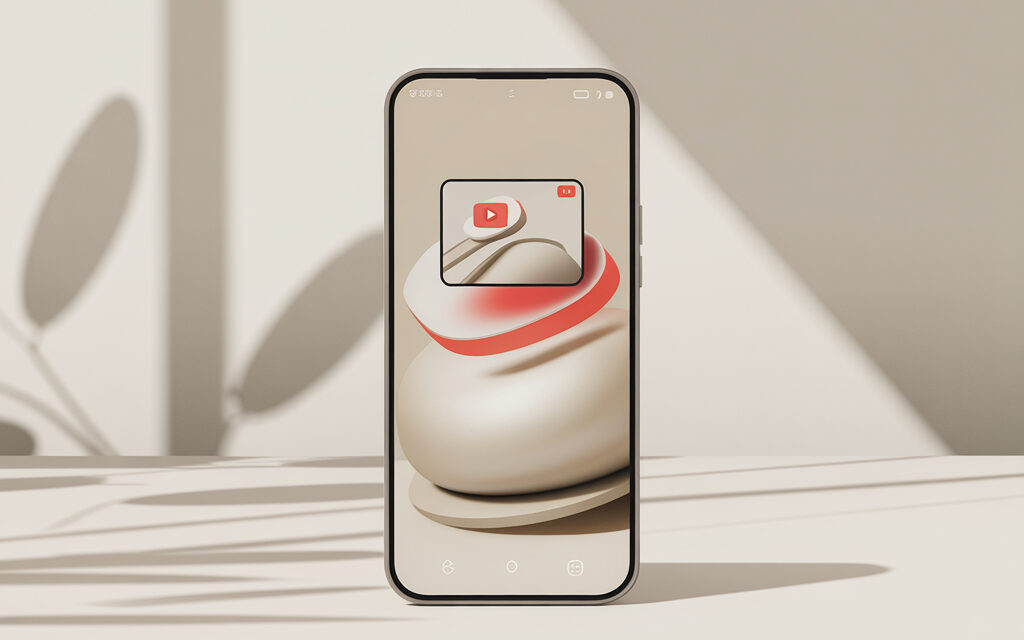
Quick answer: three paths – official PiP in the YouTube app, “Split Screen” mode, or a mobile browser in “Desktop site” mode. These are the basic options if you need to watch YouTube over other apps in any situation.
In 2026, Android 16 got Advanced PiP – the system now automatically keeps a prioritized video stream on top without stutters. Chromium improved web-PiP for Chrome and Edge on Android – the video stays on top even when the tab is inactive. In practice, most people do this: Premium and PiP for constant use, a browser as a backup, and split-screen for when the video needs to be in view at all times.
By the way, users expect behavior like chat “bubbles” in messengers. Google improved Bubbles support for video – the window became more maneuverable than classic PiP. If your goal is how to watch YouTube over other apps, start simple: turn on PiP and check system permissions.
Method Comparison
| Method | When to Use | Pros | Cons |
|---|---|---|---|
| Official PiP in the app | Daily viewing | Stable, PiP gestures, auto-priority in Android 16 | In the US, Premium is needed for most videos |
| Browser + “Desktop site” mode | No Premium or rare use | Works with any account, flexible | Sometimes loses controls, depends on the browser |
| Split Screen | Maximum control over placement | Works regardless of Premium or video type | Both app windows are always visible, less screen space |
Official Method: Setting Up “Picture-in-Picture”
Quick answer: for Premium subscribers, PiP turns on automatically. It’s crucial to check the system PiP permission and “Display over other apps” access, otherwise the window won’t appear.
- Open your phone’s “Settings”.
- Go to “Apps” – “Special app access”.
- Select “Picture-in-Picture”.
- Find YouTube and toggle the switch on.
In practice, most people do this: enable PiP in the system, then in the YouTube app go to “Settings” – “General” – “Picture-in-Picture” and activate it. If the PiP button doesn’t work, check the “Display over other apps” permission for both YouTube and the system “Google Play services”.
Where to Find PiP Settings on Popular Skins
| Manufacturer | Path to Setting | Note |
|---|---|---|
| Samsung One UI | Settings – Advanced features – Picture-in-Picture | Has individual toggles for apps |
| Xiaomi MIUI/HyperOS | Settings – Apps – Special permissions – Picture-in-Picture | Also check “Battery saver” for YouTube |
| Pixel/Stock Android | Settings – Apps – Special app access – Picture-in-Picture | Works per Android Developers documentation |
According to YouTube Help and Android Developers: PiP works on Android 8.0+. In the US, without Premium, many video types will pause when minimized – this is normal for the region.
How to Keep YouTube Floating Over Other Windows Without a Premium Subscription
Quick answer: use Brave or Firefox. Enable “Desktop site”, play a video in full screen, and minimize the browser – you’ll get a floating window.
In practice, most people do this: install Firefox, enable background video playback and “Desktop site” for youtube.com. Chromium in 2025-2026 got improved web-PiP, so the window stays even without an active tab. Warning: third-party mods can violate Google’s terms, so stick with the official browser method.
Browser Comparison for Floating Window
| Browser | PiP Without Premium | What to Enable |
|---|---|---|
| Chrome | Often yes, depends on video type | Menu – Desktop site, then press Home |
| Brave | Stable | Settings – Background video, Desktop site |
| Firefox | Stable | Site settings – Desktop site, press Home |
Lifehack via Mobile Browser (Chrome/Samsung Internet)
- Open youtube.com in your browser.
- In the browser menu, select “Desktop site”.
- Start a video and expand it to full screen.
- Press the Home button or use the “Home” gesture.
When to Choose the Browser Method
| Situation | Why Use a Browser | Comment |
|---|---|---|
| No Premium | Bypasses regional restrictions | Works for most videos |
| Rare use | Doesn’t require extra subscriptions | Just need to enable “Desktop site” |
| Weak phone | Fewer background services | PiP via browser is lighter on memory |
How to Make YouTube Work Over Other Apps Using Split-Screen Mode
Quick answer: a universal method for older Android versions or protected content. Launch YouTube in the top half, your messenger in the bottom, and get to work.
In practice, most people do this: enable split-screen for YouTube and place a second app next to it. On Samsung One UI, there’s transparency for the pop-up window – handy when you need to glance at a video while typing. If you just need a quick fix – split-screen works with any account.
PiP vs Split Screen
| Parameter | PiP | Split Screen |
|---|---|---|
| Space Used | Small floating window | Half the screen |
| Compatibility | Android 8.0+, region affects it | Wide, even without Premium |
| Controls | Gestures and mini-controls | Full player controls |
Setup on Xiaomi and Samsung Phones
- Open your recent apps list.
- Tap and hold the YouTube icon.
- Tap the “two rectangles” icon for split-screen.
- Select a second app from the list.
Why Isn’t My YouTube Floating Window Working and How to Fix It?
Quick answer: most often the cause is PiP or overlay permission being denied, or the video is music content and in the US without Premium it pauses. Another common case – battery saver closes the window after 5-10 minutes.
Common Errors and Solutions
| Problem | Cause | What to Do |
|---|---|---|
| PiP button doesn’t work | Missing PiP or overlay permission | Enable “Picture-in-Picture” and “Display over other apps” |
| Video disappears when minimized | Music content without Premium | Use the browser method or get Premium |
| Window closes after 5-10 minutes | MIUI/HyperOS battery saving | Disable background restrictions for YouTube and Play Services |
| No PiP icon | Old app/Android version | Update YouTube and check for Android 8.0+ |
MIUI/HyperOS – How to Stop the System from Closing the Window
| Step | Where to Enable | Comment |
|---|---|---|
| No background restrictions | Settings – Battery – Battery saver – YouTube – No restrictions | Same for “Google Play services” |
| Auto-start protection | Settings – Apps – Manage apps – Auto-start – YouTube | Allow auto-start |
| Lock in recent apps | Recent apps menu – swipe down on the YouTube window | Locks the process in memory |
Technical Requirements and Limitations in the US (2025-2026)
Quick answer: minimum Android 8.0+. In the US, for the official app, having Premium is critical for background and PiP playback of most content types.
According to Android Developers, PiP is supported since Oreo. According to YouTube Help, in the US without Premium, PiP is disabled for many videos. Android’s market share in the country is about 81.35% per Statcounter – so all solutions below are tailored for Android. A separate topic is how to make YouTube work with the screen off, the logic is the same: Premium or a browser.
Requirements and Regional Nuances
| Parameter | Minimum | Comment |
|---|---|---|
| Android Version | 8.0 Oreo | PiP is available out of the box |
| Subscription | YouTube Premium | In the US, unlocks PiP and background for most videos |
| Region | US | Without Premium, some content pauses when minimized |
Pre-Setup Checklist
- Check your Android version – minimum 8.0.
- Decide if you need Premium or will use a browser.
- Update YouTube and “Google Play services” in the Play Store.
- Enable “Picture-in-Picture” and “Display over other apps” for YouTube.
- Disable battery optimization for YouTube and Play Services.
- Test with one non-music video.
Check Yourself
- PiP is enabled in the system – the toggle for YouTube is active.
- “Picture-in-Picture” is enabled in the YouTube app – “General” section.
- Battery saver isn’t killing YouTube – it’s set to “No restrictions”.
- The test video isn’t music – use a regular review or vlog.
- On MIUI, YouTube is locked in recent apps – the window won’t unload.
- In the browser, “Desktop site” is enabled – PiP appears after pressing “Home”.
- PiP gestures work – the window moves, expands without lag.
Frequently Asked Questions (FAQ)
Why does the video disappear when I minimize the app?
Most often, it’s music content and you don’t have Premium. Or, PiP is turned off in Android settings for YouTube.
Can I make the YouTube window transparent?
Standard PiP doesn’t support transparency. On Samsung and Xiaomi, you can enable a pop-up window or semi-transparency in multi-window mode.
Does the floating window work for YouTube Music?
Yes, with a paid subscription. Without it, the player will pause when minimized in the US.
Is it safe to use ReVanced for a floating window?
This is third-party software not verified by Google. There’s a risk to your account and data; it’s better to use official PiP or a browser.
Bottom Line: Which Method to Choose in 2026?
Quick answer: for comfort and stability, get Premium and turn on PiP. For occasional tasks, Firefox in “Desktop site” mode is enough.
In practice, most people do this: Premium on their main device, and the browser method on a backup phone. If you need control over placement and size – use split-screen, especially on Samsung with One UI.
You’ll find detailed explanations on PiP and recommendations from Android Developers and YouTube Help. For a general overview of PiP on Android, you can read a review on Android Authority. What’s your scenario – watching next to a messenger, listening in the background, or working in split-screen?