An article for SMM specialists, business account owners, and admins of niche pages who regularly need to add someone else’s content to their feed. We’ll break down fast and reliable methods without any surprises after publishing. I’ll show you what to click, how to avoid copyright complaints, and how not to lose quality. At the end – a checklist and comparison tables.
In a Nutshell
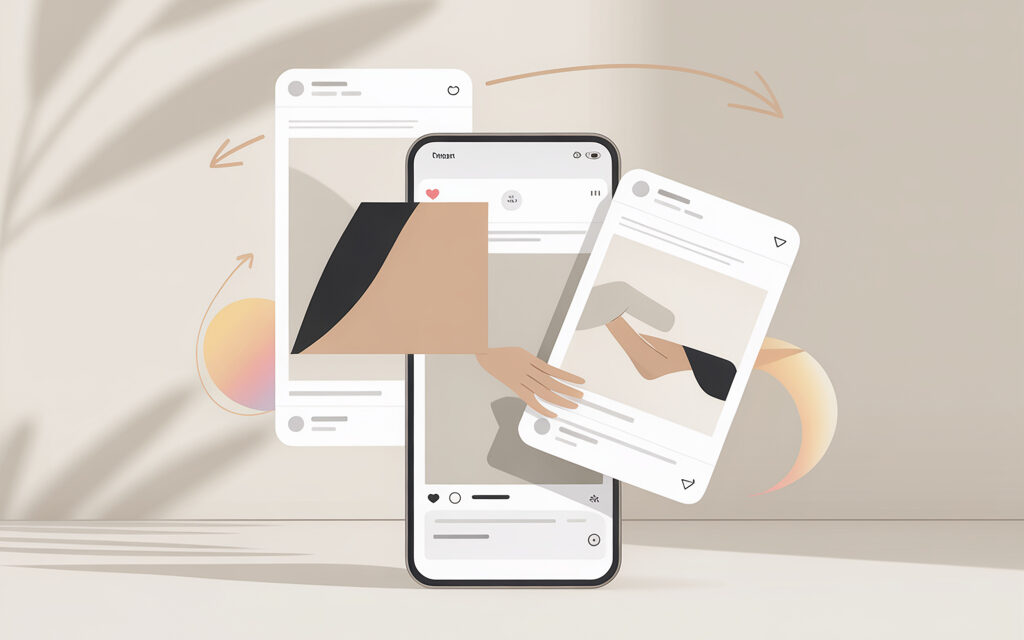
There is no direct “Repost to Feed” button. In practice, people usually do one of two things: either invite the author as a collaborator to get one shared post in two feeds, or manually re-upload the file with permission and credit. Reposting to Stories is fine for reach, but it won’t appear in your grid.
Why Doesn’t Instagram Have a “Repost to Profile” Button?
Instagram protects the visual grid and original source, which is why it kept the repost button only for Stories. For the feed, it offers Collabs, Remix, and authorship tools. How to add someone else’s post to your feed without risk is explained below in the sections. If you’re missing buttons or access points to a post, check for system restrictions and login errors – this is a common reason behind issues like why can’t I add a new post to Instagram. Detailed posting and sharing rules are described in the Instagram Help Center (help.instagram.com).
| How to Share Without the Button | Where to Find It | Result |
|---|---|---|
| Share to Stories | The “paper airplane” icon under the post | Temporary display in Stories, won’t appear in the grid |
| Invite Collaborator | Tag People – Invite Collaborator | One shared post in two feeds after confirmation |
| Remix | Post menu – Remix | A new post/Reel with the original and your addition |
The Official Method: How to Add Someone Else’s Post to Your Feed via “Collaboration”
This is the only legitimate way for the exact same post to appear in two feeds simultaneously. It’s suitable when you’re in contact with the author and can coordinate the publication.
- Start creating a new post.
- At the caption stage, tap “Tag People.”
- Select “Invite Collaborator.”
- Find the desired account and publish the post.
- The post will appear in your feed once the author accepts the invitation.
In practice, it’s most common to agree via DM, send a preview, and then publish with the invitation. If you’re worried about edits after posting, check out the nuances in the topic can you edit an Instagram post after publishing. Collabs descriptions and tags are in the Instagram Help Center (help.instagram.com).
| Collabs – What Changes | How It Looks | Who Benefits |
|---|---|---|
| Reach | The post is visible to both profiles’ audiences | Brands and creators with overlapping target audiences |
| Analytics | Author and collaborator tags are visible on the post | Both sides see increased saves |
| Authorship | Official collaborator credit | Legally and visually transparent |
| When to Choose Collabs | Scenario | Why It’s Convenient |
|---|---|---|
| Campaign Launch | Influencer + Brand | One post – two feeds, no duplicates |
| Case Studies & Testimonials | Client + Contractor | Shared case study without re-uploads |
| Collaborative Content | Podcast, Interview | Joint publication instead of screenshots |
Personal insight: In 2026, collaboration is the best way to share audiences, as the interests of both profiles’ followers “mix,” and the post consistently gets more saves and reach than a solo publication.
How to Add Someone Else’s Post to Your Feed Manually (The Reupload Method)
If collaboration isn’t an option, people use reuploading: download the file and upload it to your account with credit. How to add someone else’s post to your feed safely – get permission and don’t crop out watermarks. Remember the risk of a DMCA takedown if the author objects. Basic copyright rules can be found on Wikipedia under DMCA (wikipedia.org/wiki/DMCA).
| Tool | Pros | Cons |
|---|---|---|
| Telegram Bots | Fast, no login required | Sometimes reduce quality, unstable |
| Web Services | Batch download, format choice | Lots of ads, phishing risk |
| Screen Capture | Always works | Loss of color and sharpness |
| Metadata for Reupload | What to Do | Why |
|---|---|---|
| EXIF for Photos | Export through an editor with a new filename | Remove duplicate detection and preserve color |
| Video | Re-encode to H.264/H.265, bitrate 8-12 Mbps | Avoid recognition as a copy |
| Color | sRGB profile, not a screenshot | Don’t lose visibility in recommendations |
Repost Etiquette and Copyright Rules in 2026
- Get permission via DM.
- Tag the author on the photo itself.
- Mention the author in the first line of the caption.
- Use the hashtag #repost.
Using someone else’s image without permission can lead to a DMCA takedown. More about DMCA – Wikipedia: wikipedia.org/wiki/DMCA. Instagram’s copyright policies are in the Instagram Help Center.
Using Third-Party Apps for Reposting in 2026
Most apps like “Repost for Instagram” work as download managers and just help save media. Never enter your main account’s login and password into such apps. If they ask for authorization outside of Meta’s domains – close them immediately. Read about account security in the Instagram Help Center – “Security and Login” section.
| Risk | Sign | What to Do |
|---|---|---|
| Phishing | Password request on an unknown domain | Don’t enter data, change password |
| Blocked APIs | App fails to publish | Download the file and upload manually |
| Loss of Quality | Services compress photos | Export yourself in sRGB, 1080-1350 px |
How to Add Someone Else’s Post to Your Instagram Feed from a Computer
How to add someone else’s post to your feed from a PC – use the Instagram web version, mobile device mode in your browser, or Meta business tools. This is convenient when files are on your computer and you have captions and tags ready. In this same context, many find the topic can you publish posts to Instagram from a computer useful – yes, web publishing is officially available via instagram.com.
- Open instagram.com and log into your account.
- Click “Create,” select a photo or video.
- Add a description, tag the author, add hashtags.
- Publish the post.
| PC Method | How | When It’s Appropriate |
|---|---|---|
| Instagram Web Version | instagram.com – “Create” button | One-off publishing without scheduling |
| Chrome DevTools | Ctrl+Shift+M – mobile emulation | If the “Create” button isn’t visible |
| Meta Business Suite | Posting and scheduling | Editorial calendar and queues |
Common Mistakes When Trying to Move Someone Else’s Content to Your Profile
The main mistakes are failing to credit the original, using low-quality screenshots, and violating the author’s rights. Plus a frequent issue: re-uploading the same file without changing metadata, which the system sees as a duplicate. If your reach suddenly dropped, check for restrictions and notifications – this helps understand how to tell if my Instagram access is restricted.
- Reposting without asking – risk of a DMCA complaint.
- Cropping out the author’s watermarks.
- Using the author’s caption verbatim without changes.
| Mistake | What Happens | How to Fix |
|---|---|---|
| Screenshot instead of original file | Loss of color and sharpness | Download the original, export in sRGB |
| No author credit | Complaints from the rights holder | Tag on the photo + mention in the first line |
| Duplicate media | Reduced distribution | Re-export, change filename and metadata |
Checklist: Is Your Repost Ready to Publish?
- Did you get permission from the author?
- Does the image quality match the original?
- Is the author’s account tagged on the photo and in the text?
- Have the file’s metadata been cleared or altered?
Check yourself:
- The caption text isn’t copy-pasted from the original; it adds your own value.
- The hashtags reflect the topic, not just a bunch of popular tags.
- Color profile is sRGB, size is 1080-1350 px for photos, 1080×1920 for vertical video.
- Video is re-encoded, bitrate not below 8 Mbps, audio in AAC 320 kbps.
- You mention where and from whom the original was taken.
- On the grid preview, the frame doesn’t crop out the key subject.
- There are no timing conflicts with other posts in your scheduler.
Frequently Asked Questions (FAQ)
Can I repost a Reel to my feed as a regular post?
Yes, for your own Reels, you can enable “Also share to feed.” For others’ Reels, you can remix them via Remix. More about Remix – Instagram Help Center.
Why isn’t the “Invite Collaborator” button showing up?
A common reason is the other account being private or having tagging disabled in their settings. Also, check age restrictions and if your app is updated.
Can the author see that I saved their post for reposting?
No, there are no notifications for saving to bookmarks. Downloads via third-party services are also not visible.
How to repost from Stories to the main feed?
There’s no single button for this. Save the Story as a file and publish it as a new post.
Summary: Which Method to Choose in 2026?
When results and transparency matter – go with Collabs. It gives one shared post in two feeds and removes legal questions. When you just need to quickly fill your content calendar – manual reupload with permission and proper credit will work.
If you work systematically, alternate between collaborative posts, remixes, and manual publications with clear source credit. Basic rules and functions are in the Instagram Help Center and official Meta blogs. For the future, save these topics: how to tell if my Instagram access is restricted for diagnosing reach drops and can you publish posts to Instagram from a computer for routine PC tasks.
What’s your current task – quickly publish something today or build a steady audience exchange via Collabs for the month ahead?