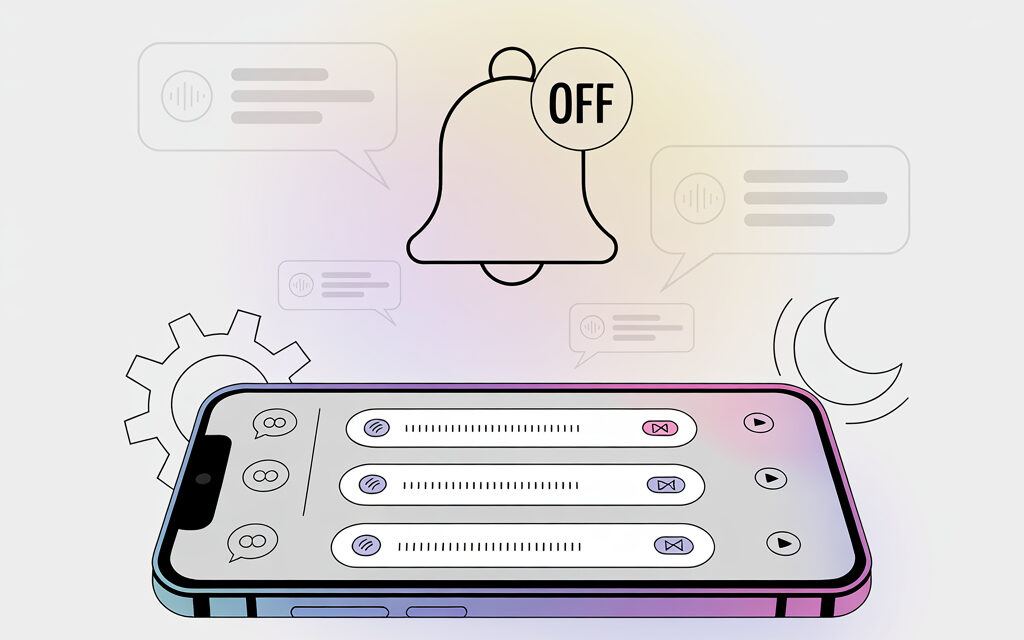
Sometimes voice messages arrive in Direct, but your phone stays silent. This is annoying, especially when you’re waiting for an important reply and catch yourself checking Instagram manually. In this note, we’ll calmly figure out why this happens and how to check everything yourself.
I’ve gathered simple steps without complex words. Slightly below there will be a 2-minute checklist, and also a table with symptoms. Plus a couple of short stories from real life about how this was resolved for me and friends.
Short Answer
Most often, notifications for voice messages don’t come because of two things – either notifications for messages are turned off in Instagram, or push notifications for the app are disabled on your phone. Also, Do Not Disturb mode, battery saver, a muted chat, and rare app bugs can interfere. Check the settings in Instagram and in your system, enable background internet, and if nothing helps – update or reinstall the app.
Why There Are No Notifications for Instagram Voice Messages Specifically for Me
What Most Often Interferes with Notifications
Simple causes are usually hidden in the first lines: Direct notifications are turned off in Instagram itself, the phone blocks pushes, or Do Not Disturb mode is on. Sometimes a chat is accidentally muted, background internet is restricted, and battery saver doesn’t let the app wake up. Outdated Instagram version, incorrect time on the phone, and rare service-side failures also have an effect.
- In Instagram, notifications for messages are off or Notification Pause is on
- In the system, push notifications, sound are off, or simply silent mode is on
- Do Not Disturb or Focus modes block notifications by schedule
- Battery saver, background data restriction, weak internet
- Chat is muted, user is restricted, conversation is archived
- Old app version, cache, conflict after an update
A Small Story
A friend’s notifications disappeared suddenly. It turned out he had turned on Notification Pause for a day and forgotten. On the iPhone, there was also the silent switch – two simple toggles brought back sound and banners. I mention this because checking the most obvious places most often helps.
How to Check Notifications for Direct in Instagram Itself
A 1-Minute Step in Instagram Settings
Open your profile – menu – Settings and privacy – Notifications. Two things here are important: Turn on notifications and Messages. Make sure notifications aren’t paused, and that in Messages, banners and sound are allowed. There’s no separate checkbox specifically for voice messages – they come as regular messages.
- Check if Notification Pause is not enabled
- Go to Messages and turn on notifications for requests and chats
- If there’s a Frequency option – set it to Standard
Is a Specific Chat Muted
Go to the desired conversation – tap the name at the top – Notifications. If Mute is on, turn it off. Sometimes we mute a chat for an hour and forget, then wonder about the silence.
A Reader’s Story
A person wrote that they had no notifications only from one contact. We found the reason – they had accidentally turned on Restrict. After removing the restriction, everything started coming normally.
How to Enable System Notifications on Your Phone
iPhone – Check Push Notifications and Focus
Settings – Notifications – Instagram – turn on Allow Notifications. Set Banners on the Lock Screen and in Notification Center, turn on Sound. Go to Focus and make sure Instagram isn’t blocked by schedule or profiles. On iPhone, there’s also the physical ring/silent switch – if it’s in the silent position, there will be no sound, but banners will remain.
- Settings – Notifications – Instagram – turn on all types
- Check Focus or Do Not Disturb schedules
- Turn off Silent Mode with the side switch
Android – Permissions and Notification Channels
Settings – Apps – Instagram – Notifications – Allow. Inside, check the notification channels for Direct – banners, sound, pop-ups. If there’s a Messages category, enable vibration and sound. Go to Battery and check that Instagram isn’t restricted in the background.
- Settings – Apps – Instagram – Notifications – turn on
- Check the Messages and Direct categories, turn on sound
- Remove battery optimization for Instagram
Do Not Disturb and Schedules
On both systems, Do Not Disturb mode can quietly turn on by schedule. If you’re expecting a voice message and your phone has an evening Focus, notifications might not sound. I’ve noticed that after updates, the system sometimes restores old schedules on its own – worth checking.
Internet, Battery Saver, and Background – How This Interferes with Notifications
Background Internet and Data Saver
If Data Saver mode is enabled on your mobile network, Instagram might not receive pushes. On iPhone, go to Cellular Data – Instagram – check Allow Content Refresh. On Android, look at Background Data and Data Saver. In public Wi-Fi networks, notifications sometimes arrive with a delay – this is normal.
- Allow background refresh for Instagram
- Turn off Data Saver for the app
- Check that date and time are set to automatic
Battery Saver and Sleep Mode
Power-saving modes limit app activity in the background. Usually, adding Instagram to exceptions helps. I personally use battery saver mode, but give full permissions to messengers – that way notifications don’t get lost.
Updates, Cache, and When Reinstallation Helps
Update the App
An old version of Instagram sometimes conflicts with the system. Go to the app store and update. It’s a simple step, but it often fixes strange minor bugs.
Clearing Cache and Reinstalling
On Android, you can clear Instagram’s cache through the app settings. If that doesn’t help – logging out and a fresh install sometimes works wonders. Before deleting, make sure you remember your password.
Helpful Links
Official tips on notifications are available from Instagram: help section on push notifications. About Do Not Disturb modes and their impact is well described in Apple’s support: Focus on iPhone.
Sound, Vibration, and Silent Mode – When Banners Are There But No Sound
Check Volume and Sound Profile
Sometimes notifications arrive but don’t make a sound. Check the overall volume level and vibration. On Android, in the notification channel for Instagram, turn on sound, and on iPhone – mark Sounds and Alerts in the app settings.
Settings Within the App
In Instagram, in the Notifications – Messages section, you can choose a style. If sounds are turned off there, banners will be silent. In my opinion, it’s better to set the standard option and not complicate things.
If the Problem Is Only with One Account or One Chat
Switch Between Accounts
Sometimes there are no notifications only in a work profile, while in a personal one everything is fine. Try logging out and back in, then restart the app. This resets internal settings.
Check Restrictions and Archive
If a chat is moved to General or Archive, notifications might behave differently. Also, with Restrict or Message Requests, notifications don’t always sound. Open the interlocutor’s profile and check their status.
Quick Reference Table: What to Check First
| Symptom | Where to Look | What to Do |
|---|---|---|
| No notifications at all | Instagram and phone settings | Enable Direct notifications in Instagram and push notifications in the system |
| Banner is there, no sound | Notification channels and volume | Turn on sound for the Messages category, disable silent mode |
| Only one chat is silent | Chat card | Turn off Mute, remove Restrict |
| Notifications arrive with a delay | Battery saver and background data | Remove restrictions, allow background work |
| Everything disappeared after an update | App version and cache | Update again, clear cache, or reinstall |
Short Checklist: Why There Are No Notifications for Instagram Voice Messages
- Instagram – Notifications – are on and not paused
- Instagram – Messages – notifications for Direct are enabled
- Phone – Allow notifications for Instagram
- Do Not Disturb and Focus – are off or there’s an exception for Instagram
- Chat is not muted, user is not restricted
- Battery saver and data saver – don’t restrict the app
- Internet is stable, date and time are automatic
- App version is updated, cache is cleared
Mini-FAQ
Is There a Separate Setting Specifically for Voice Messages?
No, voice messages come as regular Direct messages. Turn on notifications for messages as a whole.
Why Are There Notifications on One Phone but Not on Another?
Most likely, push notifications are disabled or battery saver is on in the second phone’s system. Check permissions and background data for Instagram.
Notifications Only Come Over Wi-Fi, Not Over Mobile Network
Check Data Saver and permissions for mobile data in Instagram. Also, removing the background data limit helps.
Banners Are There, No Sound – What to Do
Turn on sound in the Messages notification channel and check the overall volume level. On iPhone, turn off silent mode with the switch.
Will Reinstalling Help?
Sometimes yes. If you’ve gone through the checklist and nothing, try logging out of your account and reinstalling the app.
Key Takeaways from the Article
The problem is almost always solved at the level of two screens – notifications in Instagram and notifications in the system. Next in importance are Do Not Disturb modes, battery saver, background data, and updates. If you don’t rush and go through things calmly, voice message notifications come back without magic.
Finally
If you want, share how it went for you and what exactly worked. I’ve noticed that for most people, a combination of two steps helps: enabling push notifications on the phone and turning off Mute in a specific chat.
Glossary
- Push notifications – messages from an app that appear outside the app itself
- Direct – private messages on Instagram
- Focus – a mode on iPhone that limits notifications based on rules
- Do Not Disturb – a mode that temporarily blocks notifications and sounds
- Cache – temporary app data that can be cleared
- Background data – internet that an app uses when you’re not actively using it
- Battery saver – a mode that limits app activity to save battery
- Notification channel – a separate group of notification settings on Android
- Mute – a chat mode where notifications come without sound
- Restrict – a setting that limits interaction with a specific user