This is a calm guide on how to switch between personal, creator, and business accounts without any unnecessary fuss. I’ll explain in simple words what changes and how to check yourself so you don’t end up surprised by missing music or inaccessible insights later.
There will be a few personal observations, a couple of short stories, and a checklist to make sure everything goes smoothly. I’ll also include links to the official help documentation.
The Short Answer
To keep it short and to the point: to change your Instagram account type, go to your profile – open the menu – Settings and privacy – Account type and tools – choose the desired option. In the same place, you can switch back to another account type in Instagram: return to a personal account, or switch between Creator and Business. After switching, check that you haven’t accidentally become public and that the music in Reels hasn’t disappeared.
Why Change the Type and What to Choose
The question is real: how to switch to another account type in Instagram and not regret it the next day. I’ve noticed people switch because of insights or contact buttons, and then are surprised by music restrictions. In my opinion, it’s better to understand how the options differ and choose more calmly.
When a Personal Account is Suitable
If the profile is for friends and you want privacy, a personal account is the most convenient. You can restrict access, approve followers, and not worry about messages from strangers. There won’t be insights or promotions, but there are also fewer distracting tools.
Who is a Creator Account For
If you create content but don’t run a full-fledged business, Creator mode gives you insights and music without unnecessary details like an address or schedule. That’s how it was for me on my personal page: I switched to Creator – and it became easier to understand what content resonates with people.
When to Choose Business
If you need contact buttons, promotions, and a neat storefront – choose Business. It’s more convenient for setting up contacts and team access. The downside is that music in Reels might come from a commercial library, which is normal.
How to Change Your Account Type in Instagram: Step-by-Step
If you’re looking for how to change your Instagram account type without unnecessary steps, follow these simple steps. It usually helps not to rush and to check each screen. The path below is the same on iOS and Android, though menu item names might slightly differ.
Step 1 – Open Settings
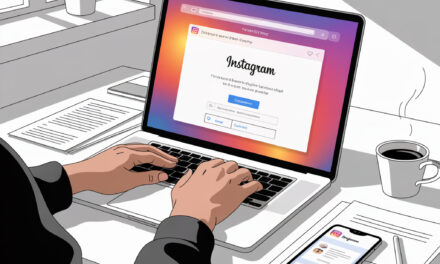
Go to your profile – tap the three lines at the top – select Settings and privacy. Scroll down to the Account type and tools section.
Step 2 – Choose Professional Mode
Tap Switch to professional account. Instagram will ask you to choose a category and show brief tips on features.
Step 3 – Decide: Creator or Business
Choose Creator if you make content for an audience. Choose Business if contacts, promotions, and client interaction are important. Confirm your choice, and provide contact details if necessary.
If you need a specific scenario – How to change your Instagram account type to “Creator”? In the Account type and tools section, select Switch to professional account, then mark the Creator option and confirm. After activation, open Insights and make sure the music library in Reels is available in its usual capacity.
A Short Story
An acquaintance of mine had a personal account with recipes. She switched to Creator mode – and finally saw which Reels were saved more often. After a couple of weeks, she needed more tools, so she switched to Business to add a contact button – it went smoothly and without surprises.
How to Switch to Another Account Type in Instagram if You Change Your Mind
Sometimes you want to go back to how it was – that’s normal. If you’re wondering how to change your Instagram account type back, the process is also simple and reversible.
Returning to Personal
The path is the same: Settings and privacy – Account type and tools – Switch to personal account. Remember: insights and promotions will be hidden, and you can make your profile private again.
After changing your profile type, it’s important to understand how to switch back to a personal account on instagram to check privacy, turn off active promotions, and ensure the page format matches your current tasks.
Switching Between Creator and Business
If you’re already on a professional account, you can switch between Creator and Business back and forth. Sometimes after switching, buttons or music disappear – just check your category and contact settings.
What Temporarily Disappears
When switching to personal, promotions pause and access to past insights becomes limited. When switching to Business, some music may become unavailable – this is normal and related to licensing.
Essentially, the query How to disable a professional account on Instagram 2026 means returning to the personal type. This is done through the same Account type and tools section by confirming the switch. It’s important to understand beforehand that insights and promotions will be unavailable until you switch back to a professional mode.
What to Do If You Can’t Switch
Sometimes, switching to another account type in Instagram is hindered by small things: an old app version, contact conflicts, or enabled privacy. I usually go through a simple checklist.
Update the App and Log Back In
Update Instagram to the latest version, restart your phone, log out and log back into your account. This often fixes half the screen of oddities.
Check Privacy and Age
Professional accounts cannot be private. If you’re private – open your profile first. Age restrictions and strange categories can also interfere – check your profile.
Connection with Meta Tools
For Business accounts, you might sometimes be asked to connect a Page in the Meta Accounts Center. If you have a brand page – connect it. If not – skip it, it’s not always mandatory.
Sometimes the question arises – Why won’t my Instagram account switch back to personal mode? The reasons are usually technical: an outdated app version, active ad campaigns, or temporary profile restrictions. Check for updates, finish promoting posts, and try switching again after restarting the app.
How to Know Everything is Set Up Correctly
When you’re figuring out how to change your Instagram account type and it seems to have worked, it’s useful to do a quick self-check. It takes a minute and saves nerves.
Look at Your Profile
If Creator tools or contact buttons appeared under the Edit profile button, you’re in the right mode. The category name is visible in the header.
Open Insights
Insights should appear in the menu. If not, you’re still on a personal account or the app needs an update.
Check Music in Reels
If some tracks are unavailable in Business, that’s expected. The library is usually more accessible in Creator. Try uploading a short clip and choosing a sound.
Account Type Comparison in 1 Minute
To consciously understand how to switch to another account type in Instagram, it’s convenient to look at the functional differences. Below is a short table without complex words.
| What Changes | Personal | Creator | Business |
|---|---|---|---|
| Privacy | Can be set to private | Public only | Public only |
| Insights | No | Yes | Yes |
| Contact buttons | No | Usually no | Yes |
| Post promotion | No | Yes | Yes |
| Music in Reels | Wide library | Wide library | Commercial library |
| Team tools | Minimal | Basic | Broader |
| Shop and product tags | No | Limited | If available in region |
Checklist Before Switching
Before switching to another account type in Instagram, it’s convenient to glance through a mini-list. I do this myself so I don’t forget simple things.
- I understand the goal – insights, contact buttons, promotions, or privacy.
- If I’m going professional – I’m okay with the profile being public.
- The category is chosen clearly for people, not just for me.
- Contacts in the bio are appropriate – email, phone, address if desired.
- Two-factor authentication is on – it’s more peaceful.
- If I need a team – I’m ready to connect via Meta tools.
- I’m prepared that music in Business might be limited.
- After switching, I’ll check insights and access to promotions.
A Couple of Short Stories from Life
A reader once wrote that he accidentally switched to Business because of the Contact button, and then couldn’t find his favorite track in Reels. He switched back to Creator – the track returned, and the button wasn’t even needed anymore. In my opinion, this is an example of when it’s easier to check your goal and not rush.
Once, my insights disappeared after an update. I simply logged out and back in, and everything appeared immediately. Sometimes the solution really is on the surface.
Mini-FAQ
Just in case, I’ve gathered frequent questions. If you’re thinking about how to change your Instagram account type and what’s important, glance through them.
Can I make my account private again later?
Yes, but only in the personal type. Professional accounts are public.
Do I lose followers when switching?
No, followers remain. Only the tools and visibility of certain functions change.
Will old posts disappear?
No, posts remain. However, promoted posts may pause when returning to personal.
Do I need a Meta Page for Business?
Not always. But if you want full tools and team access, it’s convenient.
Why did the music disappear?
In Business, music is more often from a commercial library. You can switch to Creator if this is critical.
Sources and Useful Links
Official Instagram Help: Professional Accounts
Instagram Help: Switching Between Account Types
Key Takeaways from the Article
- Types are different because goals are different – choose for yourself, not based on a template.
- Switching takes a minute, and checking the result takes another.
- Professional accounts are always public, personal is about privacy.
- If you need music from a wide library, Creator is usually more suitable.
- Nothing terrible: you can always go back.
If You’d Like
If you’d like – share how it went for you and what you ultimately decided on.
I read and sometimes update the article with your observations.