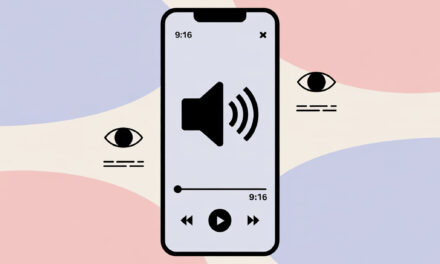
This article is for anyone who edits their own clips and wants to quickly get them into the 9:16 format without any surprises after posting. We’ll break down how to change the video size in TikTok, how to reduce the video file size for TikTok, and how to convert a 16:9 video to 9:16 without losing faces and text. By the end, you’ll have ready-to-use presets, step-by-step guides for CapCut and Premiere, plus a safe zones map. We’ll finish with a checklist and comparison tables.
The Gist
The optimal format for TikTok is 1080×1920, 9:16, H.264 codec, up to 60 FPS. For quick adaptation, use Auto Reframe in CapCut or Adobe Premiere. Inside the TikTok app when uploading, pinch to zoom the frame and avoid black bars. If you need to change the video size for TikTok urgently – go with Auto Reframe. If you need precise framing – use manual cropping while checking the safe zones.
The Fastest Way to Adapt Your Video for TikTok Standards in 2026
When you need to quickly change a video’s size for TikTok to 9:16, here’s the practical go-to: in CapCut or Premiere, launch Auto Reframe and select the vertical preset. The AI will keep the subject centered, which is standard practice in 2026. If the clip is already uploaded, in the TikTok editor tap Edit – Scale and pinch to zoom to get rid of black bars.
- CapCut: Open project – Canvas – 9:16 – Auto reframe.
- Premiere Pro: Sequence – Auto Reframe Sequence – Vertical 9:16.
- TikTok: Upload – Edit – Scale – stretch to the edges, no letterbox.
| Quick Tool Choice | When to Use | Plus |
|---|---|---|
| CapCut Auto Reframe | Need it fast and free | AI tracking, syncs with TikTok |
| Premiere Auto Reframe | Already editing in Premiere | Flexible keyframe control |
| TikTok In-App Editor | Video is already on your phone and time is tight | Often preserves HDR and color profile without surprises |
What’s the Ideal Video Size for TikTok?
In short, the base video size for TikTok is 1080×1920, 9:16. TikTok will compress 4K anyway, with almost no benefit. It’s better to invest effort in clean cropping and clear audio than to chase 4K.
| TikTok Technical Specs 2026 | Recommendation | Source |
|---|---|---|
| Resolution | 1080×1920 | TikTok Business Help |
| Aspect Ratio | 9:16 strictly | TikTok Business Help |
| Frame Rate | 30 FPS standard, up to 60 FPS supported | TikTok Business Help |
| Format & Codec | .mp4 or .mov, H.264 | Wikipedia |
| File Size | Up to ~72 MB Android, up to ~287.6 MB iOS | TikTok Business Help |
| HDR | 10-bit HDR encouraged | TikTok Business Help |
How to Convert a 16:9 Video to 9:16 Without Losing Quality
If your task is to convert a 16:9 video to 9:16 without “stretched faces,” use cropping to fit the frame, not scaling the width. Enable AI auto-cropping to keep the subject from drifting out of center. Move text and subtitles to the center and above the midline right away.
- CapCut:
- Import – New project – Canvas – 9:16.
- Auto Reframe tool – select subject – start analysis.
- Use keyframes to fix moments where the AI missed.
- Place titles in the central zone, check on different zoom levels.
- Adobe Premiere Pro:
- File – New Sequence from your 16:9 source.
- Sequence – Auto Reframe Sequence – Vertical 9:16 – Default Motion Tracking.
- Check each clip, add Position keyframes if needed.
- Export – Match Source, H.264, 1080×1920, 20 Mbps max 2-pass for high-quality source.
When you just need it fast – cropping with Auto Reframe. When the result is critical – fine-tune the frame manually with keyframes and check your titles. If you need to cut out a specific part by time, that’s more about how to cut out a specific part of a video, not resizing.
| 16:9 to 9:16 Conversion Method | Frame Quality | When to Choose |
|---|---|---|
| Crop to Fit + Auto Reframe | High, faces don’t warp | Primary method in 2026 |
| Manual Crop + Keyframes | Maximum control | Complex scenes, lots of motion |
| Stretching the Width | Poor, distortions | Do not use |
The detailed principles of Auto Reframe align with Adobe Premiere Pro guides and object tracking descriptions.
How to Change Video Size in TikTok Directly Inside the App
This section is about how to change video size in TikTok without a desktop. Upload your clip, tap Edit – Scale and pinch to zoom to fill the 9:16 frame. When rotating a horizontal clip, use Rotate and Scale together, then check the safe zones.
- Upload – Edit – Scale – drag the frame to the screen edges.
- Trim tool – quickly cut the beginning and end.
- Text – TikTok’s native fonts get less blurry when uploading 10-bit HDR.
Personal insight: TikTok’s internal editor more often preserves HDR and color profile without re-compression than some online converters. A frequent question – can you edit a video on TikTok after posting? You can’t significantly change the frame; it’s better to delete and re-upload.
| What You Can Do In-App | Where to Find It | Why |
|---|---|---|
| Scale & Position | Edit – Scale | Fill 9:16 without bars |
| Rotate | Edit – Rotate | From horizontal to vertical |
| Trim by Time | Edit – Trim | Fit the timing |
How to Reduce Video Size for TikTok (File Weight)
If you need a quick answer on how to reduce video size for TikTok without obvious loss of clarity – lower the bitrate to 8-10 Mbps for 1080p and use H.264. Switching from 4K to 1080p reduces the weight the most and stabilizes the upload. Keep the duration shorter if your connection is unstable.
| 1080p Settings & Estimated Size for 60 Seconds | Bitrate | Estimated Weight |
|---|---|---|
| Social Media Quality | 6 Mbps | ~45 MB |
| Balanced | 8 Mbps | ~60 MB |
| Detail Headroom | 10 Mbps | ~75 MB |
| Upload Limits | Android | iOS |
|---|---|---|
| Max File Size | ~72 MB | ~287.6 MB |
| TikTok Recommendations | TikTok Business Help | |
If your source is 10-bit HDR, export to H.264 10-bit if possible, or leave it as SDR to avoid washed-out colors after upload.
Best Online Services for Quick Format Changes in the US
When you need to do it fast without installing software, people most often use Canva and Adobe Express. They solve the task of how to change video size for TikTok in a couple of clicks, but for HDR and fine-tuned cropping, I go desktop. In my experience, this is what TikTokers use to edit their videos for everyday tasks.
| Online Resizers | Free Version Limits | HDR/10-bit |
|---|---|---|
| Canva | Watermark on some templates | Often converts to SDR |
| Adobe Express | Export limits on duration | Often converts to SDR |
| CapCut Web | Requires an account | HDR not always stable |
“Safe Zones” Map: Where Not to Place Text
To prevent UI buttons from covering your text, account for UI zones. Don’t place key elements in the bottom 25% or the right side of the screen. This is the key to why some subtitles are readable while others disappear under likes and the profile picture, leading to the question why TikTok crops videos on the feed for some viewers.
| 9:16 Safe Zones | Size | What Not to Put There |
|---|---|---|
| Bottom of Screen | 25% of height | Subtitles, CTAs, hashtags |
| Right Side | 15-20% of width | Likes, comments, share button will cover |
| Central Window | Remaining 60-65% | Place faces and key text here |
Need a visual safe zones scheme? When setting up your project in CapCut, turn on Guides and simulate the TikTok UI with layers; this saves your titles.
Common Mistakes When Changing Format
- Stretching 16:9 to 9:16 width-wise – distorted faces.
- Subtitles at the bottom and right – UI covers them.
- Black bars – reach takes a hit per 2026 trends.
- Exporting in 4K followed by heavy compression on TikTok’s side.
- Losing HDR and color profile after an online converter.
| Mistake | How to Spot It | What to Do |
|---|---|---|
| Proportion Distortion | Circles became ovals | Use Crop to Fit or Auto Reframe |
| Subtitles in “Blind Zones” | Text under the likes button | Move to center and above midline |
| Letterbox | Black bars on the sides | Zoom in to edges, recompose |
| HDR Break | Washed-out colors after upload | Export 10-bit or careful SDR |
Be careful with black bars – per 2026 trends, such videos are less favored, and a reach drop is real.
Checklist: Is Your Clip Ready to Post?
- Format 9:16, 1080×1920 – no black bars.
- Codec H.264, container .mp4 or .mov – stable upload.
- FPS 30 or 60 – no choppy motion.
- Bitrate 8-10 Mbps for 1080p – reasonable weight and quality.
- Text and faces centered – outside right and bottom zones.
- Subtitles readable – checked on TikTok preview.
- HDR checked – no color washout after a test upload to drafts.
- Title and hashtags relevant to US location – geo-tagging will work correctly.
FAQ: Answers to Common Questions for US Creators
Why does my 9:16 video still look blurry?
Most likely, low bitrate or aggressive re-compression during upload. Export at 1080×1920, H.264, 8-10 Mbps and upload with a good LTE or Wi-Fi signal, not during peak hours.
Can you post horizontal videos on TikTok in 2026?
You can, but you can’t avoid black bars or you’ll have to crop heavily. Per 2026 trends, such clips get less engagement, so it’s better to recompose for vertical.
Does file size affect getting on the For You Page (FYP)?
No direct correlation, but overly heavy videos take longer to upload and more often lose quality after server compression. Keep a reasonable bitrate and check the preview.
How to preserve high quality when uploading via US mobile internet?
Upload from drafts when the network is stable, or use Wi-Fi. If only mobile, shorten the duration and lower the bitrate to 8 Mbps to avoid harsh re-compression.
What software is best for batch resizing?
CapCut on desktop and Adobe Premiere Pro. For a quick batch of short clips, CapCut is handy. For complex projects with Auto Reframe and control keyframes – Premiere.
Summary: How to Create Content the Algorithm Likes
Stick to the basics: 1080×1920, 9:16, no black bars, and account for safe zones. In 2026, AI auto-cropping rules, along with careful handling of 10-bit HDR, especially when posting from the app.
What’s your scenario right now – quickly adapt a batch of horizontal clips or squeeze maximum quality from one key video for a campaign? Choose the tool for the job and run your clip through the checklist before posting.