What Muting Sound in TikTok Live Means
Difference Between Muting Microphone and System Audio
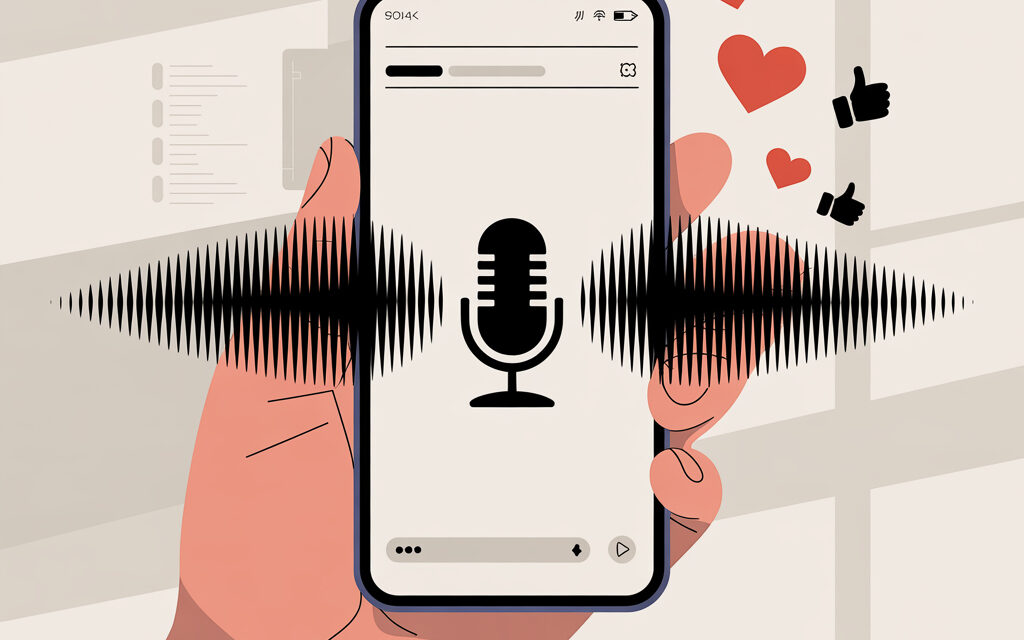
In a live stream, there are two independent sound sources: the microphone and the device’s system audio. Muting the microphone removes your voice but leaves sounds from the game, app, or system if they are being captured. Muting system audio removes sounds from the app, game, notifications, and music from the device, while voice from the microphone remains.
In practice, it’s most often done like this: for gaming, they turn off the microphone and leave system sound on. For talk streams, they mute system sounds so notifications don’t interfere.
In practice, this is precisely why many have the question, why can’t I use a sound on TikTok, even if the stream starts without errors.
When to Use Mute in a Stream Studio
If you’re streaming from a PC or laptop, it’s most convenient to manage sound in TikTok Live Studio or via OBS. You can see all sources and quickly lower the needed slider or click the mute icon. This option is suitable when you need to turn sound on/off during the stream without extra moves.
Current TikTok 2026 Updates for Streamers in Ukraine
The Live interface changes periodically, but the logic is the same: look for the sound control panel with separate tracks for Mic and System/Device. In the mobile app, audio is hidden behind a microphone icon or stream settings. In Live Studio, there is a mixer with volume sliders and mute buttons for each source. If you see new toggles like Mute all or Lock, use them to avoid accidentally turning the microphone on.
Step-by-Step Guide to Disabling Microphone in the Mobile App
Method via Stream Pause on Android and iOS
The safest way to turn off the microphone without extra noise on stream is to pause the stream, change settings, then continue.
Steps for Quick Mute Without Losing Viewers
- Start the stream as usual.
- Tap Pause or the pause icon on the stream control panel.
- Open the sound panel: microphone icon or Settings → Sound/Audio.
- Slide the Microphone slider all the way left to zero or tap the mute icon.
- Check that system sound is on if you need to keep the game/app sound.
- Tap Continue Stream.
Testing: Hear the Game, Not Yourself
- Connect a second device and open your stream as a viewer.
- Say a few words – the viewer should not hear your voice.
- Play a game or app sound – the viewer should hear it if you intended to keep system audio.
- If the game is not audible but should be – on Android, enable device audio capture when screen sharing. On iOS, check which mode you are streaming in: camera mode doesn’t transmit app sound, screen sharing mode can, if the system sound option is enabled.
Volume Settings in Live for Ukrainian Networks
When the network is unstable, clicks on buttons during a stream sometimes apply with a delay. Because of this, the microphone might stay on a bit longer. Better to prepare a preset with reduced volume in advance, so switching is instant.
Optimization for Kyivstar and Vodafone
- If on mobile data – lock the network to 4G/5G and disable automatic switching between SIMs to avoid micro-drops.
- Use 5 GHz Wi-Fi if possible. On mobile, use only Airplane mode + Wi-Fi – this reduces background switching.
- Disable background downloads and auto-updates. Any download can hang stream controls.
- Set notifications to Silent mode so they don’t break through to the stream as system sound.
| Situation | What to Do | Where to Tap |
|---|---|---|
| Stopped talking, game should be heard | Turn off mic, leave system sound | Pause → Microphone mute → Continue |
| Need complete silence | Turn off mic and system sound | Pause → Microphone mute and System mute → Continue |
| Notifications broke into the stream | Disable system sound and repeat | Pause → System mute → Continue |
Disabling Sound via TikTok Live Studio on PC
Installing and Launching Studio 2026 Version
Install the latest version of Live Studio from the official page. After logging into your account, create a scene and add sources: camera, game/window, system sound, microphone. Check the Audio tab – you should see Mic and System tracks.
Sliding the Microphone Slider Left to Zero
- In the mixer, find the Mic or Mic/Aux track.
- Click the mute icon or drag the slider left to 0.
- To avoid accidentally turning the mic on – click the lock icon on the track, if available.
- Watch the level meter – it should stay at zero even if you speak.
Integration with OBS for Gamers
- If you have access to a TikTok stream key – you can stream directly from OBS and manage sound there. Mic mute – the mute button on the Mic/Aux track.
- If working through Live Studio – pass video from OBS via virtual camera, and take sound as System Sound or via a virtual cable. In OBS, leave the microphone disabled.
- Set up hotkeys in OBS and/or Live Studio for quick mute/unmute. This is faster than looking for the button with the mouse.
Table: Mobile vs PC Method Comparison
| Method | Mute Time | Suitable For | Risks |
|---|---|---|---|
| Mobile | 5 seconds | Quick streams, IRL | Interface delay reaction on weak network |
| Live Studio | 1-3 seconds | Gaming, scenes and presets | Need to set up sources in advance |
| OBS | 1-2 seconds (hotkey) | Advanced scenes and routing | Easy to forget about duplicate sources and get echo |
Disabling System Sound and Music in a Live Stream
Muting Background Music Without Losing Quality
If you’re streaming from a PC, lower and disable sound not globally, but precisely. In Windows, use Volume Mixer and lower specific apps. On macOS, separate volume and routing software is useful. This way you keep needed game sounds while removing the music player.
Tools like Wondershare UniConverter
When the task is not about streaming, but about pre-publishing video – cut the sound track in an editor and upload a quiet version. Simple tools like UniConverter, CapCut, DaVinci Resolve will work. In practice, this is faster than trying to “catch” a successful mute during recording.
In practice, when preparing videos via editors, the phrase Can background sound be removed from a video? most often comes up, because it’s at this stage that you decide whether to keep noise, clean it, or completely remove the audio track before uploading.
Silent Streams: 2026 Trend in Ukraine
Quiet streams are convenient when game or process sounds are important, and comments are in the chat. Name the stream clearly: “No Microphone – Only Game Sound,” so the viewer knows what to expect. Add quick reply templates for chat to not reach for the keyboard every time.
This format is directly related to the topic how to start TikTok without sound, so the viewer immediately understands that the stream is built on visuals and chat, not voice.
Common Mistakes When Muting Sound and How to Avoid Them
Why the Microphone Turns On by Itself: Bug Fixes 2025-2026
- Auto-switching devices. When reconnecting a headset, the system may activate a different microphone. Solution: lock the input device in stream settings and disable auto-switching in the OS.
- Scene switching. In some presets on another scene, the microphone is not muted. Solution: check mute on each scene and save the profile.
- Auto-gain and noise suppression. Algorithms sometimes raise silence to audible rustles. Solution: disable auto-gain, set a static level.
- Hotkeys conflict with the game. In the game, you press the same button – microphone turns on. Solution: reassign the hotkey to a rare combination.
Risks of Ban for Noise Complaints
Long background noises, shouting, music with rights – frequent causes of complaints. In practice, it’s easier to turn off all unnecessary sources in advance and test the stream with a volume margin. If in doubt about a track – better without it.
In such cases, viewers often see the message this sound is unavailable on TikTok, even though the stream itself was technically started correctly.
Table of Common Mistakes
| Mistake | Cause | Solution |
|---|---|---|
| Sound returns by itself | Scene or device change | Lock input device, duplicate mute on all scenes |
| Echo in stream | Double microphone capture in two programs | Leave microphone in only one place, disable the second track |
| Viewers complain about background music | Loud system sound from player | Lower the player in the application mixer, keep game sound |
| No pause option | Old app version or different stream type | Update the app, check stream type and available buttons |
| Game not heard | System audio capture not enabled | Enable device audio capture when screen sharing or add System in Studio |
If music with rights was used in the stream, the system may flag the audio as this sound isn’t licensed on TikTok, even without immediate stream blocking.
Tools and Alternatives for Muting in TikTok Live
Best Audio Editors 2026
- For quick silence: CapCut, UniConverter – turn off/lower track.
- For precise editing: Audacity, DaVinci Resolve (Fairlight), Adobe Audition – remove noise, normalize, export without voice.
- For PC routing: OBS, virtual cables, system mixer – control what goes to stream.
In this context, it’s logical to mention that some tools are used not only for silence but also to extract sound from a TikTok video for re-editing, analysis, or transferring audio to another format outside of a live stream.
Free Options for Ukraine
- OBS – mixer and hotkeys for mute.
- Audacity – remove voice from recording before publishing.
- CapCut – quick mute on phone in a couple of taps.
AI Assistants for Automatic Muting
If you need automatic mute on speech recognition – use plugins and scripts in OBS that mute the microphone when noise level is below a threshold, or vice versa on a button press. This is convenient for “silent” streams where voice appears occasionally.
| Screen/Place | Where to Find Sound Controls | Icons/Labels |
|---|---|---|
| Mobile Stream | Stream Control Panel → Settings/Gear → Sound | Microphone, Volume, System Sound |
| Screen Share on Android | Stream launch window → Device Audio Capture | Toggle “Device Sound” |
| Live Studio | Bottom Panel → Mixer | Mic, System, mute icon and sliders |
| OBS | Audio Mixer | Mic/Aux, Desktop Audio, mute, filters |
Optimizing Live for Top Ranking in Ukraine
Stats: +30% Watch Time with Mute
There’s no single number – it’s different for each channel. The point is simple: the less extra noise, the longer viewers stay. Rely on your own retention metrics and complaints: if watch time increased after turning off voice – you’ve hit the right format.
- Name the stream honestly: “No Microphone, Only Gameplay” – the viewer knows what to expect.
- Plan blocks: 20-30 minutes of quiet gameplay, then Q&A via chat.
- Set up sound presets and hotkeys – this saves seconds, and they decide retention.
LSI: tiktok live no microphone, stream studio sound
Useful phrases for stream titles and descriptions that people understand at first glance:
- “No Microphone – Only Game Sound”
- “Quiet Stream, Chat Open”
- “Gaming Without Commentary, Sound in Headphones”
- “Stream Studio – Game Sound, Microphone Off”
| Scenario | Best Method | What to Check |
|---|---|---|
| IRL without voice | Mobile mic mute | Whether system notification sound is off |
| PC Gaming | Live Studio/OBS with separate tracks | No audio duplication or echo |
| Publishing a recording | Mute in editor and re-upload | Stereo/mono and level -14 LUFS roughly |
In cases where after saving or re-uploading a recording, TikTok removed the sound, the reason is almost always related to the audio source or copyright restrictions, not microphone settings during the stream.
FAQ
How to permanently disable the microphone in TikTok Live?
There’s no global “permanently” checkbox in mobile. In Live Studio, you can save a scene with the microphone disabled and use it as a template. On mobile – check the slider each time before starting, it takes a second.
Does mute work on iPhone 16 in 2026?
The approach is the same for all iPhone models and the current app version. Look at the stream control panel and the microphone icon. The main thing is not to confuse camera mode and screen sharing: they have different sound sources.
What to do if the mute button doesn’t appear?
- Update the app and restart the device.
- Check the stream type: in some modes, some buttons are hidden, try the standard Live mode.
- Reinstall the app, clear cache.
- If nothing helps – use a hardware method: lower the microphone level in the system/mixer or stream via Live Studio.
Can you mute viewers in a group stream?
Viewers – no, they aren’t on stream anyway. You can mute guests and co-hosts if the format supports it, and adjust their volume separately. Do this via the participants panel or mixer.
Does turning off sound affect the TikTok algorithm?
It’s not about “algorithms,” but about viewing convenience and complaints. If silence is appropriate – use mute. Watch retention and chat feedback – they’ll honestly show if it’s better or not.
Checklist: Topic Summary
- Prepare two presets: “mic off” and “all quiet”.
- Before starting – a one-minute test from a second device.
- On mobile – use pause for safe switching.
- In Live Studio/OBS – assign hotkeys for mute.
- Separate system sound by apps, turn off notifications.
- Save a scene with the microphone disabled to avoid surprises.
| Pre-Stream Check | Yes/No | If No – What to Do |
|---|---|---|
| Microphone is off in the intended scene | Mute Mic and Lock the track | |
| System sound is configured | Disable unnecessary apps in the mixer | |
| Hotkeys are working | Reassign and test | |
| Notifications are muted | Turn on Do Not Disturb | |
| Network is stable | Switch to 5 GHz Wi-Fi or wired |
If you just need to quickly turn off sound – pause the stream, mute the microphone, continue. If you want a result without surprises – prepare presets, hotkeys, and test from a second device. This way you control sound and don’t get distracted looking for buttons during a live stream.
Here, people usually make the same mistake – trying to solve everything on the fly. Spend 10 minutes once on presets, and later it’s one click. In any doubt, leave silence – viewers are thankful for the absence of extra noise.
Tell me which scenario you need mute for – gaming, IRL, or a stream without commentary. I’ll suggest the shortest path for your task.