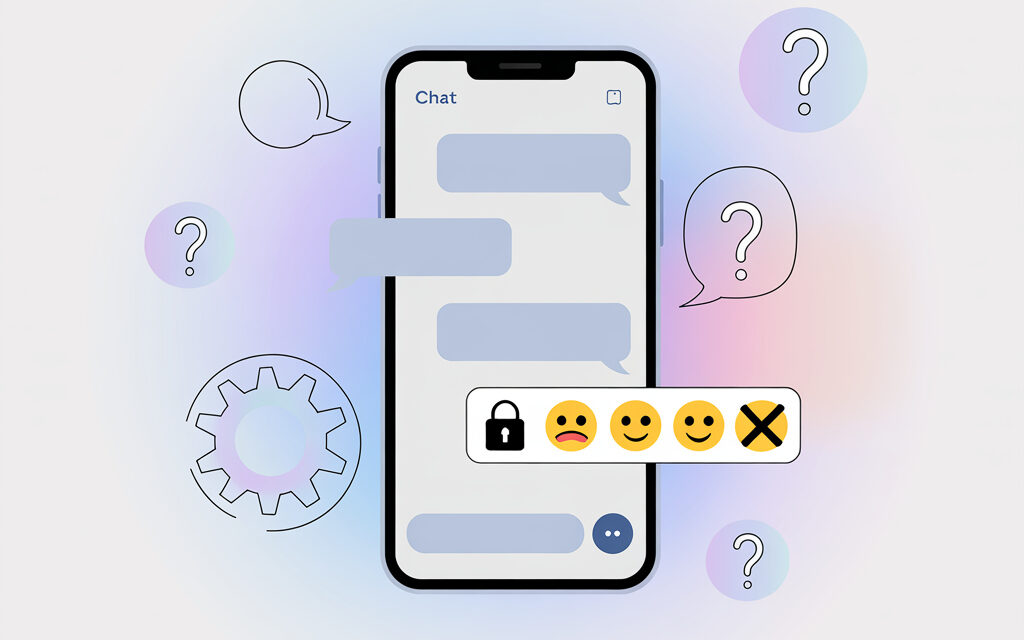
Sometimes in DMs, you want to change the emoji under a message – and the quest begins: where’s the button, why isn’t it working, what’s even going on. In this note, we’ll calmly break down how reactions work in Instagram, why some people can’t change them, and what you can do without unnecessary stress.
I’m writing it like it is, in simple terms. I’ll add a couple of stories and provide a checklist – so you can quickly check things yourself without tech support and long instructions.
The Short Answer
In Instagram, you can’t “edit” an already placed reaction like text – you can only delete it and choose a new one. Customizing the reaction panel and choosing any emoji aren’t available on all accounts and platforms: the web version is often limited, in encrypted chats some features are hidden, and old app versions behave in their own way.
Why You Specifically Can’t Change a Reaction in Instagram Messages
Many people face the issue where the reaction in DMs doesn’t change, the “plus” button for emojis doesn’t appear, and on the computer there are no settings at all. Usually, this isn’t a “glitch,” but rather specifics of the platform and chat: different app versions, the web version, message encryption, updates that gradually roll out to accounts.
You’re on the Web Version, Which Has Fewer Features
In the browser, reactions are often limited: you can add and remove, but you can’t always customize the set of emojis. On the phone, there are usually more possibilities.
The Chat Might Be Encrypted
If you have encrypted chats enabled, some visual features work differently. This is normal for security – sometimes there’s no extended reaction panel there.
The Feature Hasn’t Reached Your Account Yet
Instagram rolls out features in waves. I had this happen: customization appeared on my personal account, but on my work account only after a couple of weeks. I didn’t have to do anything; the update just arrived on its own.
Old App Version or Cache Acting Up
Updating through the App Store or Google Play often fixes quirks. Sometimes logging out and back in helps – especially if reactions are “sticking” or not updating.
Vanish Mode is Activated
In vanish mode, some familiar elements may behave differently. If reactions are important – try turning off the mode and checking again.
It’s Important to Understand the Mechanics: You Can’t Edit a Reaction, You Can Replace It
Technically, it’s not an edit, but “remove and place another.” That’s why there’s no “change” option in the interface, only “remove” and “choose another” actions.
How to Change a Reaction in DMs Without Unnecessary Hoops
If you want to change the emoji on a message, you essentially need to remove the old reaction and place a new one. This works in regular chats on iOS and Android. On the web – partially, depends on the version.
Method 1 – Remove and Choose Another Emoji
- Press and hold the message in the chat.
- Tap your current reaction to remove it.
- Press and hold the message again and choose a new smiley.
Method 2 – Via the Plus on the Reaction Panel, If It Appears
- Press and hold the message and tap the “+” next to the emoji.
- Choose a new smiley. In many accounts, it will become a “quick” one on the panel.
A Short Story
A friend on Android didn’t have the “plus” for a long time. He simply deleted and placed a new smiley – it worked. After a couple of updates, panel customization appeared, and the “favorite” emojis fixed themselves.
Where Things Work: Briefly by Platform
| Platform | Add Reaction | Remove Reaction | Replace Reaction | Customize Panel | Note |
|---|---|---|---|---|---|
| iOS App | Yes | Yes | Yes – via removal and choosing new | Sometimes available | Depends on version and chat type |
| Android App | Yes | Yes | Yes – via removal and choosing new | Sometimes available | Updates come in waves |
| Web Version | Usually yes | Usually yes | Sometimes yes | More often unavailable | Features are limited compared to the app |
| Encrypted Chat | More often yes | Yes | More often yes | Rarely | Security is more important than “decorations” |
What to Do If Reactions Behave Strangely
If a reaction won’t remove, the panel freezes, or the emoji won’t change, try simple steps. Usually, updating the app and checking if chat encryption is enabled helps. Another option is to test on another device or in another chat.
Update the App and Log Back In
- Update Instagram via the App Store or Google Play.
- Log out of your account and log back in.
- On Android, you can clear the app cache – this is safe for your data.
Check the Chat Type
- If encryption is on – temporarily disable it and compare the behavior.
- Create a test chat with yourself or a close person and check reactions there.
Compare Platforms
- Try the same step in the mobile app and the web version.
- If everything’s fine on the phone – then the issue is with the web interface, not your account.
Mini-Story from a Reader
A reader wrote that on their laptop, reactions didn’t change at all. It turned out the browser simply didn’t have customization. In the app on iPhone, everything worked, so they started changing emojis from there.
Checklist: Quick Checks
- You’re definitely in the app, not the browser.
- The app is updated to the latest version.
- The chat is not in vanish mode and not encrypted – or you’ve checked both modes.
- You tried removing the reaction first, then placing a new one.
- You tested in a different chat and on a different device.
- The internet is stable – sometimes reactions “stick” due to connection issues.
When to Wait and When to Contact Support
If you’ve checked everything, but the feature behaves differently on identical devices – it might just be a wave of updates. I usually wait a couple of days and don’t touch it. If it’s critical for work and nothing helps – you can contact support through the app settings.
Useful to Read from the Source
Official materials help understand exactly how chats and reactions are set up. Here are a couple of links:
Mini-FAQ
Can You Change a Reaction Without Deleting the Old One?
No, essentially you delete the reaction and place a new one – that’s the normal scenario.
Why Does a Friend Have the “Plus” to Choose Emojis, But I Don’t?
The feature rolls out gradually and depends on the platform, version, and chat type.
The Web Version Has No Reactions at All – Is That Normal?
Yes, in the browser features are limited. Try the mobile app.
Will the Other Person See That I Changed the Reaction?
They will see the final smiley. There’s usually no separate notification about the “replacement.”
Can You Pin Your Favorite Emojis to the Panel?
Sometimes yes – if the “plus” and customization are available. But this isn’t on all accounts.
Key Takeaways from the Article
Changing a reaction in Instagram is about “removing and placing again.” If there’s no button or the panel is limited, most often it’s due to the platform, chat type, or app version. In my opinion, it’s better not to overcomplicate things: check a couple of simple things, update, and calmly continue your conversation.
If You Want – Share How It Went for You
Tell us on which device and in which chat you tried to change a reaction – perhaps your experience will help others.
Glossary
- DMs – Direct Messages in Instagram.
- Reaction – A quick smiley on a specific message.
- Panel Customization – Setting up the set of emojis that appear when you press and hold.
- Web Version – Instagram in a browser on a computer or phone.
- Encrypted Chat – A conversation with extra protection, where some features are limited.
- Vanish Mode – Disappearing messages mode.
- Cache – Temporary app files for faster performance.
- App Update – Installing the latest version from the store.
- Emoji – That very smiley we react with.