Sometimes you open the camera, and your face already looks like it’s been lit up, and the shadows are softer than in real life. In this article, we’ll calmly break down why this happens, how you can check it yourself, and what you can gently tweak if you want a more honest image. Without complicated words, just like chatting in the kitchen over tea.
I’ll share observations, short stories, and give you a checklist that really helps. Plus, I’ll leave a couple of links to clear sources if you want to dive deeper.
The Short Answer
Your phone and camera try to make a “pleasing” shot automatically: they brighten the face, balance color, enable HDR and tone mapping. So to the question “Why does my phone brighten photos?” the simple answer is: the automatic system looks for faces and details in the shadows. And “Why does the camera make me look lighter?” – because the algorithm considers skin an important subject. “Why does my iPhone change photo brightness?” – due to auto-exposure and Smart HDR. “How do I turn off automatic exposure adjustment on the camera?” – temporarily press and hold the screen to lock AE/AF, slide the exposure slider down, turn off HDR where possible.
Why the Camera and Phone Brighten Photos Even Before Instagram: How Auto-Exposure Works
Many people ask: “Why does my phone brighten photos?” and “Why does the camera make me look lighter?”. In short: in the first fractions of a second, the camera evaluates the scene, finds a face, meters the light, and increases brightness if it sees a lot of shadows. On an iPhone, this might appear as “Why does my iPhone change photo brightness?” – because Smart HDR and tone mapping kick in. If you want to understand “How do I turn off automatic exposure adjustment on the camera?”, I’ll show you a few gentle ways below.
What the Automation Does in the First Milliseconds
The camera measures brightness across points, finds contrast, and tries to preserve details in the face. If the background is bright and you’re in shadow, it will add exposure. Simultaneously, auto white balance adjusts to prevent skin from turning greenish or bluish. The result – you appear slightly brighter than you see yourself.
Personal Note: How It Was in My Kitchen
My kitchen has an east-facing window. In the morning, my phone consistently “pulls up” my face, even with a bright sky behind me. In the preview, I look fresher than in the mirror. When I set the exposure manually, the shadows become more honest, but the background isn’t as airy.
A Quick Self-Test
Take two shots in the same spot: the first – just tap on your face, the second – tap on a bright window. Compare them. In the first, your face will be brighter. This shows how auto-exposure works and why the camera makes a person look lighter.
Screen, Preview, and Reality: Why It Looks Brighter on Screen Than in the File
“Why does my iPhone change photo brightness?” – sometimes it’s not even the file, but the screen: the display’s auto-brightness and the preview with tone mapping seem more “vibrant.” If you’ve wondered “Why does my phone brighten photos?”, part of the effect is precisely the preview. This often leads to the next question – Why does Instagram change photo color? After uploading, the platform further compresses the file and applies its own processing, causing tones to appear warmer or cooler. This is especially noticeable in gradients, skin, and dark shadows. To minimize the difference, it’s best to save photos in sRGB and not overload the frame with excessive HDR. And if you want a calm image, you can lower the screen brightness and compare it with the saved file.
Tone Mapping and HDR in Simple Words
HDR combines several exposures into one frame, and tone mapping gently “pushes” bright and dark areas into the screen’s range. The result: shadows are lighter, the sky isn’t blown out, and the face looks even.
A Friend’s Story: Warm Lamp and Window
A friend has a warm lamp in his living room plus a window. In the preview, the phone makes the image warm and soft, but the file is slightly cooler. It turned out he was looking at it with maximum screen brightness – and it seemed the photo was brighter than it actually was.
How to Compare Without Extra Settings
Lower the screen brightness to the middle and compare two shots: a normal one and one with reduced exposure. This way, you’ll see how the perception of light changes without any tricky modes.
Algorithms That “Lift” Shadows: HDR, Deep Fusion, and Photo Styles
If “Why does the camera make me look lighter?” concerns you, the culprits are often expanded dynamic range and intelligent processing. On iPhones, it’s Smart HDR; on many Androids, it’s Auto HDR and “face enhancement.” And when you ask “How do I turn off automatic exposure adjustment on the camera?”, disabling HDR and locking exposure usually helps.
iPhone and Smart HDR: Where to Turn It Off
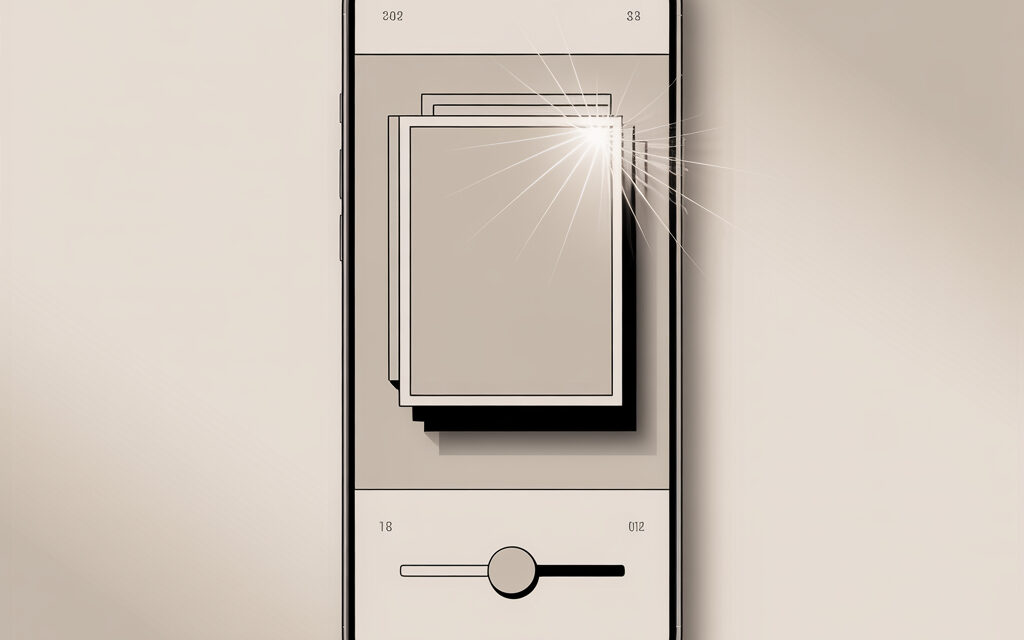
On some models, in Settings – Camera, you can find the Smart HDR toggle or “HDR Control” to switch HDR directly in the camera app. If there’s no toggle, the model does it automatically. In that case, AE/AF Lock helps: press and hold your finger on the desired spot in the frame and slide the sun slider down.
Android: Where HDR and Auto-Enhancement Are Hidden
In the camera app, there’s usually an HDR icon. You can set it to Off or Auto. In advanced settings, you might find “Photo optimization,” “Face enhancement,” “Shadows and highlight” – you can gently reduce or turn these off.
RAW as a Calm Option
If you need the most “honest” file possible, try the RAW or ProRAW format on an iPhone. The image will be duller out of the box, but without aggressive brightening. You can easily adjust it later in any photo editor.
| What Influences | What It Does | Where to Look | Effect on Photo |
|---|---|---|---|
| Auto-exposure (AE) | Raises or lowers brightness | Tap on face, sun slider | Face brighter, background darker or vice versa |
| HDR/Smart HDR | Combines multiple frames | HDR icon or Settings – Camera | Shadows lighter, fewer “blown out” areas |
| Tone Mapping | Smooths contrast for the screen | Works automatically | Pleasant, but sometimes “over-processed” image |
| Auto White Balance | Shifts tint towards neutral | Auto, sometimes presets exist | Skin more even, lamps seem cooler |
| Face Enhancement | Softens shadows and skin | Camera settings, sometimes “Beauty” | Face brighter, skin smoother |
| RAW/ProRAW | Minimum processing | Pro mode, separate button | Darker out of the box, but more honest |
How to Turn Off Automatic Exposure Adjustment Without Ruining the Photo
A common question: “How do I turn off automatic exposure adjustment on the camera?”. Completely disabling it is difficult, but you can take control of the main levers. If you’re familiar with “Why does my iPhone change photo brightness?”, try locking exposure and turning off HDR where it interferes.
Three Gentle Steps
1) Press and hold the screen to activate AE/AF Lock, and pull the exposure slider down by 0.3-0.7 stops. 2) Turn off HDR if there’s a button, and see if shadows become too dark. 3) If possible, choose a white balance preset (daylight, lamp) – this prevents skin tone from “jumping.”
Checklist: Take Your Time Before the Shot
- Position yourself so your face catches soft, side light
- Tap on your face – hold for AE/AF Lock
- Slide the exposure slider down slightly if overexposed
- Set HDR to Off if shadows are getting too bright
- Check screen brightness at a medium level
- Take a backup shot in RAW/ProRAW if you have time
- Compare the shots and choose the calmer one
Why the Camera and Phone Brighten Photos Even Before Instagram: Faces, Skin, and “Beautiful” Algorithms
The question “Why does the camera make me look lighter?” is often answered by the camera itself: it recognizes a face and tries to preserve skin details. The phone thinks: the face is more important than the dark background. And here it’s logical to ask a broader question – Why do we look different in photos and in the mirror. The mirror shows us in reflection and in constant motion, while the camera captures a single moment with a specific angle, focal length, and algorithmic processing. Plus, the brain is used to the “mirror version” of the face, so a regular photo can seem unusual and sometimes brighter or more contrasty. Hence the feeling that you were “lit up” even before posting to Instagram. If you catch yourself wondering “Why does my phone brighten photos?”, check if there’s a “portrait,” “beauty,” or “enhancement” icon active.
Skin Tone in Simple Words
It’s important for the camera not to blow out the skin or make it gray. So algorithms gently lift the shadows around the face. This looks pleasant, but sometimes it’s too careful for a documentary shot.
A Reader’s Mini-Story
A reader wrote that in the gym, the mirror showed him darker than the photo. It turned out portrait mode with “beauty” was on. They turned it off – the shadows became more honest, the sweat on his forehead more noticeable, but his face stopped “glowing” for no reason.
How to Check Yourself
Take a portrait by a window with side lighting, one with “enhancements” on, and one without. The difference in skin tone immediately shows what you prefer.
When This is Good and When It Gets in the Way
For family photos and travel, auto-brightening is a blessing: fewer duds, more smiles. For product shots, artwork, documents, or moody images, it can interfere because it changes the character of the light. In my opinion, it’s better to have two approaches: “quick and pleasant” and “calm and honest.”
Micro-FAQ
Why does my phone brighten photos? Because auto-exposure and HDR try to preserve details in faces and shadows.
Why does my iPhone change photo brightness? Due to Smart HDR and tone mapping, plus the screen’s auto-brightness affects perception.
How do I turn off automatic exposure adjustment on the camera? Lock AE/AF, lower the exposure, turn off HDR if there’s a toggle, and optionally shoot in RAW.
Why does the camera make me look lighter than the mirror does? The camera “considers” the face important and locally boosts brightness; the mirror doesn’t do that.
Do I always need to turn off HDR? No. It helps in high-contrast scenes. Just keep a version with lower exposure handy.
If you’ve wondered – How to turn off HDR in an Instagram post? – there’s no direct button for that in the app. Instagram automatically processes uploaded files. So control is only possible at the shooting stage: turn off HDR in your camera or export a version with softer contrast so the final post looks calmer.
Key Takeaways from the Article
- Brightening on a phone is the normal work of auto-exposure, HDR, and tone mapping
- The preview is often brighter than the file, especially on a bright screen
- Control in three steps: AE/AF Lock, exposure slider down, turn off HDR if possible
- RAW provides a calm base when you need honest light
- It’s better to have two mindsets: “quick and pretty” and “calm and honest”
Links and Sources
Finale
I’ve noticed that when you don’t rush and take control of exposure for a minute, photos become calmer.
If you’d like – share how you managed to tame auto-brightening and what you chose for yourself.