A short, human-written article about why photos and videos on Android look worse in Instagram than on iPhones, and what you can calmly do about it. No magic or complicated words, just practical steps and a few personal observations.
If your stories are pixelated, your reels become “blurry,” and your photos lose sharpness, let’s go through some simple checks and habits that usually help.
The Short Answer
To put it briefly regarding the questions “Why does Android ruin quality on Instagram?” and “Why is the quality on Android in Instagram bad?”: the social network heavily compresses files, and there are many Android devices with cameras, codecs, and colors implemented differently. The app doesn’t always adapt perfectly, especially for stories and quick shooting within Instagram itself. When videos and photos look worse on some devices, it’s useful to understand Why Android looks bad on Instagram – it’s about model fragmentation, server-side compression, and differences in color and bitrate processing.
Usually, recording with your phone’s camera, careful export, and enabling the high-quality uploads option in settings saves the day. I’ll break it all down below.
Why Instagram Ruins Quality on Android: What’s Really Happening
The question “Why does Android look bad on Instagram?” and “Why is the quality of Instagram stories so bad on Android?” comes up often. Simply put: different Android phones record video and photos differently, and Instagram converts them to its own standards. At this step, sharpness is lost, bitrate drops, and color sometimes “shifts.” Plus, unstable internet pushes the app to compress even more during upload.
Android Fragmentation and App Optimization
There are dozens of models on the market with different camera modules, processors, and processing algorithms. Instagram can’t perfectly befriend every device. So, one phone’s stories are sharp, while another’s are soft and noisy. This isn’t about your taste; it’s about technical compatibility.
Server Compression and Limits
Videos and photos are re-compressed by servers to load faster and take up less space. The limits for stories are stricter than for reels and the feed. Hence the compression artifacts, noise, and loss of detail.
In-App Camera vs. Native Camera
The in-app camera often records with a lower bitrate and applies aggressive noise reduction. Your phone’s native camera usually provides a cleaner source file. I’ve noticed this many times: shooting with the native camera looks more vibrant after uploading.
Color and HDR – When the Image “Shifts”
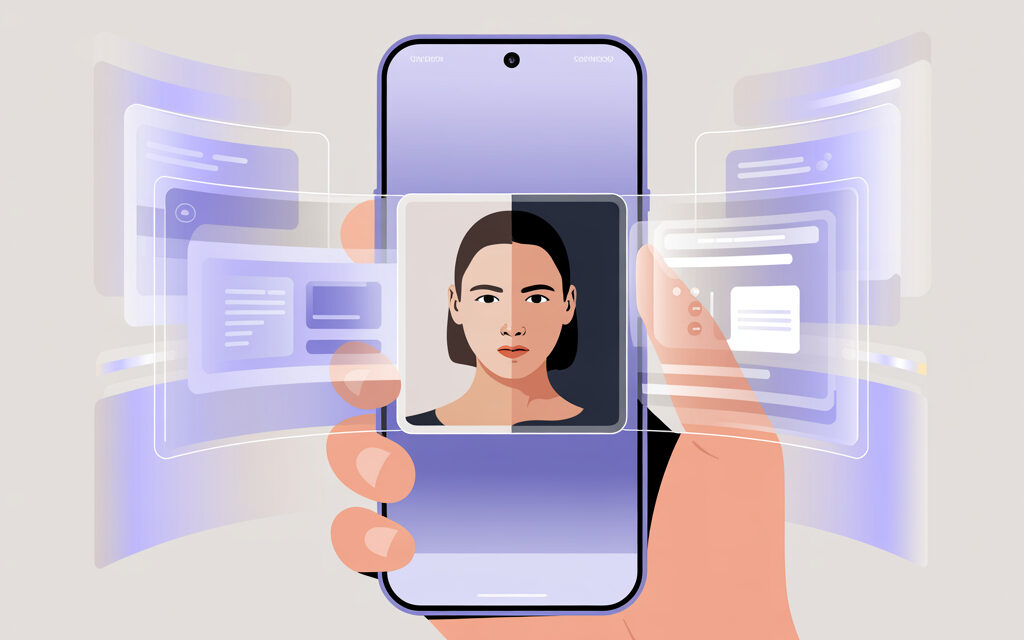
Phones can shoot in wide color gamuts and HDR. But Instagram defaults to sRGB and conservative gamma curves. If the source is in HDR or “wide” color, the app might simplify the colors and contrast, making everything look pale or “overexposed.”
Internet and Auto-Optimization
When the network connection is unstable, the app might compress the file more during upload, especially if you’re shooting and posting on the go. On a good Wi-Fi connection, the quality is more stable than on a congested network during peak hours.
Why Video Quality Drops
If we’re specifically discussing video and the question “Why is the quality on Android in Instagram bad?” – it’s most often due to a mismatch in frame rate, resolution, and bitrate compared to Instagram’s expectations. Plus, stories are compressed more heavily, so “Why is the quality of Instagram stories so bad on Android?” is a question I hear more often than others.
Check Your Frame Rate and Resolution
Instagram handles 1080×1920 for vertical video and 30 frames per second more comfortably. If you upload 4K at 60 fps, the app will still re-compress and re-encode it. Ultimately, there’s no benefit from 4K, and you get more artifacts.
Export Before Uploading
When you edit in a video editor, export for the social network: H.264, 1080×1920, 20-25 Mbps for reels, 10-16 Mbps for stories. Audio AAC at 128-192 Kbps. These are simple settings, but they genuinely help.
A Friend’s Story: Recording with the Phone’s Camera Helped
A friend of mine had stories that looked “blurry” on his Samsung when he recorded directly in Instagram. He switched to recording with the native camera and then uploaded the file – it became noticeably better. Nothing magical, the source just became cleaner.
Another Small Detail – Aspect Ratio
Instagram prefers 9:16 for verticals. If your video is 18.5:9 or has black bars, the app will crop or scale it, losing sharpness in the process. It’s better to export directly to 9:16.
Why Photos Look “Blurry” After Uploading
This is where many people encounter “Why does Android look bad on Instagram?” and “Why does Android ruin quality on Instagram?”. The same principles apply to photos: size, color profile, and over-sharpening before upload.
To immediately understand why instagram ruins photo quality, it’s important to consider the source file’s size, color gamut, and proper sharpening before uploading.
Size and Gentle Sharpening
For the feed, 1080×1350 pixels at a 4:5 ratio works well. If you upload huge 4000-pixel images on the long edge, Instagram will resize them itself and might introduce unwanted artifacts like jagged edges. Light sharpening after resizing is okay, but don’t overdo it.
sRGB Color and Format
Export your photos as JPEG in sRGB. HEIC and wide color can sometimes produce strange tints after uploading. Converting to sRGB before posting makes the colors predictable.
A Personal Note
Once, all skin tones in my photos would shift towards red after uploading. A simple step helped – exporting to sRGB and slightly lowering saturation before posting. After that, the image in my feed became much closer to what I see in my editor.
How to Upload Photos to Instagram Without Losing Quality on Android
I’ll gather the steps in one place, because this is what people ask most often: “How to upload photos to Instagram without losing quality on Android?” and “Why is the quality on Android in Instagram bad?”. When the path from camera to publication is clearly set up, the final result looks noticeably better.
In-App Settings
In Instagram, go to Settings – Account – Cellular Data and enable “High-quality uploads”. This isn’t a magic button, but it tells the app to compress less when you have a good network connection.
It’s useful to know in advance How to set high quality on Instagram so that stories and reels retain detail without losing sharpness on a normal connection.
Shoot and Edit Outside Instagram
Use your phone’s native camera. Edit, export for the social network, and then upload the ready file. This way, there are fewer surprises with sharpness, sound, and color.
Export for Specific Formats
- Stories: 1080×1920, 30 fps, H.264, 10-16 Mbps.
- Reels: 1080×1920, 30 fps, H.264, 20-25 Mbps.
- Feed photos: 1080 on the short side, or 1080×1350 for 4:5, JPEG sRGB, moderate sharpening.
Pre-Publication Check
Upload as a draft, view it on another phone, and check if text “shifts” on smaller screens. If you’re unsure, turn on airplane mode and open the preview – it’s easier to calmly assess the image without rushing.
How to Know Everything Uploaded Correctly
When “Why does Android ruin quality on Instagram?” is on your mind, it’s helpful to have your own quick check. It helps distinguish between a shooting problem and an upload problem.
Compare the Source and the Published Version
Open the source file and the published post side-by-side. Look at thin lines, text, fabric texture, and hair. If these elements have fallen apart, compression hit hard.
Check on Another Device and in a Browser
Sometimes, a specific phone’s screen makes the image warmer or softer. Checking on another device helps you relax and understand that the post is okay.
Check Your Network Speed at the Time of Upload
If the network was weak at the time of posting, try re-uploading on a stable Wi-Fi connection. Often, the result will be better without any additional settings.
Table of Causes and Simple Checks
To more easily answer your own questions like “Why is the quality on Android in Instagram bad?” and “Why is the quality of Instagram stories so bad on Android?”, I’ve put together a mini-table. It’s handy to glance at before publishing.
The question Why does Instagram ruin reel quality often comes up, and it’s related to over-compression, mismatched bitrate, and frame rates not meeting the app’s requirements. That’s why videos prepped at 1080×1920, 30 fps, H.264 look noticeably better.
| What’s Wrong | How to Check | What to Try |
|---|---|---|
| Video is jerky or “blurry” | Check the source file’s fps and resolution | Export at 1080×1920, 30 fps, H.264, 20-25 Mbps |
| Photo loses sharpness | Open the source and the post side-by-side | Export at 1080×1350 JPEG sRGB, gentle sharpening |
| Pale colors, strange contrast | Check if the source is HDR | Turn off HDR when shooting, export to sRGB |
| Stories are especially “pixelated” | Compare the same clip in stories and reels | For stories, lower the bitrate to 10-16 Mbps |
| Quality fluctuates each time | Measure your network speed during upload | Post on stable Wi-Fi, enable high-quality uploads |
When stories with music turn out “blurry”, it’s useful to know why instagram ruins photo quality in stories with music – the reason is usually bitrate limits, audio compression, and additional video optimization.
Mini Pre-Upload Checklist
If you’re keeping questions like “Why does Android look bad on Instagram?” or “Why is the quality on Android in Instagram bad?” in mind, this short list helps you not forget the basics.
- Shot with the native camera, not Instagram’s in-app camera.
- Resolution and frame rate match the publication format.
- Exported to sRGB, without HDR or excessive sharpening.
- Bitrate is appropriate: lower for stories, higher for reels.
- Network is stable, high-quality uploads are enabled.
- Preview checked on a second device or at least in a draft.
Short Stories
A blogger friend of mine had stories that were constantly noisy in low light on her Xiaomi. She started illuminating the scene with a desk lamp and shooting with the native camera, then exporting. The noise decreased, and compression stopped “breaking” the details.
A reader mentioned that reels from his brand new phone looked washed out. It turned out he was shooting in HDR and editing the same way. He switched recording to standard color and exported to sRGB – the tones came back, and it became much more pleasant to watch.
Links and Useful Resources
If you want to dig a little deeper, here are two calm and useful links without overload:
Short FAQ
Sometimes the same questions come up again. I’ve gathered them here so you don’t have to scroll through the whole article.
Quality drops right after publishing. Is this the case for everyone?
Everyone experiences compression. But you can mitigate it by shooting with the native camera, exporting correctly, and using a stable network. Often, the difference becomes noticeable after just these three steps.
Which format is best for video?
For Instagram, H.264 at 1080×1920, 30 fps is usually the most reliable. 4K and 60 fps don’t provide any benefit – they’ll get re-compressed anyway.
Can I “fix” a video that’s already uploaded?
No, you can only re-upload it. If the source file is fine, re-uploading on a good internet connection often results in a cleaner image.
Does quality depend on the account type?
No. There’s no difference in quality between personal and professional accounts. The source file, export, and network are what matter most.
What photo size is okay for the feed now?
1080×1350 for vertical 4:5 and 1080×1080 for square usually look good. Export as JPEG sRGB.
Key Takeaways from the Article
Quality on Android in Instagram is more often ruined by a combination of small things – not one single “bug”. When you keep shooting, export, color, and network under control, the result is consistently better. In my opinion, the main secret is to prepare the file in advance and not rely on the app’s built-in camera.
Final Words
If you feel like it, share how it worked out for you.
Which steps worked and which didn’t – such notes help many people.