I’m Vladislav Sergeyevich Kovalenko. Below are practical methods that are actually used in production and for managing social media. No gray schemes or surprises after posting.
Quickly – What Really Works
- Our own photos are saved automatically when posting – enable the option in the app settings.
- Need old originals – request an Instagram data archive, which contains media in original quality.
- Account linked to a business – in the Media Library of Meta Business Suite, you can often download posts without any hassle.
- Someone else’s photo – first get permission, then work with the original from the author or embed the post via embed code.
- For a website, don’t pull the image directly from the feed – better to export with the correct size and sRGB profile.
When You Can Save – When You Can’t
You can save your own media freely. For others’ media – only with the owner’s permission or under legal exceptions. Instagram has a section on Terms of Use and copyright. I recommend checking Instagram’s help before taking anything from someone else’s profile.
| Scenario | Can you save it | What to do correctly | Risks |
|---|---|---|---|
| You are the photo author | Yes | Auto-save to camera roll or download archive | Minimal |
| Teamwork – photo taken by a colleague | Yes, with author’s consent | Ask for the original via chat, preserve metadata | Loss of quality when forwarding via messenger |
| Photo from someone else’s profile for a website | Only with permission | Get written OK, use the author’s file or embed | Copyright complaint, removal |
| Screenshot of someone else’s post | You’ll have the file, not the rights | Request permission, credit the author | Strike, reputational risks |
Methods for Your Own Photos
Auto-Save When Posting – iPhone and Android
In practice, it’s most often done like this – simply enable automatic saving of originals. Then every post remains in your gallery without extra steps.
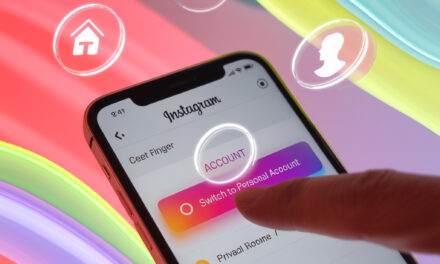
- Open Instagram – Profile – menu – Settings and Privacy.
- Go to the Account section – Original Photos or Media.
- Enable Save Original Photos and Save Posted Photos.
- Check that the app has access to Photos or Storage in your phone settings.
It’s important to check one often-forgotten detail – free storage space. If space is low, auto-save will quietly fail.
It’s precisely because of these nuances that the question most often arises, Why won’t my Instagram photos save to my iPhone?, although the cause is usually disabled app permissions or a simple lack of free storage space on the device.
Download Instagram Data Archive
When it’s important to get old photos back in good quality, the easiest way is to request an archive. This is the official method, suitable for large accounts.
- Open Instagram in a browser – Profile – Settings – Privacy and Security.
- Select Download Data – Request Download.
- Enter your email, choose HTML or JSON format – Confirm your password.
- Wait for an email with a link to the archive, download and extract it. Photos will be in separate folders.
If you need a specific period selectively – it’s easier to request the full archive and filter the needed files by date in your file explorer.
Meta Business Suite – If Account Is Connected
For business and creator accounts, the media library is convenient. You can see posts and media there, and downloading is often available.
- Go to business.facebook.com – select the relevant Page and linked Instagram account.
- Open Media – Library.
- Find the publication – open its card – check for the Download action.
- If download isn’t there – check Originals in the team’s shared cloud, ask the content creator for the file.
| Method | Where to enable – click | What you get | Pros | Cons |
|---|---|---|---|---|
| Auto-save | App – Settings – Account – Original Photos | Copies of all new photos | Instant, no routine | Doesn’t help with past posts |
| Data Archive | Web – Settings – Download Data | Package with all media | Complete set, original quality | Need to wait, large volume |
| Meta Business Suite | Media Library – post card | File from the publication | Convenient for teams | Download button not always present |
If You Need a Photo From Someone Else’s Post – How to Do It Right
Here, the same mistake is usually made – downloading with random tools, leading to complaints later. In practice, it’s faster to ask for permission and get the file from the author. That’s one conversation instead of lengthy disputes.
This is precisely why it’s logical to first understand How to save a photo from someone else’s Instagram?, in order to not violate copyright and immediately choose the correct path – get the original from the author or use the built-in post embedding.
- Write to the author: briefly who you are, where you want to use it, for what period and format.
- Ask for the file in original quality and clarify how to credit them.
- Save the conversation – this is your proof of rights.
- If the author says no – use the embed code, don’t copy the file.
Message Template for the Author
Hello. I’d like to feature your photo in an article on our website with credit and a link to your profile. Could you provide the file in original quality via email, and what usage terms are comfortable for you?
Got Permission – How to Save Without Quality Loss
- Ask for the original via cloud – Google Drive, Dropbox, iCloud.
- If they send it via messenger – ask them to send it as a file, not as a photo.
- Check the color profile is sRGB, the size, and the authorship metadata.
| Task | Best Method | What to Click | Pros | Cons |
|---|---|---|---|---|
| Show post on a website | Embedding | Web version of post – Menu – Embed – copy code | Legally safe, includes author and link | Depends on post availability |
| Place photo in an article | File from the author | Ask via cloud, download original | Best quality, clear on rights | Need to wait for reply |
| Deadline is near | Stock or own shoot | Buy a license or take a shot | Immediately covers legal risks | Cost or time |
Saved and Archive – Don’t Confuse with Downloading to Gallery
The Save button under a post adds it to collections inside Instagram. The file doesn’t go to your phone. The Archive hides publications from your profile but doesn’t export them to your storage.
- Saved – quick access to others’ and your own posts within the app.
- Archive – remove from profile without losing the post. The file stays only on Instagram.
- To export to your device, use auto-save or the data archive.
Preparing Photos for Websites and Presentations
If a photo from Instagram is going on a website, it’s better to adjust it to the needed size and weight. Then the page will load fast and the image won’t look blurry.
| Scenario | Size, pixels | Aspect Ratio | Format | Note |
|---|---|---|---|---|
| Blog article – content width 1200 | 1200 width | 1:1, 4:5 or 16:9 | JPEG 80 – 85 | sRGB, size up to 250 – 400 KB |
| Product card | 1600 on the long side | Depends on template | JPEG or WebP | Clean background, not overly sharpened |
| Homepage preview | 1500 – 1920 width | 16:9 | WebP | Medium compression, no artifacts |
Pre-Posting Checklist
- Are you the author or have you obtained permission from the author?
- Do you have the original in sRGB and a suitable size?
- Have you compressed the file to a reasonable size without losing quality?
- Have you correctly credited the author and linked them, if that was agreed?
- Is proof of rights stored – screenshot of conversation or contract?
Common Mistakes and How to Avoid Them
- Downloading via shady websites – risk getting junk files and violating rights. Better to use the data archive or a file from the author.
At this stage, many start searching for How to download photos from Instagram online?, but these services most often lead to loss of quality, junk metadata, and legal risks, so it’s better to avoid them for work tasks.
- Screenshots for a website – poor quality, text on the photo gets pixelated. Ask for the original.
- Loss of color – photos in Display P3 look washed out on websites. Exporting to sRGB solves it.
- Post duplicates – forget to turn off auto-save and end up with a bunch of copies. Periodically clean the folder.
- Lack of storage – auto-save fails silently. Keep a reserve of 5 – 10 GB.
FAQ Briefly
- Can I download someone else’s photo from Instagram directly to my phone? – No, without the author’s permission that’s not an option.
- Where to find my old photos in good quality? – Request a data archive and extract the needed files.
- How to quickly add someone else’s publication to an article without risk? – Use the embed code.
- Quality drops after forwarding in a messenger? – Ask them to send it as a file or via cloud.
- Need many photos from my own profile? – Initiate a data archive, it’s the fastest bulk method.
Summary
In short – save your own photos via auto-save and data archive. Use others’ photos only with permission, preferably as a file from the author or via embed.
For a website, always check the size, format, and sRGB profile. This saves time on edits and prevents surprises after publishing.
What’s your task – save a photo for an article once or set up regular media library export from Instagram?