What Does It Mean to Mute Sound in TikTok and Why You Might Need It
Definition of the Mute Function in the TikTok App
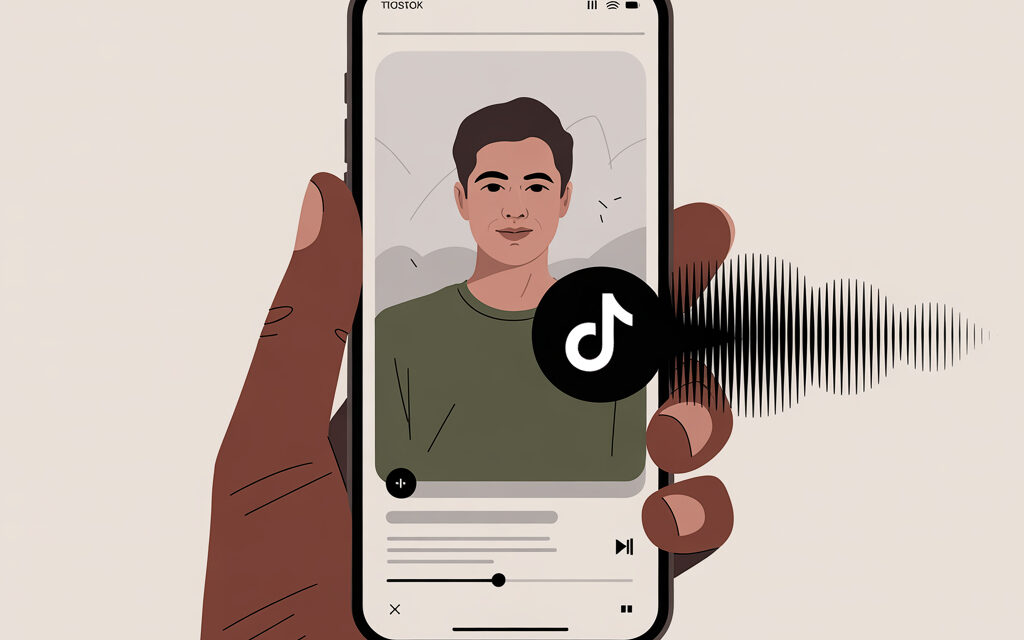
In TikTok, “mute sound” can mean different things. For the viewer – watching a video without sound directly in the feed. For the creator – removing the original track in the editor before publishing or deleting their original sound after publication.
There are also system methods: muting the app on the phone, muting a browser tab, or putting the device in silent mode. In practice, people use whatever is quicker: volume buttons, settings in the editor, or muting the tab on desktop.
Benefits of Muting Sound for Viewing and Content Creation
- Quiet viewing in public places – no risk of the phone suddenly blaring.
- Clean editing: you can remove noise from the original video and leave only music or subtitles.
- Fewer distractions – the viewer focuses on the video and captions.
- Publishing without copyright questions regarding background noise or accidentally captured music.
All the listed scenarios directly relate to the habit of consuming content without audio – that’s why the answer to the question How to Watch TikTok Without Sound fits here organically. Silent mode becomes not a compromise, but a conscious choice: it makes viewing comfortable in any setting, simplifies editing logic, and reduces risks associated with extra sounds and background overlaps.
Usage Statistics in Ukraine 2026
From practical work with Ukrainian accounts, it’s evident: people often watch without sound – on transport, at work, in queues. Among creators, the “remove original, leave music or captions” scenario is common to avoid carrying street noise into the video. Numbers change, but the trend is stable: the shorter the path to mute, the more often it’s used.
Impact on TikTok’s Recommendation Algorithm
From practice: muting sound itself does not hurt reach. Decisive factors remain clear visuals, video structure, and audience retention. If the video is intended as “silent” – emphasize framing and subtitles, don’t worry about the sound.
Step-by-Step Guide: Mute Sound on a Single TikTok Video
For Android Devices (Samsung, Xiaomi Popular in Ukraine)
Steps Using Volume Buttons
- Open TikTok and play any video.
- Press the volume down button on the phone. Wait for the “Media” volume panel.
- Drag the media volume slider to zero. On some devices, a speaker icon will appear on-screen – if you see it, tap to instantly mute.
- Check the next video in the feed: the sound should stay at zero until you raise the volume yourself.
Common mistake: adjusting the ringer slider, not the media volume. Make sure you are adjusting “Media.”
Alternative via Video Editor
- Tap “+” → “Upload” or record a video in the app.
- Open the “Volume” tool (sometimes in “Edit” → “Volume”).
- Set “Original Sound” to 0. Add music if needed and adjust its volume.
- Save and publish. The video will be published without your original track.
Important: if you added music, check the volume balance – many accidentally leave it at 100%, and the track overpowers speech or effects.
Working with volume inside the editor gives full control over how the video is published, and in this context, it’s logical to consider, how to add original sound to TikTok without unwanted surprises. Managing levels allows you to keep the original track, lower it, or completely zero it out without affecting the image and export settings, and checking the balance before publication helps avoid situations where music or effects overpower necessary elements and distort the video’s perception.
For iPhone and iPad (iOS 18+)
Using iOS System Settings
- Open TikTok and play a video.
- Lower the media volume using the side buttons or via Control Center (swipe from the top-right corner → drag volume slider to zero).
- On iPhones with a silent mode switch – toggle it to silent (if your button/Action Button is set to “Silent”).
- Check the next video: the sound will remain off until you intervene.
Audio behavior on iOS is directly tied to system settings, and that’s exactly why understanding how to add your own sound to TikTok on iPhone starts not with the editor, but with controlling media volume and silent mode. If the device is on mute or volume is set to zero, the app plays the video correctly but doesn’t allow proper evaluation of the added audio fragment, which is often mistaken for an upload error. Checking the system state before publishing eliminates the false feeling that the sound wasn’t added or saved.
Integration with CarPlay for Ukrainian Drivers
- CarPlay takes volume from the iPhone. Mute the media volume on the phone – TikTok sound will disappear in the car too.
- If you need silence while driving, enable “Driving” focus – notifications and sounds won’t distract.
Method Comparison Table by Platform
| Platform | Steps | Time | Best For |
|---|---|---|---|
| Android | Volume button → Media 0 | 5–10 sec | Quick viewing without sound |
| iOS | Volume buttons/Control Center → 0 | 5–10 sec | Quick viewing & silence in CarPlay |
| TikTok Editor | Volume → Original Sound 0 | 20–40 sec | Publishing video without original noise |
| Web Version | Mute tab in browser | 2–5 sec | Viewing on desktop |
Global Settings: Open TikTok Without Sound by Default
Access to Privacy & Playback Menu
TikTok itself may not have a fixed “always mute” setting. Therefore, people often use phone system functions: silent mode, media volume control, automations, and manufacturer settings.
- Android: press volume → expand mixer (gear icon or three dots) → lower media volume. Some skins have separate app mute.
- iOS: Control Center → drag volume slider to zero. Use “Do Not Disturb” focus if needed.
“Launch Without Sound” Option on Samsung and Other Android
Samsung/MIUI/other skins sometimes have features like “mute for app” or quick scenarios. The path varies by model, so it’s easier to search via the search bar in “Settings”.
| Manufacturer | Where to Look | What to Enable | Comment |
|---|---|---|---|
| Samsung (One UI) | Settings → Sounds and vibration → Advanced / Quick panels | Per-app volume or automation via Bixby Routines | If no per-app volume, create a routine “When TikTok launches → Media 0”. |
| Xiaomi/Redmi (MIUI/HyperOS) | Settings → Sound & vibration → Advanced settings | Silent button, automation in “Scenarios” | Often the quick “Silent” tile before opening the app helps. |
| Pixel/Stock Android | Volume rocker → mixer gear icon | Media 0 | Simple option without separate profiles. |
Disabling Microphone and Notifications
- Microphone: Phone Settings → Apps → TikTok → Permissions → Microphone → Deny. Suitable if you’re recording without voice.
- Notifications: Settings → Notifications → TikTok → Mute notification sounds or disable notifications entirely.
Recommendations for Ukrainian Users with VPN
- If the interface “jumps” or options disappear, temporarily disable VPN and restart the app.
- Choose stable servers – less lag and delay when adjusting volume.
How to Permanently Delete Original Sound from a TikTok Video
Step-by-Step Process via Sound Page
- Open your video and tap the sound name/icon below it.
- On the sound page, select “Share” or the three-dot menu.
- Find the “Delete sound” option (available for your original sounds).
- Confirm deletion. After this, your original sound is no longer available on TikTok.
In practice, this is done if unwanted noise or a phrase that needs removing got in by accident.
This scenario suits situations where you need to completely get rid of audio, not just hide it during viewing. In such cases, it’s logical to act through the sound page itself, as that’s where the availability of the track for reuse is decided, which essentially answers the task How to remove an audio track from a video? without workarounds and temporary settings.
What Happens to Videos of Other Creators in Ukraine
If other creators have already used your original sound, after deletion a note like “sound unavailable” will appear for them. Their videos themselves remain in place. This is the platform’s normal reaction.
After deleting the original track, the platform restricts any further actions with it, so the question download sound from a TikTok video here depends not on the user’s wish, but on the audio’s technical status. Videos by other creators continue to display, but the audio file itself ceases to be an active object – it can’t be opened, saved, or reused, as TikTok marks it as unavailable and excludes it from circulation.
Risks and Notifications After Deletion
- Sound deletion is irreversible. You cannot restore it yourself.
- Check key videos in advance: upon deletion, the sound will disappear everywhere it was used.
- If unsure – first duplicate the video with the correct track, then delete the sound.
After deleting the track, the platform reviews the status of the associated audio, and it’s at such moments that users most often encounter the label this sound is not licensed on TikTok. It appears as a consequence of changes in audio availability or usage rights, not as a separate action by the creator. Understanding this mechanism helps assess consequences in advance, check important publications, and avoid situations where sound disappears in several videos at once with no rollback possible.
Common Mistakes When Muting Sound in TikTok and How to Avoid Them
Sound Doesn’t Stay Off After Saving
- Check that you turned off “Original Sound” in the editor, not just the phone’s general volume.
- Clear TikTok cache: Profile → Menu → Settings and Privacy → Free Up Space → Clear Cache.
- If the video was edited in a third-party app – export with the track volume at zero and check in a player before uploading.
When audio behaves unpredictably after saving or publishing, the cause is most often not in the video itself, but in the chain of actions before upload. In such situations, the query TikTok sound removed usually reflects a technical glitch – app cache, a residual track in the editor, or incorrect export from third-party software. Checking the sound source, clearing data, and previewing the file outside TikTok help quickly understand at which stage the error occurred and why the platform is playing a different result than expected.
Issues with App Update v35.2 2026
After major updates, the interface sometimes changes button locations. If you can’t find “Volume” in the editor – go to “Edit” or “Tracks” and look there. Restarting the app and logging out/in helps. As a last resort – reinstall.
Impact on Battery and Performance
- Mute itself doesn’t “drain” the battery. But autoplay and high brightness do. Lower brightness and disable autoplay if you plan long viewing.
- On weaker devices, reduce screen refresh rate or use the web version with a muted tab.
Table of Typical Mistakes
| Mistake | Cause | Solution |
|---|---|---|
| Slider doesn’t save in editor | Cache and “stuck” interface | Clear cache, restart, edit again |
| No “Volume” button | Interface updated | Look in “Edit”/”Tracks” or update app |
| Sound returns when scrolling | Accidentally raised media volume | Lower media to 0, disable autoplay sound |
| Music louder than needed | Track at 100% by default | Lower music volume to a comfortable level |
| Web version plays with sound | Tab not muted | Right-click tab → “Mute tab” |
Tools and Apps for Muting Videos in TikTok
UniConverter and Alternatives for Editing
If you need to process a batch of videos at once, it’s more convenient to do it outside TikTok. Suitable options: UniConverter, CapCut, VN, InShot, DaVinci Resolve, or even ffmpeg.
- ffmpeg (fast and free): ffmpeg -i input.mp4 -c copy -an output.mp4 – removes audio track without re-encoding.
- DaVinci/CapCut: import → set track volume to 0 → export in vertical 1080×1920.
Free Options for Ukraine (CapCut by TikTok)
- Open CapCut → “New Project” → select video.
- Tap the clip on the timeline → volume icon → 0%.
- Add subtitles and music if needed → export with TikTok preset.
Browser Extensions and Desktop Version
- Chrome/Edge: Right-click tab → “Mute tab”. Works instantly, no extensions needed.
- Safari (macOS): Right-click tab → “Mute Tab”.
- If fine control is needed – volume extensions work, but built-in mute is enough for most cases.
| Scenario | Best Method | Why |
|---|---|---|
| Quickly watch feed without sound | Media volume button → 0 | Fastest and most universal |
| Publish video without noise | TikTok Editor → Original Sound 0 | Control at track level |
| Mass-prepare content | CapCut/ffmpeg with zero volume | Batch processing & predictable result |
| Watch TikTok at work/on PC | Mute browser tab | One click, no system settings |
TikTok Audio Recommendations for Ukrainian Content 2026
Silent Video Trends and ASMR Without Sound
When you need to act quickly and without conflicts – focus on visuals and text. For lifestyle, crafts, cooking, reviews – short overlays with steps work better than a “noisy” original.
If emotions are important, you can leave minimal sound (quiet click, rustle) but keep the overall level low. Subtitles and large on-screen timestamps help a lot.
Optimization for AIO Search Google Ukraine
- Duplicate key actions with text on the video: step names, ingredients, results.
- Write clear video descriptions: what’s inside and for whom. No fluff or clichés.
- A cover with a clear thesis saves the day when the video is opened without sound.
LSI Keywords: mute sound TikTok Android, mute video iOS, delete original sound
- “mute sound in tiktok on android”
- “mute video tiktok on iphone”
- “how to delete original sound on tiktok”
- “tiktok without sound on launch”
FAQ
How to Mute Sound in TikTok on Android Without Root?
Press the volume down button and lower media volume to zero. For publications – set “Original Sound” to 0 in the editor.
What to Do If the “Mute” Option is Missing in Settings?
Use system mute (volume buttons/silent mode) or mute the browser tab. For creators – zero out the track in the editor.
Does Muting Sound Affect Video Views in Ukraine?
No direct dependency. If visuals and delivery are strong, the video is watched even without sound. Add subtitles and clear captions.
Can I Mute TikTok in the Background While Listening to Music?
Yes. First, start music in your player, then mute TikTok’s media volume (or mute the tab). The music will keep playing.
TikTok sound and system audio can be managed separately if you understand how the app interacts with the device’s media volume. In this same context, the logical question arises, Can you mute sound during a TikTok live stream?, because both listening to music in the background and muting a stream come down to the same principle – regulating sound sources at the app and system level, not the content itself.
How to Restore Sound After Global Muting?
Raise the phone’s media volume or unmute the tab. In the editor – reset track volumes to the desired level.
Why Are User Audio Tracks Sometimes Unavailable in TikTok?
Often the problem arises not from an app error, but due to platform restrictions. TikTok may temporarily block adding or using custom sounds if the video is uploaded from a commercial account, uses licensed music, a specific region or publication format is selected (e.g., ads or promos). Account age, content complaints, and technical glitches during upload also affect availability. As a result, the user sees that the sound either doesn’t appear in the list or becomes unavailable for reuse – hence the logical question: Why can’t I use my sound on TikTok?
Checklist: Topic Summary
- Update TikTok to the latest version.
- For quick viewing – lower media volume to 0.
- For publishing without noise – “Volume” → “Original Sound” 0.
- On web – right-click tab → “Mute tab”.
- If glitches occur – clear cache and restart the app.
- Batch processing – CapCut/ffmpeg with zero track.
- Before deleting original sound, assess consequences for other videos.
If you just need quick mute – use media volume or mute the tab. If the published result matters – zero out the original track in the editor and check the balance with music.
At the habit level, a simple rule works: first silence the device, then adjust the tracks. This way there will be no surprises during viewing or after publishing.
What is your task: just watching in silence, or preparing noise-free videos for publication? Choose the method from the article accordingly.