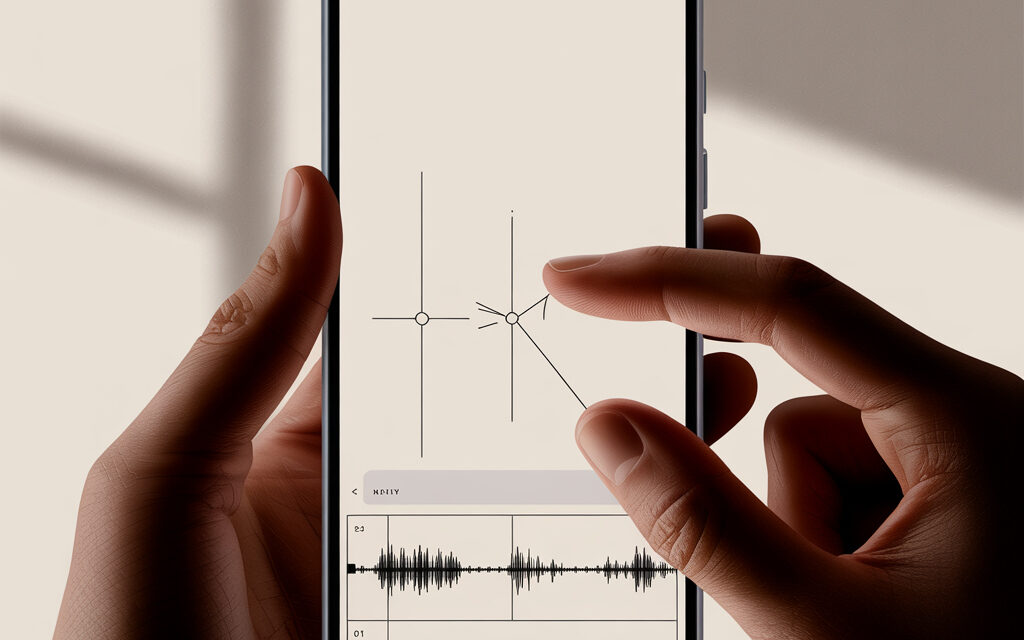
What is cutting sound in TikTok and why is it needed
Definition and basic principles of audio editing
Cutting sound in TikTok is selecting the desired fragment of a track without changing quality and volume. In practice, the most common approach is – select a popular sound from the library, drag the slider to the desired beat, and check how it aligns with the frames. It’s important to check one thing that is often forgotten – where the first drum hit begins, so the visual accent hits the beat.
The difference between trimming and completely deleting a track
Trimming – you keep part of the sound and shift the beginning or end. Deleting – you completely remove the audio track from the project. If you just need to quickly mute sound – use the Volume button and set Music to 0, this is faster than deleting the track.
In practice, the question How to cut sound from TikTok? arises precisely at the moment of choosing between trimming and complete deletion, as these are different actions with different results for the final video and reusing the audio.
Advantages for video engagement in 2026
A short and precisely cut sound helps retain attention in the first 3 seconds – that’s where it’s decided whether a person will watch the video through or not. When results are important – trim the intro to immediately give a recognizable part of the track. For dynamic clips, it’s convenient to shift the sound so that transitions and clips land on drum kicks or claps.
View growth statistics in Ukraine
From practice with accounts in Ukraine, a simple pattern is visible – videos where music starts with an accent and lasts 8-15 seconds perform better. Very long sections without events quickly lose retention. If speech is the main element – set music 10-20 percent lower, so speech doesn’t get drowned out.
Preparation for cutting: choosing source and tools
Recommended audio files and TikTok libraries
The safest option is to take sounds from TikTok’s built-in library, rights are already accounted for there. If you need your own sound – first upload a video with that sound, then use it as Original Sound. Before cutting, listen to 2-3 spots in the track with bright accents – usually one of them becomes a good starting point.
Table: Popular sounds for Ukrainian content
| Sound type | When to use | Optimal length | Where to find | Comment |
|---|---|---|---|---|
| Energetic pop | Dances, dynamic transitions | 8-12 sec | Top in Sounds | Start with chorus – fewer empty intros |
| Electro – beat 120-130 BPM | Editing for sharp cuts | 10-15 sec | Trend collections | Place cuts on kick drum hits |
| Lo-fi – calm | Tutorials, recipes, reviews | 12-20 sec | Playlists within TikTok | Music at 10-20 percent, speech at 100 |
| Ukrainian hits | Local trends, challenges | 8-12 sec | Hashtags #TikTokUA | Often choose the start of the chorus |
| Samples – claps, knocks | Action synchronization | 5-8 sec | Sound effects | Convenient to match action with sound |
Integration with CapCut and external editors
In practice, the most common approach is – cut the sound in CapCut, sync with frames, then export to TikTok with one button. This is convenient when frames are complex and you want to see rhythm markers on the scale. If you just need something quick – cut directly in TikTok, it takes a minute.
- CapCut – import video, add track, enable Beat Markers, cut, Export to TikTok.
- InShot or VN – similar process, but fewer automatic rhythm prompts.
- If the sound is your own – keep frequency at 48 kHz to avoid drift between audio and video after upload.
Through external editors, the task of how to speed up sound in TikTok is often solved, because within the app itself, music speed changes are limited and don’t always sync correctly with the visuals.
Step-by-step guide for cutting sound in the TikTok mobile app
Basic method for beginners (Android/iOS 2026)
At this stage, users usually clarify, can you edit audio in TikTok, and what specific actions are available without using third-party editors.
Step 1: Launching video creation
- Open TikTok and tap the plus button at the bottom.
- Record a clip or upload a video from the gallery.
- Tap Next – the editing screen will open.
Step 2: Selecting and trimming the audio track
- Tap Sound or Add Sound.
- Select a track from the library or Original Sound.
- Tap the scissor icon Trim – the sound wave scale will appear.
- Drag the slider to the desired spot in the track, listen.
- Confirm with the checkmark. If necessary, adjust the Music – Voice balance in Volume.
Step 3: Synchronization with visuals
- Scroll through the video and check if effects and cuts land on beat hits.
- If you miss the accent – go back to Trim and shift the start by 0.2-0.5 seconds.
- Check with headphones and on the phone speaker – balance may differ.
Advanced trimming with AI prompts
In some TikTok templates and in CapCut, there is beat highlighting – vertical markers on the audio track. This saves time when there are many clips and precise hits are needed. If there are no such prompts – set markers manually on claps and kicks and cut frames to them.
Automatic cutting to rhythm
- CapCut – enable Auto Beat, the program will set markers. Drag the sound start to the first strong hit.
- In TikTok when selecting templates, try Sync – the service will automatically match clips to the track.
- Check manually – auto-functions often miss by fractions of a second. A small edit solves the problem.
Cutting sound on PC via TikTok Studio
Browser and account requirements
You need an up-to-date browser and to be logged into your TikTok account. If you use the TikTok Studio app for PC – log in via QR or password. Check that video and audio are in supported formats – standard MP4 and AAC work without surprises.
Step-by-step process in the web version
- Open Studio and create a new post.
- Upload video – wait for preview processing.
- Sounds – select a track from the library or attach Original Sound from a file.
- Trim – drag the sliders on the sound wave, tap Save.
- Check Volume and caption, add hashtags, tap Publish or Schedule.
Table: Mobile vs desktop editing comparison
| Criterion | Mobile TikTok | TikTok Studio on PC |
|---|---|---|
| Speed | Fast – a couple of taps | Fast with good internet |
| Cutting accuracy | Sufficient for most tasks | Convenient on a large scale and screen |
| Rhythm markers | In templates and effects | Visually easier to align |
| Convenience for long clips | Medium | Higher – easier to navigate timeline |
| Publishing and scheduling | Immediate publishing | Convenient delayed posting |
A similar approach is used for static content, when you need to understand how to post a photo with music in TikTok and correctly cut a track for a slide or simple animation.
Alternative tools for precise audio cutting
CapCut: Integration with TikTok for Ukraine
CapCut and TikTok are linked – export to TikTok without extra re-rendering, covers and captions transfer. For neat sound cutting, enable Beat Markers and zoom the timeline. When quality is important – export 1080p, 30 or 60 fps, audio 48 kHz.
At the stage of working with timeline and rhythm markers, the task naturally arises How to insert 2 sounds in TikTok?, as CapCut allows placing multiple audio tracks, precisely aligning them to beats, and then transferring the result to TikTok without losing sync.
Table: Editing tools (CapCut, InShot, VN)
| Tool | What’s convenient | Where to cut sound | Export to TikTok | When to choose |
|---|---|---|---|---|
| CapCut | Beat markers, templates | Audio timeline – scissors and markers | Export to TikTok button | Editing with precise synchronization |
| InShot | Simple interface | Music – Trim – moving sliders | Save and upload to TikTok | Quick videos without complications |
| VN | Flexible editing, markers | Audio track – split and shift | Export MP4, then to TikTok | Long videos and precise edits |
Adobe Premiere Rush and free alternatives
Rush is convenient for quick clean cutting – add track, trim to markers, export with a preset for social networks. If sound is separate – you can trim in Audacity and save as WAV, then assemble in any editor. The same mistake is often made here – exporting at 44.1 kHz, and video at 48 kHz, causing sync drift sometimes. Set 48 kHz everywhere.
Synchronizing cut sound with video effects
Storyboarding and visual transitions
Break the video into scenes – intro, main action, final accent. Place a fast transition or sharp shot change on the first strong beat. If you need something quick – use a simple 1-2-3 scheme: 1 sec intro, 6-8 sec core, 1-2 sec conclusion.
Examples for Ukrainian trends (#TikTokUA)
- Traditional motifs – start with chorus, change frame on each kick drum hit.
- Tutorial videos – calm lo-fi, smooth cuts on quarter beats.
- Football and action – energetic track, strobe effects on claps.
Adding effects and text to the beat
- Text – set appearance on a strong beat, duration 0.5-1 sec.
- Flash effects – short, on hits, no more than once every 1-2 seconds.
- If you miss the beat – move the text, not the sound, to avoid messing up previous hits.
Common mistakes when cutting and how to avoid them
Copyright issues in 2026
The most common cause of blocks – uploading someone else’s track as original sound. It’s easier and safer – search for sound in the TikTok library and trim there. If using your own material – ensure you have rights, or take a licensed track from stock with permission for social networks.
Legality check checklist
- Sound taken from TikTok library – ok.
- Your own track – have rights or license – ok.
- Remix of someone else’s track without rights – better not to use.
- A fragment shorter than 15 sec doesn’t save you from claims – check rights.
- Crediting the author does not replace permission – a common mistake.
Technical glitches and quality loss risks
- Sync drift after upload – check 48 kHz and stable FPS, avoid variable frame rate.
- Music drowns out speech – lower Music to 10-20 percent, raise Voice to 100.
- Cut landed on breath or pause – shift start forward by 0.2-0.3 seconds.
- Different volume on device and headphones – check on both listening methods before publishing.
Optimizing the cut video for the TikTok algorithm in Ukraine
LSI keywords: audio editing, track trimming, beat synchronization
In the caption and on-screen, use clear topic-related formulations – cutting sound, editing to the beat, track trimming, sync with music, music quieter than speech. This helps the viewer instantly understand what the video is about. If the video is educational – add a short text step 1-2-3 right on screen.
Hashtag and posting time recommendations
- Relevant hashtags – #soundcut #editing #TikTokUA plus the video’s topic.
- Post when your audience is active – check account stats and choose the nearest peak.
- The first 2-3 hours are important – reply to comments, adjust caption or cover if needed.
FAQ
Can you cut sound without losing quality?
Yes – trimming in TikTok doesn’t degrade quality. If you don’t re-encode the track in external apps, the sound remains clean. Main thing – don’t raise volume to clipping and avoid double compression during repeated exports.
How to export the cut track separately?
Directly from TikTok – you can’t. A quick way – cut in CapCut and export audio as a file, or save the video and extract the sound in any editor. For a one-time task, you can do a screen recording and then extract the sound – but this is a quality compromise.
Does trimming work in TikTok Lite for Ukraine?
In TikTok Lite, editing features are often limited. If cutting and synchronization are important – use the main TikTok app or an external editor and upload the finished video.
What to do if the “Trim” button doesn’t appear?
- Check that you added sound from the library – on Original Sound options may be fewer.
- Update the app – sometimes the button disappears due to version.
- Clear cache in TikTok settings and restart.
- Try a different track – some sounds have restricted access to trimming.
- First, record or upload at least 1-2 seconds of video, then add sound.
Checklist: Summary on the topic
Pre-publication control
10 points for perfect cutting
- Sound is legal – from library or with rights.
- Start on a strong beat – no empty intro.
- Fragment length 8-15 sec – no dragging.
- Cuts and accents hit the beat.
- Voice is audible – Music 10-20 percent when speaking.
- No clipping – no volume overload.
- Listened on speaker and headphones – balance ok.
- Cover and caption match the sound’s theme.
- Relevant hashtags – no extra clutter.
- Final preview without lags or sync drift.
In short – choose a recognizable piece of track, set the start on an accent, and check if effects hit the beat. For quick videos, cut directly in TikTok; for precise synchronization, use CapCut and rhythm markers. This way you avoid surprises after publishing and save time.
If the task is one-time – do it in the app. If the video is for a website or ad – assemble in an editor, check on several devices, and only then upload. This is a calm workflow without unnecessary steps.
What’s your current task – quickly cutting sound for a video or assembling precise synchronization for transitions?