How to Trim a Video on TikTok is the question almost every creator of short videos starts with. Proper trimming instantly boosts viewer retention, expands your post’s reach, and increases CTR right from the preview stage. For example, my acquaintance, the blogger Alexa, doubled her views overnight by applying the same principles I detailed in the article How to Get Views Fast on TikTok. Without competent editing, even an original idea risks getting ‘lost’ in the endless feed. In this guide, we’ll break down the platform’s limitations, pitfalls, and life hacks step by step to help you squeeze the maximum out of every second.
Why Trim Videos on TikTok and What Results Good Editing Gives
When a clip starts without unnecessary pauses, the viewer stays longer and is more likely to watch the video to the end. Because of this, the algorithm promotes the content more widely, and engagement metrics grow naturally. Smart trimming also makes it easier to grasp complex ideas, turning a long story into a dynamic sequence of scenes. Plus, a compact video reduces file size and speeds up loading, which is important for mobile networks. Finally, a short, well-edited video increases the chance of getting into recommendations.
Can You Trim a Video on TikTok? Limitations of the Built-in Editor
Many beginners wonder if you can trim a video on TikTok without third-party apps. The built-in editor does offer the basic ‘Trim’ tool, but it only works with new recordings up to ten minutes long. Ready-made files from your gallery can be shortened, but you can’t change the cropping – you’ll have to settle for the default frame. The trim points are also limited: the engine lets you cut the beginning or end, leaving internal fragments untouched. If you need detailed cutting, you’ll have to bring in more advanced software.
How to Change a Video’s Size on TikTok Before Publishing
When you need a different angle, first upload the video to drafts and tap the ‘Crop & Zoom’ icon. This way you can freely change the frame size without losing key objects. Remember that the 9:16 vertical ratio remains a priority; if you’re uploading a horizontal image, add a background to avoid black bars. After scaling, check that captions aren’t covering interface elements. This approach maintains clarity and helps show every detail.
How to Trim a Video on TikTok on Your Phone: A Step-by-Step Guide
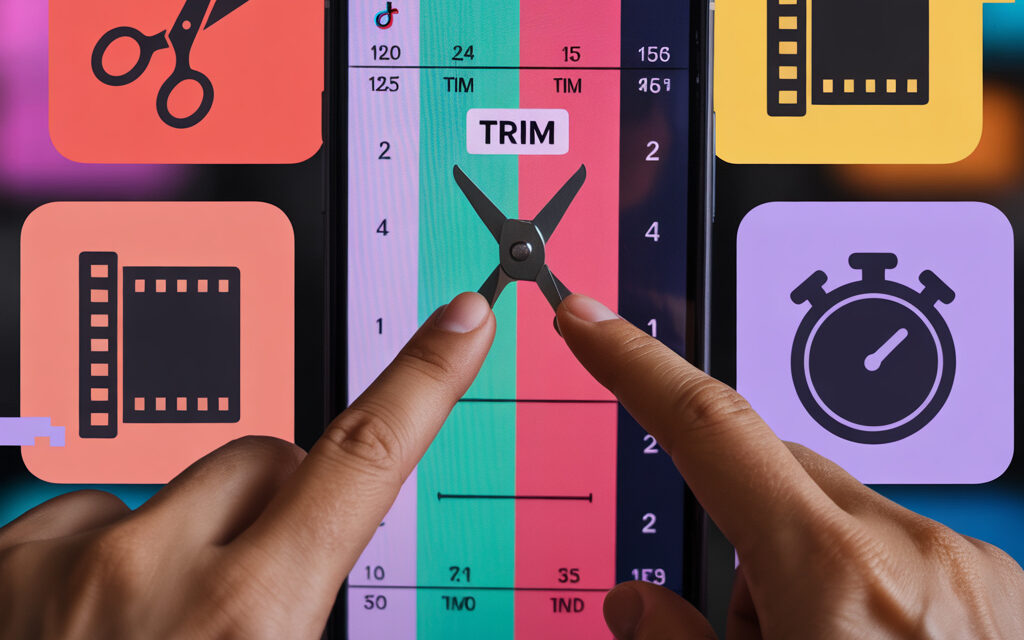
In the built-in editor, press ‘+’, upload the file, and tap the timeline. Drag the left edge to remove the unnecessary intro, then the right edge to cut off the ending. Press ‘Save’ and return to the effects, adding transitions between scenes. Check the sound: after each cut, the volume might spike. This algorithm helps those looking for how to trim a video on their phone without additional software.
How to Trim a Video in TikTok Drafts Without Losing Quality
Open the ‘Profile’ section -> ‘Drafts’, select the desired video, and press ‘Edit’ again. Drafts store the original file, so after correction, trimming videos in drafts preserves maximum quality. Cut out unnecessary duplicates, but don’t change the resolution to avoid re-encoding. After edits, save the draft again – it will remain private until publication.
How to Trim a Video on iPhone for TikTok: Built-in and Third-Party Tools
On iPhone, it’s convenient to combine the standard ‘Photos’ editor and apps for smart video trimming before uploading. First, open the video in ‘Photos’, select ‘Edit’, and cut out the extra seconds. For precise cropping, use free apps like Clips or CapCut: they preserve metadata and don’t add watermarks. Export the finished file directly to TikTok, where it will display in full quality.
How to Trim a Video on Android: Quick Life Hacks for TikTok
Android users often choose the built-in ‘Google Photos’: the ‘Trim’ function there works with frame accuracy. If you need more, download VN or InShot – both can cut fragments and save presets. After importing, make sure the bitrate doesn’t drop below 6 Mbps, otherwise artifacts will appear. Finish editing with color correction, adding brightness to make your video stand out from the competition.
How to Cut Out a Part of a Video and Stitch Clips into One Video
For those looking for how to cut out a middle part of a video, the ‘split & delete’ technique helps. Split the track into three segments, delete the unwanted scene, and pull the remaining parts together without a gap. Then add a quick transition to hide the seam and save the project. By the way, if you notice your video has suddenly stopped getting likes and views, check if you’ve been hit with a shadowban – this is detailed in the guide How to Know if You’re Shadowbanned on TikTok or Not. This method allows you to combine a travel chronicle, an interview, and a reaction into one dynamic clip.
How to Stitch Videos on TikTok and Adjust Clip Length
Upload several fragments via ‘Upload’, press ‘Sequence’, and arrange them by dragging. Adjust the duration of each clip using the sliders at the bottom of the screen, aiming for your desired total time. If you need an exact timecode, hold the edge and watch the millisecond indicator. This approach answers the query of how to stitch videos on TikTok without noticeable pauses.
Trimming Videos for TikTok Online: Services and Smart Trimming
When you don’t have access to your smartphone, web platforms for trimming videos online can help. They use algorithms that automatically detect the frame with maximum dynamics – that’s how smart video trimming works. Just upload the file, select the 9:16 format, and specify the starting point; the service does the rest. Export the finished clip to the cloud and continue working on your phone.
How to Reduce a Video on TikTok and Change Format 16:9 -> 9:16
First, open the file in the editor and select the ‘Resize’ function. Set the preset to 1080 × 1920 px to maintain vertical quality. After cropping, check the composition – important objects should be in the central third of the frame. Reducing the duration to 15 seconds increases the chance of getting a repeat view and holding attention. This method helps those thinking about how to reduce a video on TikTok without losing context.
How to Edit Videos for TikTok: Editing Rules Without Spam
Make sure each scene serves the core of the story and doesn’t drag on for more than three seconds. Avoid excessive effects: flashes and transitions are appropriate only if they emphasize the plot. Clean audio is more important than loud music – background noise makes people scroll away. Always leave a logical conclusion: viewers love the feeling of an ending. Such concise editing makes a video friendly to both the algorithm and the audience.
How to Make a TikTok Video from Photos with Music: A Quick Method
Open video creation and select the ‘Templates’ function. Upload 3-5 pictures so the animation looks smooth; the template will set the timings according to the track. After importing the photos, press ‘Add Sound’ and choose a trending track from the recommendations. Check the synchronization: when transitions match the beat, engagement grows. This trick makes it easier to start if you don’t yet have footage to shoot but want to get into the feed.
- 🎞️ They trim too much – the story’s meaning gets lost
- 🔇 They don’t check the volume after editing – spikes appear
- 📐 They upload horizontal video without a background – black bars appear
- 🧩 They don’t add transitions – the edit looks rough
- 📉 They don’t check the preview – CTR drops
FAQ: Frequent Questions About Trimming and Editing Videos on TikTok
Can you edit a video on TikTok?
Yes, the built-in editor allows you to trim, add effects, text, and sound; however, for complex editing, third-party apps are more convenient.
How to trim a video on a phone without losing quality?
Use the OS’s native editor (‘Photos’ on iPhone, ‘Google Photos’ on Android) and save the file in its original resolution, avoiding re-compression.
Do I need to delete the original after trimming?
No, it’s better to keep the original: if an artifact appears, you can always go back to the first version.
Why does the sound disappear after trimming?
Usually, the volume resets when the codec changes; open the mixer and manually level the audio. And if you want to scroll through the feed quietly on the subway or in the office, a mini life hack from the article How to Watch TikTok Without Sound comes in handy – it shows how to instantly mute audio without third-party apps.
Can I shorten someone else’s video and upload it as my own?
Technically yes, but it violates copyright and risks getting your account blocked.
In conclusion, if you stick to simple rules and practice regularly, you’ll quickly understand how to trim a video on TikTok so that every appearance of yours in the feed grabs the viewer from the first seconds and increases your chances of hitting the top of the recommendations.
| 📱 App | ✨ Advantages | ⚠️ Disadvantages |
|---|---|---|
| CapCut | 🎬 Powerful filters, 🎵 built-in effects, 📤 export to TikTok | 🚫 Sometimes lags, 🌐 requires stable internet |
| VN | 🎞️ Frame-by-frame editing, 🔊 sound adjustment, 🚫 no watermarks | 📂 Interface is more complex, 🧰 fewer built-in effects |