Here we’ll calmly figure out how to make friends with sound on TikTok: from simple volume settings to neatly trimming a track to fit your footage. I’ll explain in plain language how I do it myself, and what usually helps when something doesn’t sound right.
No complicated words, just clear steps, a few tried-and-true tricks, a couple of real-life stories, and a short checklist. Plus, I’ll give you links to TikTok’s help section and useful materials if you want to dive deeper.
The Short Answer
In short: You can adjust the sound in TikTok right in the editor before publishing – you add a track, adjust the volume of the original audio and the music, trim it, and sync it up. And yes, can you turn off the sound for content in TikTok? You can: just slide the volume slider for the original audio or the track to zero, or mute it during the editing stage. Most often, the best help is to simply not rush and check how the video sounds with and without headphones.
How to Adjust Sound in TikTok on Your Phone: Step by Step
The question is usually asked like this: How to adjust sound in TikTok quickly and without extra menus. And also – can you turn off the sound for content in TikTok if it’s distracting. Below are the short steps I take when I’m shooting on my smartphone.
Open the Editor
Tap the plus sign, shoot a video or upload clips from your gallery. After selecting, go to editing – that’s where all the sound settings live. Make sure your phone isn’t on silent mode so you can hear what you’re adjusting.
Add Music or Sound
Tap Sounds – choose a track that fits the mood. I’ve noticed it’s easier to pick sounds from your favorites or popular ones – they’re simpler to sync with the rhythm. If you need your own sound, use the original audio from the video.
Adjust the Volume
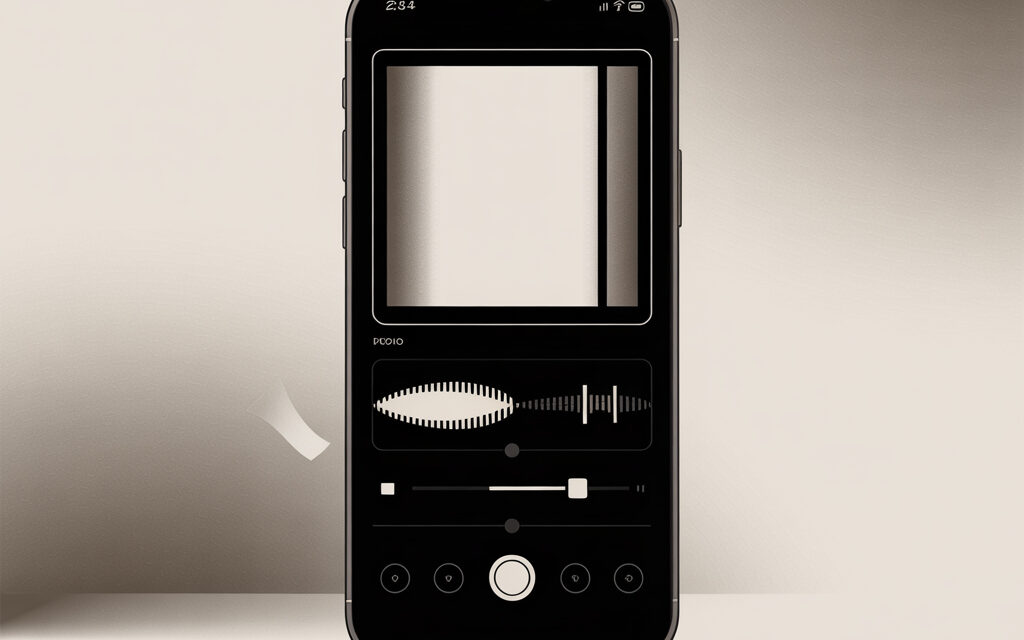
In the Volume section, there are usually two sliders: Original Sound and Added Sound. Play around with the levels so the voice doesn’t get drowned out by the music. Personally, I think it’s better to leave a little headroom for volume – just in case everything sounds louder on another phone.
Trim and Sync
The Trim Sound feature helps you start the track not from the beginning, but from the right spot. Trimming by 1-2 seconds often helps – the rhythm hits the cuts better. Watch the movements in the frame and align the track’s beat drops with the scene changes.
Mini-Story: “How It Went for Me”
I once recorded a video while walking, and the music kept “fighting” with my footsteps. What saved it was that I simply started the track from the second chorus – the rhythm was calmer there, and everything fell into place on its own. Sometimes you don’t need complex editing; one precise cut is enough.
How to Adjust Sound in TikTok for Already Recorded Video
Sometimes you already have a video edited in your gallery – and you want to figure out how to adjust the sound in TikTok without reshooting. And another common question: can you turn off the sound for content in TikTok if the original audio is noisy or distracting. Good news – you can adjust it right when uploading.
Import the Video from Your Gallery
Tap the plus sign, select the clip from your gallery. After uploading, immediately go to Volume – listen to how the original sounds. If it’s noisy, think ahead about whether you want to completely mute the track.
Add a Track and Balance the Levels
Choose music and set the volume to 40-60 percent to try it over the original. If the voice is important, turn the original up a bit. If the atmosphere and rhythm are more important, lower the voice below the music.
If Necessary – Mute the Sound
You can slide the original audio slider all the way to zero – you’ll be left with just the music. This is an easy way to “clean” a video from random sounds. The main thing is to check if the video loses its meaning without the live audio.
Mini-Story: “What Happened to a Friend”
A friend of mine had a video with great shots of food, but the microphone picked up a hissing sound. He completely removed the original audio and added a soft lo-fi track. The video ended up thriving – people commented that it was pleasant to watch and the sound was smooth.
Why the Sound Records Quietly or with Noise
When it’s not clear how to adjust the sound in TikTok to make it clean, it’s usually down to simple things. And yes, just in case – can you turn off the sound for content in TikTok all the way to zero if it’s noisy? Of course you can, but it’s better to fix the cause first. Here’s what I usually check on my end.
Check Microphone Access
In your phone’s settings, check if TikTok has permission to access the microphone. On Android, it’s under App Permissions; on iPhone, it’s Settings – Privacy – Microphone. Without this, the recording will be muffled or won’t work at all.
Shoot Without Covering the Microphone
A common little thing: your finger covers the microphone hole, or the case muffles the sound. If it’s windy, turn your back to it or shield the phone with your body. Indoors, remove extra noise sources – range hoods, fans, open windows.
Turn Off Unnecessary Bluetooth
Sometimes the phone connects to headphones and records sound using their microphone – resulting in quiet, hollow audio. I just turn off Bluetooth while filming. This solves half the strange sound issues.
Related Links
It’s useful to check out TikTok’s help section on working with sound: support.tiktok.com. And for help with microphone permissions on Android: support.google.com/android.
Can You Completely Turn Off Sound for Content in TikTok
The short answer is yes. If you’re thinking about how to adjust the sound in TikTok to leave only the picture or only the music, you do it with the volume sliders. And if you’re asking, can you turn off the sound for content in TikTok for a specific video, the answer is yes, and you can do it in several ways.
Turn Off the Original Sound
Go to Volume and set the Original Sound slider to 0. Only the music will remain, if you added any. This is convenient when background sounds are distracting.
Turn Off the Added Music
If you need to keep the “live” sound without music – slide the Added Sound slider to 0. This way, the voice or ambient sounds stay clean.
Make the Video Completely Silent
Set both sliders to zero. Sometimes this is appropriate for time-lapses or when you want to add captions and focus attention on the image.
Quick Checklist Before Publishing
Once you understand how to adjust the sound in TikTok at the idea stage, it’s helpful to quickly run through the little things. And yes, if you end up not liking the background, can you turn off the sound for content in TikTok? You can, but first check this.
- □ Listened with headphones and through the phone speaker
- □ Checked the balance: original audio isn’t drowned out by music
- □ Trimmed the sound so the beat drops hit the cuts
- □ Reviewed at different volumes – low, medium, high
- □ Made sure important words aren’t covered up
- □ Did a quick preview before publishing
What Affects Sound Quality and What You Can Do
If you’ve already tried adjusting the sound in TikTok, but the result is still murky, look at the basic factors. And yes, can you turn off the sound for content in TikTok as a plan B? Always, but it’s better to improve the recording on the spot.
| Problem | What to Try |
|---|---|
| Wind and hissing | Shoot with your back to the wind, find shelter, record a take in silence |
| Room echo/hum | Get closer to the sound source, use soft surfaces around, speak more clearly and quietly |
| Quiet voice | Turn up the original, turn down the music, speak closer to the microphone |
| Music “overpowers” | Lower the added sound to 30-40%, trim the intro |
| Different sound with and without headphones | Check on two devices and adjust the levels |
How to Know Everything Uploaded Correctly
After you’ve figured out how to adjust the sound in TikTok, you want to be sure the platform didn’t compress the audio too much. And it’s logical to ask here: can you turn off the sound for content in TikTok after publishing? You can edit or re-upload, but it’s better to check right away.
Listen on Another Device
Ask a friend to open the video on their phone. Sometimes the auto-settings on speakers give a different balance. If the voice gets lost, go back to the draft and turn up the original.
Give the Video a Minute to Process
Sometimes, right after publishing, the audio drifts a little. After 1-2 minutes, it evens out. I usually refresh the page and listen again.
Check on Mobile Network and Wi-Fi
Rarely, but it happens that on a mobile network, the audio loads later. Switch the internet connection and re-listen to important parts.
Mini-Story from a Reader
A reader wrote that for a long time, he couldn’t get a clear voice over music. In the end, a simple solution helped – he recorded the voice closer to the phone and shifted the track by one second later. Since then, the balance worked on the first take.
Frequently Asked Questions
Can you turn off the sound for content in TikTok selectively – only on parts of the video?
Yes, if you cut the clip into parts and adjust the volume for individual fragments. Plus, you can trim the track so the music only comes in at the right moment.
How to add your own sound without losing quality?
Upload a video with a clean track and minimal noise, avoid overly loud normalization. Check that the recording isn’t clipping – no crackling at the peaks.
Why is it loud on one phone and quiet on another?
Different speakers and presets. Listen on two devices and leave a little headroom for the music volume.
How to get the sound back if you accidentally turned it off?
Go into the video editing from your drafts and raise the corresponding volume slider. If the video is already published, it’s easier to re-upload.
Where can I read the official help on sound?
Check out the TikTok Help section: support.tiktok.com. They update instructions regularly.
Key Takeaways from the Article
- Sound is adjusted using the original and music sliders, plus trimming and syncing.
- If it’s noisy, first look for the cause: microphone, wind, Bluetooth, distance.
- You can turn off the sound completely or partially – it’s normal and often appropriate.
- Check with headphones, without them, and on another phone – it’s more reliable.
- It’s better to leave a little headroom for the music volume than to overdrive the mix.
If you want, share how it turned out for you and what worked best.