What It Means to Layer Two Sounds on TikTok
In practice, most users come to this topic with the question, How to put 2 sounds on TikTok?, when the standard capability of one track is no longer enough for the desired mood or video scenario.
Defining Multi-Audio Tracks in the TikTok Editor
In TikTok by default, you can add one official sound and record a voiceover. That’s already two audio layers – music and your voice. Sound effects count as a third auxiliary layer, but you cannot add a full-fledged second song from the library on top.
In practice, a second track is added in two ways. Either you pre-mix two tracks in a video editor and upload as one video with original sound. Or you use the voiceover as a channel for the second sound – recording from another device or file.
- Layer 1 – added sound from the TikTok library.
- Layer 2 – voiceover with volume control.
- Additionally – spot sound effects on top.
It is precisely because of these limitations that users face the basic question, Can you edit audio in TikTok?, or if a full-fledged video editor is always required for proper multi-track management.
The Difference Between One Sound and Layering Two Tracks
One sound – safe and fast. The chosen track from the library always works correctly, with less risk of blocking. Two sounds – more freedom and dynamics, but you’ll need to control the volume and avoid interfering with the voice.
If the goal is to post a video quickly, one sound and clean editing is better. If you need expressive editing – mix in CapCut or InShot so the final output is one well-crafted original sound.
- One track – simple and reliable.
- Two tracks – flexible, but more demanding on volume and synchronization.
Sometimes, to enhance the dynamics of a mix, speed adjustments are also used, so it’s useful to figure out beforehand how to speed up sound on TikTok to make the rhythm livelier without ruining the perception of speech or music.
Advantages for the FYP Algorithm in Ukraine 2026
Forget algorithm guesses – focus on the viewer. Two well-mixed sounds create a mood shift and hold attention longer. In the Ukrainian segment, a combination of a local track and a short trendy fragment often works well – recognizability plus freshness.
The point is simple. The cleaner the mix and the more precise the editing to the rhythm, the higher the chance the viewer will watch till the end. Look at retention and reactions – that’s what really affects the result.
TikTok Requirements and Limitations for 2+ Audio Tracks
Track Length and Maximum Audio Layers
Within TikTok, you can add one main sound and record a voiceover. Music layers from the library do not stack – a second track will replace the first. For a full-fledged mix, use an external editor, then upload the finished video.
Below is a quick overview of layers and timing. These are practical boundaries to work within without surprises at publication.
| Tool | What’s Actually Available | Recommended Clip Length | Comment |
|---|---|---|---|
| TikTok Editor | 1 music + voiceover + effects | 15 – 30 sec | Cannot add a second song from the library |
| CapCut | Multiple audio tracks | 15 – 60 sec | Convenient for mixing 2 – 3 tracks with fades |
| InShot | Multiple audio layers | 15 – 60 sec | Simple interface, quick mixing |
Copyright Rules for Ukrainian Users
If you add a track from the TikTok library – that’s the safest option. If you upload a video with music you mixed yourself, the platform may recognize the composition and restrict the sound. On personal accounts, this is more often a mute or track removal; on business accounts it’s stricter – a commercial license is needed.
To avoid silence after posting, use either the TikTok library or verified royalty-free sources. For mixed tracks from paid libraries, keep your licenses saved in case of disputes.
Account Ban Risks for Violations
Sanctions are usually softer than a ban. Most often – audio muting, sound removal due to a rights holder claim, or clip deletion. Repeated violations increase restrictions and can lead to temporary blocks.
- Safer – take sound from the TikTok library.
- If using external music – check rights and license territory.
- On business accounts – only commercially permitted tracks.
Native Method: How to Add 2 Sounds Without Apps
Step 1: Saving the First Sound to Your Gallery
First, make a video with the first sound inside TikTok. Save it as a file to your device to use as a base and then layer the second sound via voiceover.
- Open TikTok – Record – Add sound – choose track 1 – record the clip.
- Save as a draft or post with privacy set to Only me.
- Go to the video – Save video so the file is in your gallery.
This method is also often used for static posts, so the logical question arises, How to post a photo with music on TikTok?, if you need to preserve the sound while working with an image instead of video.
Guide to the “Save” Arrow in TikTok
Open the desired clip – Share icon – Save video. If the button isn’t there, enable Allow download when posting or repost with this parameter. On iOS the file goes to Photos, on Android to Gallery.
Step 2: Layering the Second Sound in the Video Editor
Now we’ll add the second sound via voiceover. This is a working lifehack without third-party apps.
- Tap Record – Upload – select the saved video with the first sound.
- Sound button – leave as is to not replace the first track.
- Open Voiceover – play the second track on another device – record the desired fragment.
- In Volume, adjust the balance: Original 60 – 80%, Voiceover 40 – 60%.
At this stage, it’s especially important to understand how to trim sound on TikTok, so the second track starts exactly at the right moment and doesn’t feel like a random overlay on the main audio.
Trimming Tracks and Fade Effects
TikTok doesn’t have full-fledged fades for the second track. Make clean cuts on beats. If you want a soft entry – record the voiceover starting quietly, then repeat the take louder closer to the chorus and trim smoothly.
Step 3: Preview and Posting with Synchronization
Before posting, listen with headphones and on the speaker – the balance often differs. Check if the second sound drowns out the voice or a key moment.
- Scroll through the clip 2 – 3 times, fine-tune the volume.
- Add a caption with the track name if it’s important for the viewer.
- Post as usual – description, hashtags, preview frame.
Method via CapCut: Professional Sound Layering
Installing CapCut Pro 2026 for Ukraine
Use the regular CapCut from the App Store or Google Play – Pro isn’t necessary. The app works fine in Ukraine and can mix several tracks. It’s convenient because the export comes without volume surprises.
Step-by-Step Video Import and Adding Track 1
- Open CapCut – New project – select your clip.
- Audio section – Sounds or Extract from video – add track 1.
- Trim to the rhythm, place beat markers for convenience.
AI Synchronization for Two Sounds
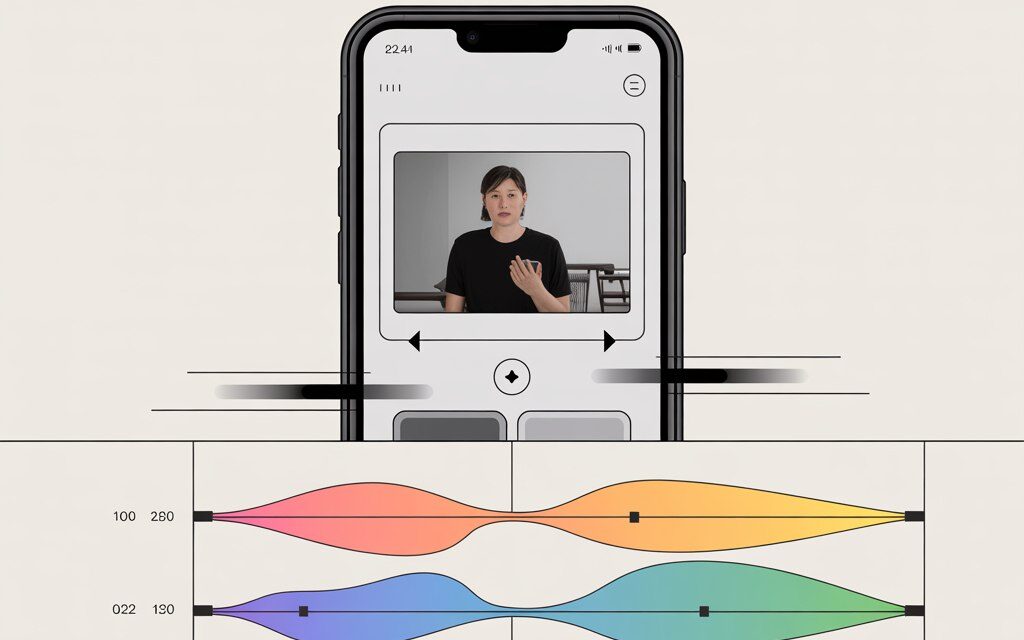
CapCut has convenient tools – auto-beat detection and a rhythm grid. Enable Beat markers and align the second track to the strong beats. This is faster than doing it manually.
Adding Track 2 and Editing Volume
- Audio – Sounds or Effects – add track 2 to a separate track.
- Apply Fade In 200 – 400 ms and Fade Out 200 – 400 ms.
- Adjust volume: main 70 – 80%, accent 40 – 60%.
- Export: 1080p, 30 or 60 fps, bitrate 8 – 12 Mbps – suitable for TikTok.
Table: CapCut vs TikTok Editor Comparison
| Tool | Max. Tracks | Beat Sync | Fades | Export to TikTok |
|---|---|---|---|---|
| CapCut | Multiple | Has beat markers | Yes | Direct sharing |
| TikTok Editor | 1 music + voice | No | Limited | Natively |
| InShot | Multiple | No markers | Yes | Via gallery |
Alternative: InShot for Two Sounds in One Video
Importing Clip and Adding Audio Layers
- Open InShot – Video – New – select the clip.
- Music – Tracks – add the first track, trim the needed part.
- Music – Tracks again – add the second track on a new layer.
- Set Fade In – Fade Out and adjust the volume.
- Export 1080p – Save – upload the video to TikTok as Original sound.
Synchronization for Ukrainian Trends
The verse-chorus scheme works well. The first track sets the mood, the second breaks in at a key moment. Place the transition on a cymbal crash or a strong beat – this noticeably improves perception.
Examples with Local Tracks by Kalush
- Intro – local track 8 – 10 sec, then a short trendy fragment 5 – 7 sec.
- If there’s a dance part – bring the accent track in for it.
- A text overlay about the track change helps retain attention.
Table of Tools for Layering 2 Sounds on TikTok
| Tool | Pros | Cons | 2026 Rating (Ukraine) |
|---|---|---|---|
| CapCut | Convenient fades, beat markers, fast export | Need to get used to the timeline a bit | 9.5/10 |
| InShot | Very simple interface, quick start | No beat markers, sometimes heavier compression | 8.7/10 |
| VN Video | Multiple tracks, flexible effects | Can lag on weaker devices | 8.4/10 |
| TikTok Native | Fastest solution without extra steps | No second music layer, only voice | 7.6/10 |
Common Mistakes When Adding Two Sounds
Problem: Dissonance and Low Retention
When tracks conflict in key or rhythm, the viewer leaves sooner. This usually happens if the second track enters without preparation or overpowers the voice. The fix is simple – sync to the rhythm, add a short fade, and check with headphones.
Statistics: -40% Views in Ukraine
There are no exact universal numbers – each channel has its own dynamics. But based on experience, if the second track comes in loud and abrupt, a noticeable drop in retention occurs. It’s fixed by aligning to the beat and a soft introduction of the second sound.
Mistake: Ignoring Volume and Fade
The most common story – both tracks at 100% with no fade. Result: muddy sound and a mess. Set the main track at 70 – 80%, the accent at 40 – 60%, and add 200 – 400 ms fade in – out.
Risk: Copyright Strike from ByteDance
External music without rights can be muted or removed. Restrictions are tighter on business accounts. If in doubt – use the TikTok library or royalty-free music.
| Mistake | How It Manifests | How to Fix Quickly |
|---|---|---|
| Abrupt entry of second track | Attention drops at scene change | Add Fade In 200 – 400 ms and shift the entry to a strong beat |
| Both tracks too loud | Distortion and mess | Main 70 – 80%, second 40 – 60%, check with headphones |
| Clashing keys | Sounds off-key | Shorten conflicting fragment to 2 – 3 sec or choose a different section |
| Mute after posting | Video plays without sound | Replace track with a library one or use a royalty-free option |
Optimizing Videos with 2 Sounds for the Top in Ukraine
LSI Keywords: “combine two tracks tiktok”, “sound duet”
In the description, use clear wording for people. If it’s a mix – say so. Add a short explanatory on-screen text – it often helps the viewer understand the rhythm change.
- Examples: mix of two tracks, sound duet, remix short version.
- In the description – why two sounds and at what moment the switch happens.
Hashtag Recommendations #TwoSoundsUkraine2026
Keep hashtags simple and relevant. One – two broad, one – two thematic, one local.
- #twosounds #mix #remix #ukraine #kyiv #lviv
- If adding a trendy fragment – the track or artist hashtag.
Pre-Posting Checklist
- Check sync – track change lands on a strong beat.
- Volume: track 1 70 – 80%, track 2 40 – 60%.
- Clip length 15 – 30 sec for dynamics.
- Listen on phone speaker and with headphones.
- Add short on-screen text about the track change.
FAQ
Can You Add 3 Sounds on TikTok in 2026?
In the native editor – no. Realistically – music from the library plus voiceover and effects. If you need 3 full-fledged tracks, mix them in CapCut or InShot and upload the finished video.
Why Doesn’t the Algorithm Show Videos with 2 Sounds?
Most often the reason is sound that makes people not watch till the end. Check volume, fades, and the track switch point. Try shortening the clip and making the intro faster.
Free Royalty-Free Tracks for Ukraine?
Use libraries with permission for social media. For example, YouTube Audio Library, Free Music Archive, Jamendo, and paid stock sites with commercial licenses. Always read the terms – region and platforms.
How to Fix Desync of Two Sounds?
Place beat markers and align the second track to the strong beat. If in TikTok – rerecord the voiceover counting 1 – 2 – 3 – 4 and insert the fragment at the right moment.
Does It Work on iOS/Android in Ukraine?
Yes. Both TikTok, CapCut, and InShot are available on both platforms. Interfaces differ slightly in button placement, but the logic is the same.
Checklist: Topic Summary
- Choose method – native or via CapCut/InShot.
- Prepare tracks – TikTok library or royalty-free.
- Layer, trim, add fades, and adjust volume.
- Check retention in preview – especially the track switch moment.
- Post and see how it sounds in the feed on your phone.
A quick summary. If you need speed – take one track and clean editing. If you need emphasis and dynamics – mix two tracks in CapCut, add fades, and focus on rhythm. Always check volume on different devices – it saves nerves after posting.
If you have doubts – start with a 15 – 20 second clip and two simple fragments. Once you get the hang of it, mixes will sound confident. This is exactly the case where a couple of tests solve everything.
Which scenario is more important to you right now – a quick video without extra steps or a more expressive clip with two tracks and careful mixing?