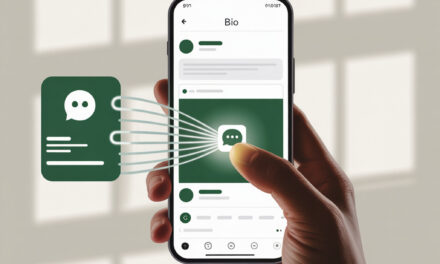
Most often, a link doesn’t open for trivial reasons – weak internet, cache in the app itself, or temporary glitches. Less commonly, ISP-level blocks or a misconfigured VPN interfere. Below are short step-by-step actions on how to quickly check and restore access to links without unnecessary hassle.
We focus on a simple algorithm: 3-minute diagnostics, clearing cache, updating, and if needed – VPN or proxy. If the task is urgent – go straight to the express diagnostics section. For stable operation in the future – go through the checklist at the end.
Main reasons why a Telegram link doesn’t open
Before looking for network or app issues, it’s worth understanding what type of link you’re dealing with. Telegram uses several address formats, and not all of them are handled equally by browsers and built-in viewers. Therefore, it’s useful to figure out what a Telegram link looks like in advance, to distinguish a working t.me from broken redirects and third-party shorteners.
Internet connection issues and the “Connecting…” message
When “Connecting…” hangs at the top of the app, Telegram cannot fetch data over the network. Links don’t open or open partially – without preview and transition to the browser. In practice, overloaded Wi-Fi, data saver mode, or an unstable mobile network indoors are most often to blame.
Quick test – open any website in a browser and run a short speed test. If the website is slow and speed is below 5-10 Mbps – fix the internet first. At the same time, disable any random VPN that might have been enabled earlier.
How to check internet speed in Ukraine (Kyivstar, Vodafone)
- Open speedtest.net or fast.com – one short run, without VPN.
- If using mobile network – switch 4G – 3G – 4G and run the test again.
- Kyivstar: check VoLTE mode – sometimes re-registering on the network helps – turn airplane mode on/off.
- Vodafone: most often, manually selecting LTE network in settings helps – Network type – LTE/4G.
- If on Wi-Fi – restart the router for 30-40 seconds and try 5 GHz instead of 2.4 GHz.
The impact of weak Wi-Fi on loading links in channels
A weak Wi-Fi signal hits media previews and redirects to the browser. Telegram might show text but not load the link preview – making it seem like the link is broken. The solution is simple – move closer to the router, switch to 5 GHz, turn off unnecessary background downloads.
If a link leads to a Telegram bot or channel – a weak network slows down server authorization, causing the transition to hang. In such cases, temporarily turning on mobile data and clicking the link again helps.
Link blocking by ISP or geo-restrictions
Sometimes ISPs cut off certain directions – links to specific domains or short redirects. This manifests as: regular websites open, but specific Telegram links hang or only open via VPN. Another sign – in the browser, the direct URL loads, but t.me does not.
Problems with clicking on invites usually manifest more strongly than with regular websites. This is because a link to a Telegram chat uses redirects and authorization, which can be cut by the ISP or an unstable connection. As a result, the link appears to be working but hangs on the opening stage, especially without a VPN or proxy.
In practice, people most often do this – turn on a reliable VPN to the nearest geo-server and check the link again. If the link comes to life – it’s a routing or ISP restriction issue, and it makes sense to set up a permanent solution.
Partial blocks in 2026: how to recognize
- t.me links only open via VPN – without it they hang on loading.
- Web version Telegram Web might be accessible, but transitions via t.me are not.
- Doesn’t work on one ISP, works on mobile data.
- Works for friends on another carrier – not for you – likely a local block.
Telegram server technical outages (Jan 21, 2026 outage)
There can be a mass outage on Telegram’s side – messages don’t send, links don’t open, previews don’t load. Here, neither cache clearing nor reinstalling helps – you just need to wait. Usually, such events last from 15 minutes to a couple of hours.
It’s practical to check status on outage aggregators and in independent chats – the picture is clearer there than from personal feelings. If a mass incident is confirmed – switch to alternative communication channels until recovery.
Checking status on Downdetector.ua
- Open downdetector.ua and find Telegram – look at the map and complaint graph.
- Compare with Twitter/X or local tech channels – if there are many complaints, wait.
- If complaints are only in your city or from your ISP – it’s a local issue, try VPN.
What to do if a Telegram link doesn’t open: 3-minute diagnostics
Step-by-step express device diagnostics
- Step 1 – turn off VPN and restart internet: airplane mode for 10 seconds – turn back on.
- Step 2 – open the link in another browser: Chrome – Safari – Firefox.
- Step 3 – try mobile data instead of Wi-Fi or vice versa.
- Step 4 – restart Telegram and clear the preview cache in the app.
- Step 5 – turn on a verified VPN and open the link again.
Checking date/time and OS (Android/iOS Ukraine)
Incorrect date and time break certificates – browser and Telegram cut transitions. Enable automatic time sync via network and reboot the device. Ensure Android is not below the version supported by your Telegram build – old systems often glitch on redirects.
Testing on multiple devices
Open the link on a second phone or in the desktop client – this quickly eliminates the problem of a specific device. If it works there – we’ll deal with cache and updates on the main device. Testing on a second device helps quickly understand where exactly the failure occurs. If a bot opens on one phone and doesn’t open on another, it’s worth double-checking the link source. In such cases, it’s useful to know how to get a link to a Telegram bot directly, rather than using forwarded or previously saved versions. If it doesn’t work anywhere – either a Telegram outage or an ISP restriction – turn on VPN.
Table of common symptoms and causes
| Symptom | What most often helps | Comment | Probability of cause |
|---|---|---|---|
| Click on t.me does nothing | Change browser – clear Telegram cache | The built-in link handler often fails | High |
| Hangs on “Connecting…” | Restart network – test mobile vs Wi-Fi | Weak channel, overloaded Wi-Fi | High |
| Link only opens with VPN | Permanent VPN or MTProto proxy | Routing – local restrictions | Medium – High |
| Telegram opens, but link previews are empty | Clear media cache – update app | Cache and outdated client | Medium |
| Browser HTTPS error | Auto-time – restart – another browser | Certificates – wrong date | Low – Medium |
Why a link to a Telegram channel doesn’t work: clearing cache and updates
Clearing Telegram cache (up to several GB)
Telegram cache grows quickly – website previews, images, files. When cache is full, the client behaves strangely – links open intermittently. In practice, clearing the cache solves 7 out of 10 such cases.
Instructions for Android/iOS/Desktop
- Android: Telegram – Settings – Data and Storage – Storage – Clear Cache. Additionally – Storage Usage – Delete Temporary Files.
- iOS: Telegram – Settings – Data and Storage – Memory Usage – Clear Media Cache. Check Auto-Delete Media – set to 1 month.
- Desktop: Settings – Advanced – Data and Storage – Manage Local Storage – Clear.
Updating the app and OS
New Telegram versions include fixes for browser redirects and the built-in link handler. If you haven’t updated in a while – do that first. On Android, install the official APK if Play doesn’t offer the latest version.
Where to download official APK in Ukraine (Google Play/App Store)
- Google Play – search for Telegram FZ-LLC, update to the latest version.
- App Store – Telegram Messenger LLP, update.
- Official APK – from telegram.org/android – direct download, no third-party stores.
VPN and proxy: bypassing link blocks in Telegram
Top 5 VPNs for Ukraine 2026 (Sigma, AdGuard)
If the link doesn’t open without VPN – choose a provider with fast UA or neighboring EU servers. In practice, services with their own clients and Split Tunneling function work more stably. Below is a compact comparison to avoid wasting time sorting through options.
| VPN | When suitable | Pros | Cons |
|---|---|---|---|
| AdGuard VPN | Quickly solve the task – open t.me and media | Simple client – on with one tap – has Split Tunneling | Paid limits at high speeds |
| Proton VPN | Need stability and transparent policy | Good EU servers – decent speed | Sometimes queue on free endpoints |
| Windscribe | Flexible settings – multiple devices | Many locations – convenient desktop client | Free tier with traffic limit |
| Mozilla VPN | Simple and without extra buttons | Minimal settings – stable | Trial period not available everywhere |
| Sigma/Any solid | Urgent need – without fine-tuning | Usually has fast EU nodes | Quality depends on the specific provider |
Step-by-step VPN setup for opening channels
- Install the VPN app – log in and choose the nearest server – Kyiv, Warsaw, Vilnius.
- Turn on VPN – go to Telegram – click the t.me link again.
- If the link opened – enable Split Tunneling and leave VPN only for Telegram and browser.
- Check speed – if slow, switch to another nearest region server.
MTProto/SOCKS5 proxy: 14 methods
Before using proxy bots or service helpers, it’s important to understand the basics. An incorrectly formatted address may not open even with a working VPN. Therefore, it’s useful to figure out how to make a link to a bot in Telegram in advance, to exclude format errors and transition problems.
If you don’t want to keep a constant VPN on – use the built-in MTProto or SOCKS5. This is easier on the battery and often doesn’t cut speed. The methods below cover most scenarios – choose a convenient one.
| Method | Where to enable | When to use |
|---|---|---|
| Built-in MTProto | Settings – Data and Storage – Proxy – Add | Quick launch without VPN |
| Built-in SOCKS5 | Same – Add SOCKS5 | Fine-tuning – your own host and port |
| Adding tg://proxy | Tap the tg://proxy link | The fastest method from channels with proxies |
| Proxy bot | Search – Proxy – open bot – Add button | When you don’t want to enter data manually |
| Private MTProto | Enter provided host – port – secret | Maximum stability in your group |
| Port rotation | Change port 443 – 80 – 88 – 8443 | If ISP cuts a specific port |
| Switching datacenter | Different proxy node | When current one is overloaded |
| SOCKS5 with auth | Specify login – password | Private proxies with limited access |
| Auto-proxy selection | Enable several – Telegram picks automatically | For stability without manual switching |
| Proxy only for t.me | Split tunneling in VPN – proxy in Telegram | When needed selectively for links |
| Public lists | Channels with proxies – add manually | Quick start – but change if laggy |
| Own MTProto server | Install on VPS | If you need control and stability |
| Proxy from browser | System SOCKS5 – will apply to Web | For Telegram Web and links in browser |
| Combo: VPN + MTProto | VPN on router – MTProto in client | When ISP actively cuts traffic |
Risks of free VPNs (viruses, speed)
- Free nodes are overloaded – links open slowly or don’t open.
- Some apps collect extra data – install only from official stores.
- If the task is one-off – take a trial from a verified provider and disable it after.
User errors and risks when opening links
Common errors: spam codes, account block
Telegram sometimes restricts an account for suspicious activity – mass clicks on identical links from spam chats. Requests for code and authorization can be temporarily blocked. The solution is simple – don’t request a code many times in a row and don’t click on identical redirects from suspicious channels.
When an account encounters temporary restrictions or suspicious activity, some users start looking for extreme solutions. At this point, it’s important to know where the official link to delete a Telegram account is, and not to follow third-party pages. This reduces the risk of phishing and irreversible actions via false addresses.
What to do with “Too many attempts” (up to 24h)
- Stop after 1-2 attempts – wait for the timer.
- Log out and log back in only after a 1-2 hour pause.
- Turn off VPN when receiving code via SMS or call.
Phishing risks in Telegram channel links
Some links lead to phishing copies of websites – visually identical but with a different domain. If they ask for login and password after clicking, check the address bar. In practice, it’s easier to run the link through a checker and open it in a safe browser without autofill.
Most phishing schemes are based on address substitution or incorrect link insertion. To avoid such risks, it’s important to understand how to insert a Telegram link on a website correctly – without hidden redirects, scripts, or masking. Proper placement reduces the chance of blocks and increases trust from users and browsers.
Link checking tools (VirusTotal UA)
- virustotal.com – paste URL and check detection.
- Google Safe Browsing – many browsers check automatically.
- For payment pages – open only from saved bookmarks, not from a link in a chat.
Step-by-step process to restore link access
Step 1: Reboot and basic actions
- Restart your phone – often frees up network and memory.
- Change network: Wi-Fi – mobile – Wi-Fi – this catches routing glitches.
- Clear Telegram cache and click the link again.
Step 2: Advanced methods (antivirus, firewall)
- Check if your antivirus or DNS app is blocking the link – temporarily disable it.
- On Android – check blocker apps and data saver – add Telegram to exceptions.
- If using a corporate firewall or MDM profile – check the policy on external links.
Step 3: Contacting Telegram support
If you’ve tried everything and the link still doesn’t open specifically for you, write to support. Attach screenshots, time, device, and ISP. The more specific, the faster they’ll figure it out.
Email template for UA users
Hello. Link t.me/xxxx does not open from device:
– Device: iPhone 13 / Android 13
– Carrier: Kyivstar / Vodafone
– Network: Wi-Fi (provider) / 4G
– Time and date: 21.01.2026, 14:35
– What I tried: restart, different browser, clear cache, VPN – helped / didn’t help
Please advise if there are known issues and what else to check. Thank you.
Tools and table for monitoring Telegram in Ukraine
| Tool | Purpose | Link/Note |
|---|---|---|
| Downdetector.ua | Understand if outage is for everyone or just you | Complaint graph – map |
| Speedtest | Check channel before fixing | speedtest.net – fast.com |
| AdGuard VPN / Proton | Bypass local restrictions | Install from official stores |
| Telegram Proxy | Quick access without constant VPN | Built-in MTProto/SOCKS5 setup |
| VirusTotal | Check suspicious links | virustotal.com |
| Method | Pros | Cons | Best when |
|---|---|---|---|
| VPN | Works for all apps and browsers | Can slow network – sometimes paid | Need guaranteed opening of any links |
| MTProto proxy | Lightweight – saves battery | Only for Telegram | Need clicks on t.me and channel access |
| Changing DNS | Sometimes fixes routes and resolves | Not a panacea for hard blocks | When only short redirects hang |
FAQ
Why does the link open for others but not for me?
Most often, it’s the network or cache of your specific device. Check speed, clear cache, try a different browser and mobile data. If it only works with VPN for you – likely ISP-level restrictions.
When a link doesn’t open only for you, it’s important to ensure the correct profile address is being used. Users often copy the link from a browser, old chat, or forward it with extra characters. In such cases, it’s easiest to get the link again directly from profile settings – that’s where you can see how to find the link to your Telegram without errors and extra characters.
Will changing a Kyivstar/Vodafone SIM card help?
If the problem is specifically with your home ISP – mobile network will help. Changing SIM is pointless – switching to mobile data for testing is enough. For permanent operation, it’s better to set up VPN or MTProto.
How long does clearing cache take?
Usually 30-60 seconds. If cache is several gigabytes – may take 2-3 minutes. After clearing, restart the app for good measure.
Does Telegram Web work without VPN in Ukraine?
In most cases yes, but sometimes t.me redirects are cut by the ISP. Then Telegram Web will open, but a click on a short link won’t. Solution – turn on VPN or open the link directly in the Web client.
TikTok’s built-in web viewer processes links in its own way, so a direct t.me link might not open or break on redirect. To avoid this, it’s worth understanding in advance how to attach a Telegram link on TikTok – for example, through correct formatting in the profile or video description. Then the user immediately gets a working link that will open regardless of the built-in browser, and transitions from TikTok stop being a source of errors.
What if the account is blocked for clicking a link?
Clicking a link itself doesn’t block, suspicious activity creates the problem. If you got restrictions – wait for the timeout, check devices for viruses, and don’t click on mass spam links. If repeated – contact support with details.
Checklist: Summary on the topic
- Check internet – aim for 10 Mbps and above.
- Open the link in another browser and on another network.
- Clear Telegram cache – restart the app.
- Update Telegram and OS – get APK from telegram.org if needed.
- Turn on a reliable VPN or set up MTProto proxy.
- Check status on Downdetector.ua – if mass outage, just wait.
- Check suspicious links on VirusTotal – don’t enter passwords from a click.
In practice, people most often do this – first change the network and clear cache, and only then dive into VPN and proxy settings. This is faster and often solves the problem in a couple of minutes. If restrictions are local – a stable VPN or a carefully configured MTProto keeps Telegram accessible without surprises.
If the task is urgent – use the nearest EU VPN server and open the link in an alternative browser. For daily work, set yourself a rule to clear cache once a month and keep one working VPN configuration handy.
What’s your task – just to open one link right now, or to make all Telegram links open stably every day?