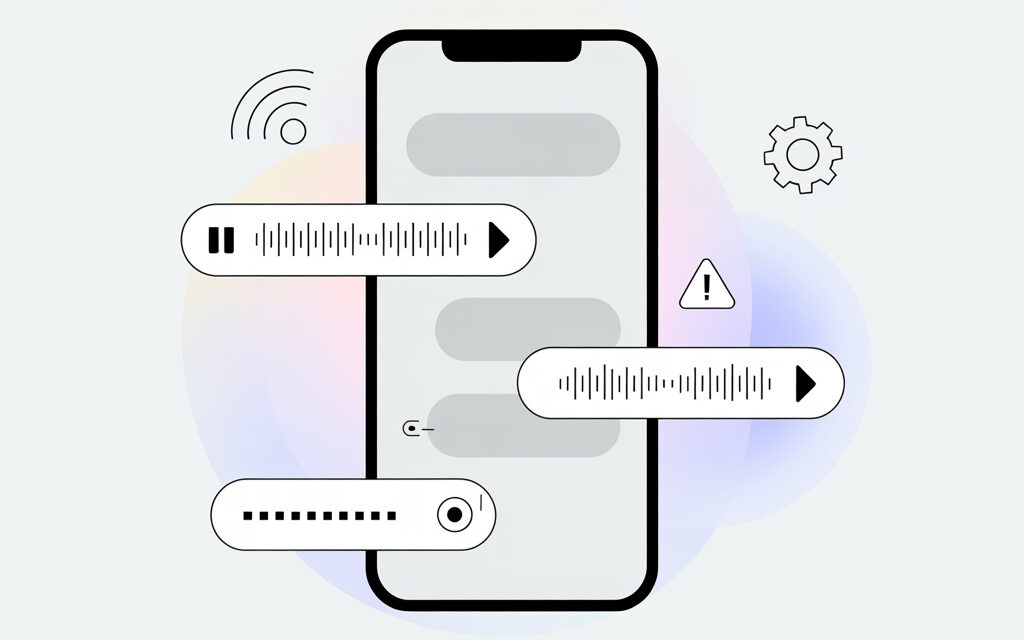
A quick, human explanation of why voice messages on Instagram sometimes freeze or fail to deliver. We’ll figure out what most often prevents sending, how to check yourself in a couple of minutes, and what you can do without complicated settings. I’ll share what I’ve noticed for myself and from readers.
The Short Answer
Usually, a voice message won’t send due to a weak internet connection, microphone permission being denied, low storage space, or the app itself crashing. Most often, this helps: restart the app, check microphone permissions, free up some space, and try again with a stable connection.
What to Check First: Internet, Permissions, Storage
Internet Connection and a Simple Reboot
If sending voice messages is stuck, the first thing I do is switch between Wi-Fi and mobile data and restart the app. You can quickly toggle Airplane mode on and off—this refreshes the connection. If the nearby Wi-Fi is weak, try mobile data for a couple of minutes.
Microphone and Notification Permissions
A common reason is the app not having access to the microphone. Go to your phone’s settings, find Instagram, and enable microphone permission. I’ve noticed that after major updates, the system sometimes resets these permissions on its own. Also, check access to storage—on some devices, this matters too.
Free Storage and Cache
When storage is full, recording can cut off. Free up 300-500 MB: delete a couple of large photos or videos. You can try clearing the app’s cache—this is safe, your account data won’t be lost.
Why Instagram Voice Messages Won’t Send Today Specifically
How to Tell if It’s a Service Issue
Sometimes, everything is fine on your end, but the service goes down for maintenance and some functions freeze. The signs are simple: voice messages aren’t sending for you and your friends, Stories load weirdly, and messages are delayed. In such moments, it’s better not to mess with settings—just wait 15-30 minutes and try again.
A Quick Story from a Reader
A reader wrote that his voice messages only failed to send in the evening. It turned out he was recording them on the subway where the internet kept dropping. He switched to above-ground transport—and everything went back to normal. Sometimes the cause is simple and solved by changing location.
How to Check Your Phone’s Microphone and Sound
Test with a Voice Recorder
Open the standard voice recorder app and record for 10 seconds. If the sound is clear—the microphone is alive. If there’s silence or heavy interference, check if the microphone grille is blocked by a case or dirt. I once struggled for half a day before noticing a crumb stuck in the microphone hole.
Headphones and Bluetooth
If headphones are connected, especially wireless ones, the app might try to record through them. Disable Bluetooth and try recording again. Check that noise cancellation mode isn’t active—it sometimes cuts off quiet speech strangely.
Volume and Auto-Stop
When the phone is on minimum volume or in silent mode, you can still record—but some models behave oddly and cut the recording short. Turn up the volume and restart the app. This is a simple but often effective step.
If the App is Glitching: Cache, Update, Reinstall
Update the App
Many find that after updates, the feature works more stably. Go to the app store, update Instagram, and restart your phone. This usually helps.
Clear Cache and Log Out/In
You can try clearing Instagram’s cache in your phone settings. Then log out of your account and log back in. I’ve noticed that this kind of restart clears up strange freezes.
Reinstallation as a Last Resort
If all else fails—delete the app and install it again. Try to do this on a stable internet connection so all components download correctly.
It’s helpful to check Instagram’s official help center—they often have current tips: help.instagram.com.
Problem in a Specific Chat: Restrictions and Blocks
Check if You’re Blocked
If voice messages aren’t sending to just one person, they might have message restrictions set. Try sending a voice message to another contact or to yourself in Saved Messages.
Privacy Settings and Subscription Confirmation
In private accounts, messages from unconfirmed followers sometimes go to requests and hang there without sound. Ask to be added or wait for confirmation.
A Real-Life Story
A friend had this happen: voice messages only failed in one chat. We checked—he was on the other person’s restricted list. After removing the restriction, everything worked without any fuss with settings.
2-Minute Checklist
- Switch between Wi-Fi and mobile data.
- Close and reopen the app.
- Check microphone access in phone settings.
- Free up some storage and, optionally, clear the cache.
- Disable Bluetooth and headphones.
- Try sending a voice message to a different contact.
- Update the app in the store and restart your phone.
Table: Symptoms, How to Identify the Cause, and What to Do
| Symptom | 1-Minute Check | What to Do |
|---|---|---|
| Record button is inactive | Microphone permissions are on | Grant microphone access in settings |
| Recording happens but won’t send | Internet is stable, enough storage | Switch networks, clear cache, free up space |
| Sends, but the recipient hears silence | Voice recorder captures sound | Clean the microphone, disconnect headphones, restart |
| Recording stops after one second | Power saving mode is off | Disable power saving, restart phone |
| Connection error | Browser pages load fine | Wait, change network, check for service outages |
| Problem only in one chat | Everything sends to other contacts | Check restrictions, write via another channel |
| Everything broke after an update | Works on another device | Reinstall the app, log out and back in |
How to Bypass the Problem Right Now
Record Voice in a Recorder and Send as a File
If it’s urgent, you can record audio in a voice recorder and send it as a file or as a video with a black screen. Not ideal, but it saves the conversation.
Text Alternative
Sometimes it’s faster to write a short text and ask the person to Google it if the question is technical. Not always pretty, but gets the job done.
Another Device or Web Version
If you have a second phone or tablet, try from there. I once did that—and the problem disappeared on its own by the evening.
Mini-FAQ
Can a voice message fail to send due to phone date and time?
Rarely, but it happens. Turn on automatic date & time setting and restart.
Do I need to clear app data?
Usually, clearing the cache is enough. Full data wipe or reinstallation is for when nothing else helped.
Where to see microphone permissions on Android?
Here’s the official guide from Google: support.google.com/android/answer/9431959.
Are there official recommendations from Instagram?
Yes, current tips and news are in their help center: help.instagram.com.
Why are voice messages sending but playing too quietly?
Check if the microphone is blocked by a case, and try without headphones. Sometimes recording slightly louder than usual helps.
Key Takeaways
Most often, the problem is one of four things: internet, permissions, storage, or app crash. Check them with the checklist—this usually solves the issue in a couple of minutes. If it doesn’t, temporarily bypass the problem and give the service time to recover.
If you’d like—share how it went for you and what worked.
Glossary
- Cache – temporary app files that can be safely cleared.
- Permissions – the app’s access to microphone, camera, storage, etc.
- Power Saving – a mode that limits background app activity.
- Headset – headphones with a microphone, wired or Bluetooth.
- Service Outages – temporary problems on the platform’s side, not the user’s.
- Voice Recorder – an app for recording sound on your phone.
- Full Storage – not enough free space to record and send.
- Reinstall – deleting the app and installing it again.