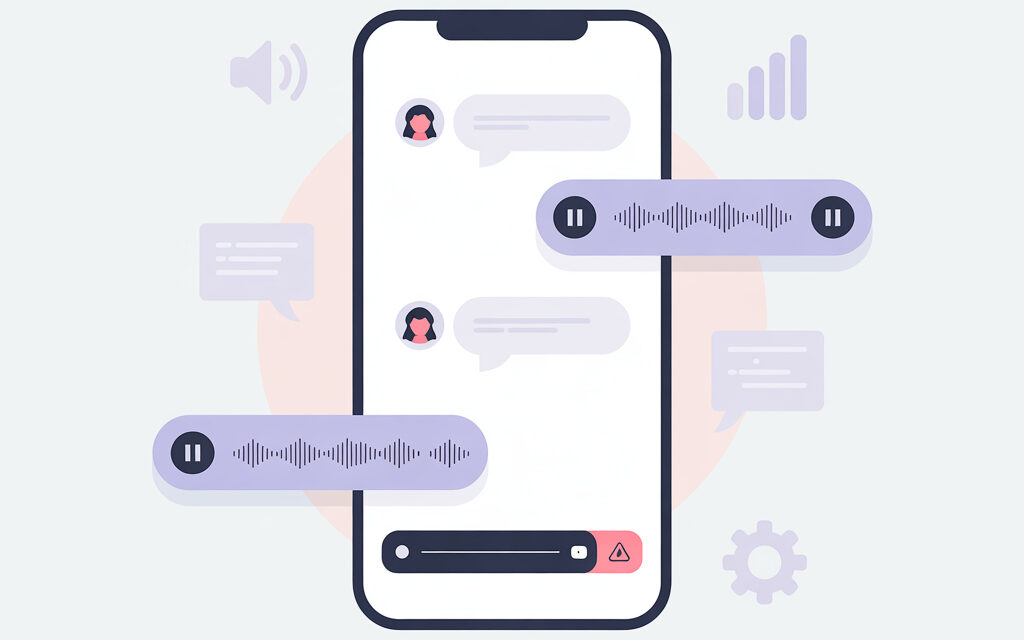
Sometimes you open a chat in Instagram, tap a voice message, and it stays silent. No drama, no error messages, just silence. In this article, we calmly break down where the most common sticking point is and what you can gently try to get your voicys (voice messages) to sound again.
I’ve gathered simple steps that usually help friends and readers. No complicated terms, no pressure—just everyday checks and a few personal observations.
Short Answer
Most often, voice messages don’t play due to low media volume, connected Bluetooth headphones, silent mode, a full app cache, or a weak internet connection. A simple sequence helps: check sound and connection, restart Instagram, clear the cache, update the app, and try on another device or via mobile data.
Why Instagram Voice Messages Won’t Play
If a voicy (voice message) isn’t playing, can’t be heard, or the sound disappears, the cause is usually everyday: volume, speaker, headphones, power-saving mode. Sometimes audio doesn’t open due to a chat glitch or a temporary service-side error. Below are short steps to check yourself without hassle.
Check Media Volume Specifically
Many phones have separate volumes for calls and for video/audio. Play any video and increase the volume, then return to the voicy. I’ve noticed that the ringer slider is at max while media is almost at zero—this creates the feeling that Insta is broken.
Turn Off Silent Mode and Focus
Silent mode or Focus can mute notifications and sometimes affect the player’s behavior. Turn them off for a minute and try again. I once had this on an iPhone: an enabled Focus mode interfered with the player’s normal operation in several apps at once.
Check Bluetooth and Sound Source
The voice message might be playing to headphones sitting in your backpack. Disconnect Bluetooth or select the phone’s speaker from the control center. Often, simply switching the sound source and switching back helps.
Hold the Phone Away From Your Face
If you bring the screen close, the proximity sensor triggers and the sound switches to the earpiece speaker, which is quieter. Hold the phone a bit farther away—it will become louder.
What to Check on Your Phone Right Now
When audio doesn’t open, an error appears, or the voice message just doesn’t sound, it’s better to run through quick everyday points. These steps are simple and often save time, especially if a voicy won’t play in only one chat or on a specific day.
Restart the App and Phone
Fully close Instagram and open it again. If that doesn’t help—restart your phone. It’s basic, but after a restart, stuck processes are freed, and the player starts working.
Check Device Storage
When the phone is very low on space, media might not cache. Delete a couple of heavy videos or old downloads, free up at least 1-2 GB. After that, return to the chat and try again.
Check Permissions
For audio to work correctly, Instagram needs access to the microphone and storage. Go to the app’s settings and make sure permissions are enabled. This isn’t about “spying,” but about normal recording and playback of voice messages.
A Real-Life Story
A friend had this: voicys wouldn’t play, and he was about to reinstall the app. It turned out the phone was connected to a speaker in the next room. They disconnected the speaker—everything started working.
Problem in the App or Account
If voice messages still won’t play in Insta after all the simple checks, check the app version, cache, and the account itself. Sometimes a voicy won’t play due to a bug after an update or a full cache. You can gently clean it and check on another device.
Update Instagram to the Latest Version
Updates fix minor errors. Go to the app store, update, and restart. This is one of the most common quiet fixes.
Clear the App Cache
On Android, go to the app’s settings and clear the cache. On iPhone, there’s no full cache reset—reinstalling and logging back in helps. I usually first try simply logging out and back in—sometimes that’s enough.
Check on Another Device or in the Web Version
Log into your account on another phone or via a browser. If voice messages play there—the issue is with your device or a specific app installation. If not—maybe a temporary service glitch or a problem in the chat itself.
Mini-Reader Story
A reader wrote that voicys only played via mobile data, but over Wi-Fi—silence. They changed the DNS in the router and everything returned. You don’t always need to go that deep—but checking via mobile data helps figure out where to dig.
Network and Files: When a Message Doesn’t Fully Load
Sometimes audio doesn’t open due to a weak internet connection or data-saving, and sometimes the file just doesn’t fully load. If a voicy won’t play in Instagram and the loading circle spins, check the network and saving settings.
Switch Wi-Fi and Mobile Data
Try a different Wi-Fi or mobile data. Sometimes a specific network cuts the media stream, causing audio not to start.
Turn Off Data Saver and Power Saving
Saving modes can freeze background downloads. Turn them off for the check and restart Instagram.
Check Date and Time
Incorrect system time interferes with secure connections. Enable automatic time sync, restart the app, and try again.
How to Proceed Carefully, Without Unnecessary Risks
If the audio isn’t sounding and you want to “clean everything up,” it’s better to take soft steps. First cache and update, then account check, and only at the end reinstallation. I usually do it this way to not lose anything extra and not waste time.
Algorithm
1 – Quick sound and Bluetooth checks. 2 – Restart the app and phone. 3 – Update, cache, permissions. 4 – Different internet. 5 – Check on another device. 6 – If necessary, reinstall.
Quick Reasons Table and What to Do
| Symptom | Likely Cause | What to Try |
|---|---|---|
| Voice message starts but silence | Media volume at zero, Bluetooth connected | Increase media volume, disconnect Bluetooth or select speaker |
| Loading circle spins | Weak internet, data saver | Switch network, turn off data saver, restart app |
| Only plays in headphones | Proximity sensor triggered, wrong output selected | Hold phone farther from face, change sound source |
| Sound disappears periodically | App bug, full cache | Update Instagram, clear cache, log out and back into account |
| Nothing helps on this device | Settings conflict, rare system glitch | Check on another device, do a reinstall |
2-Minute Checklist
- Check media volume and turn off silent mode
- Disconnect Bluetooth and select the phone’s speaker
- Restart Instagram and the phone itself
- Switch network: Wi-Fi to mobile or vice versa
- Update the app to the latest version
- Check app permissions for microphone and storage
- Clear the app cache and reopen the chat
- Check your account on another device or in a browser
Why Instagram Voice Messages Won’t Play Specifically for Me
If a voicy won’t play only for you, while friends are fine, check a combination of several factors: network plus power saving, Bluetooth plus proximity sensor, cache plus old app version. Sometimes two small things combine, making it seem like “Insta broke,” though it’s just a settings overlap.
Combo Example
I once had this: connected headphones in my backpack and an enabled power-saving mode. Voicys would play, then disappear. I disconnected Bluetooth and turned off power saving—everything returned in a minute.
Micro-FAQ
Voice messages can’t be heard, but music in the player plays. Why?
Most likely a different sound source is selected or the proximity sensor is triggered. Check Bluetooth and keep the screen farther from your face.
Should I reinstall Instagram right away?
In my opinion, it’s better to leave that as a last step. First update, cache, network, and check on another device.
The web version doesn’t play voicys. Is that normal?
The web version can behave differently than the app. It’s useful for checking, but the most stable option is the mobile app.
Can Focus or silent mode interfere?
Sometimes, yes. Turn off the modes for a couple of minutes and try again, then restore your settings.
If the problem is only in one chat
Most often it’s a temporary glitch. Close the chat, restart the app, send a test voicy to yourself, check other dialogues.
Key Takeaways from the Article
Most sound problems in Instagram are solved by simple checks: volume, Bluetooth, network, cache, and updates. It’s better to go step by step and rule out causes one by one—calmly and without rush. If that doesn’t help, checking on another device quickly shows exactly where the sticking point is.
If you want—share how it went for you and what exactly worked. Such details in the comments often help others.
Useful Sources
Instagram Help Center: If Something Isn’t Working
Android Support: App Permissions
Glossary
- Cache – temporary files that speed up app performance.
- Permissions – app access to microphone, camera, and storage.
- Data Saver – a mode that limits media loading in the background.
- Power Saving – a mode that freezes background processes to save battery.
- Proximity sensor – switches sound to the earpiece speaker when the screen is near the face.
- Bluetooth – a wireless connection through which sound can go to headphones or a speaker.
- Media volume – sound level for video and music, separate from call volume.
- Reinstallation – deleting and installing the app again, helps with complex crashes.
- Web version – using Instagram through a browser; behavior may differ.