Here we’ll calmly break down how to quickly send a link to your account, show your @username, and not get confused with multiple profiles. No complex terms or fuss – just explaining it to a friend.
I’ll show you the working steps, a couple of everyday stories, and a checklist so everything works on the first try. I’ll also add links to the Instagram Help Center so you can double-check yourself.
We’ll also figure out how to copy a link to your Instagram profile, so you can quickly share your account in a chat, insert a link on a website or Telegram, and immediately check that everything opens correctly on different devices.
The Short Answer
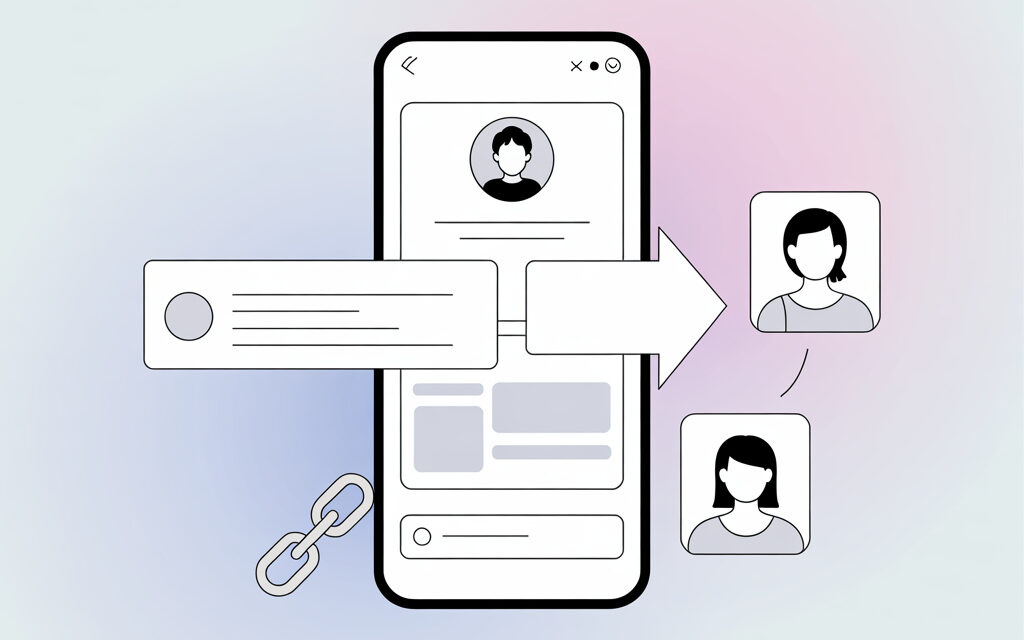
The simplest way is to open your profile, tap the Share Profile button, and send the link or QR code. If you’re wondering how to give a link to your Instagram profile or how I can share my Instagram account with someone, in most cases, one or two taps in the app is enough.
How to Share Your Instagram Profile?
If you find yourself asking “How do I share my Instagram profile?” or recalling phrases like “How to give a link to my Instagram profile,” here’s the basic scheme. It works equally well whether you need to send a profile to a friend in a messenger or want to show a QR code at a meeting. Below are three simple ways.
Method 1: Direct Link
Open your profile in Instagram and use the Share Profile button. The app will offer options: copy link, send to messenger, show QR. The link looks like instagram.com/your_username.
Method 2: QR Code
On the Share Profile screen, you’ll see a QR code. You can save it as an image and show it from your phone. Handy for offline meetings – the person simply scans it and lands on your profile.
Method 3: @Username
Sometimes it’s faster to just write your @username. For example: @denis.nagornyi. The person opens search in Instagram, types in the username – and there you are.
Where to Get the Link in the App and on a Computer
If the question “How to give a link to my Instagram profile” is on your mind, here’s a quick map. The method depends on the device, but the logic is the same: open the profile and copy the link. Below are the steps for Android, iPhone, and computer.
Android
Open profile – tap Share Profile – choose Copy Link. Then paste it wherever needed: into Viber, Telegram, email.
iPhone
Open profile – tap Share Profile – Copy Link or Show QR. On iOS, this button is usually visible right below the profile bio.
Computer
Go to instagram.com, open your profile, copy the address from your browser’s address bar. That’s your direct link.
How to Send a Link via Messengers and QR in Real Life
If you’re thinking “How do I share my Instagram account with someone,” it’s most often via messenger chat or a quick meetup. The link and QR code are the fastest options. In a messenger, you simply paste the link; at a meeting, you show the QR code, and the person scans it with their camera.
Via the Share Profile Button in Instagram
Open profile – Share Profile – choose a messenger. This way the link sends immediately, without copying. Convenient when you don’t want to switch between apps.
Via Messengers
Copied the link – pasted it in the chat. This is often done in Viber and Telegram. If you want to be neat, add a short message: “This is me on Instagram,” so the person understands.
QR Offline
If the meeting is in person, open the QR code in the app and show your screen. I do this at events – it’s faster than dictating a username where it’s easy to mishear a letter.
Common Confusion with Multiple Accounts
Sometimes people ask “How to share my Instagram profiles” – and confusion arises if you have several accounts on one device. I’ve noticed that a simple check helps avoid sending the wrong profile.
Check Which Profile You’re Copying From
Before tapping Share Profile, make sure the avatar and name at the top are for the intended profile. If not, switch to the right one and repeat the steps.
A Short Story
A friend had this happen: he sent a link, and the person ended up on his old work account. He simply copied from the wrong profile. The solution was simple – switch and tap Share Profile again.
If the Link Doesn’t Open or Sends Incorrectly
That happens too. And when the thought “How to give a link to my Instagram profile” pops up again, a couple of calm checks usually help. Below is what works most often.
Check Your Privacy Settings
If the profile is private, the link opens, but the content is only visible to followers. That’s normal. You can warn the person in advance that a follow request will come.
Avoid Extra Characters
Sometimes a messenger adds a space or line break, and the link breaks. Make sure it’s exactly instagram.com/your_username without periods or brackets next to it.
Check the Username After a Name Change
I had this happen once: changed my username – the old link stopped leading to the current profile. If you changed your @, send the new link.
How to Safely Transfer an Instagram Profile to Another Person
If the question is “How to transfer an Instagram profile to another person,” safety is key here. I wouldn’t send a password under any circumstances. It’s better to use official Meta tools and share minimal open information.
Don’t Share Passwords or Codes
Passwords and login codes are for you only. Even if it would be very convenient to hand everything over and forget, it’s better not to risk it.
Enable Two-Factor Authentication (2FA)
It usually helps to enable 2FA in the Accounts Center. That way, even if someone finds out the password, they can’t log in without the second factor.
Use Official Access for Work
If an SMM specialist will manage the account, in my opinion, it’s better to switch the profile to professional and set up access through Meta’s tools, rather than handing over the password. This is more secure for both you and the other person.
Comparison of Sharing Methods
| Method | Where to Find | Steps | Pros | Cons |
|---|---|---|---|---|
| Direct Link | Profile – Share Profile | Copy link – paste in chat | Fast, clear to everyone | Can mess up if username changed |
| QR Code | Profile – Share Profile – QR | Show or save QR | Perfect for offline | Needs the other person to have a camera |
| @Username | Any chat | Write @username – person searches in Instagram | Works without links | Risk of typo in username |
Checklist Before Sending a Link
- Opened the correct profile – checked the avatar and name.
- Tapped Share Profile – copied the link or QR.
- Pasted the link without extra spaces or characters.
- If the profile is private – warned that a follow request is needed.
- If recently changed username – checked that the link leads to the current profile.
- For work – don’t hand over passwords, use official access.
Mini Life Stories
Story 1: Username Changes – So Does the Link
A reader wrote that someone couldn’t find them. It turned out the username changed a couple days ago, and the link was old. They just sent the new one – everything worked.
Story 2: QR to the Rescue at Meetups
I once had no time to exchange contacts at an event. Opened the QR code – within a minute, three people and I had connected. Much easier than dictating letters.
Useful Resources
Micro-FAQ
The link doesn’t open for the other person. What to do?
Have them try opening it in a different browser or the Instagram app. You – check that the link has no extra characters and the username is current.
If the profile is private, is there a point in sharing the link?
Yes. The person will see the profile and can send a follow request. Just tell them about it beforehand.
Where to find the QR code if it’s not visible?
Open your profile – Share Profile. If there’s no button, update the app to the latest version.
Changed my username – did the old link break?
Yes, the old link will stop leading to you. Send the new link with the updated username.
Can I share multiple profiles at once?
Yes. Just send two links one after another. The main thing is to make sure each leads to the correct account.
What to Take Away from This Article
Sharing your profile is easiest via the Share Profile button: it has both the link and QR. If you change your username, don’t forget to forward the new link. For work tasks, it’s better not to share passwords – use official access and two-factor authentication.
If You’d Like – Share How It Went for You
Write which method you usually use – link, QR, or just the @username. Curious to know what works best for you.