Here, in simple terms, I explain where your link is and how to carefully copy it from your phone and computer. No complex jargon, just working steps and a couple of personal observations.
Useful if you want to send your profile to a friend, add it to a business card, put it in the bio of another social network, or on a website.
The Short Answer
In short, to copy the link to your Instagram profile from your phone: open your profile in the app, tap Share Profile and choose Copy. An easier option—the link looks like this: instagram.com/your_username. You can see your username in Edit Profile.
On a computer, the step is even easier: open instagram.com, go to your profile, and copy the address from the browser’s address bar.
How to Copy Your Instagram Profile Link: From Your Phone in a Minute
Many people ask how to copy their Instagram profile link from their phone to send in a messenger or put in their bio. On Android, everything is similar, so below I’ll also cover how to copy your Instagram profile link on Android. The interface sometimes changes, and even if you’re reading this closer to 2026, the logic will remain the same: we find the Share Profile button or assemble the link manually.
Method 1 – Via the Share Profile Button
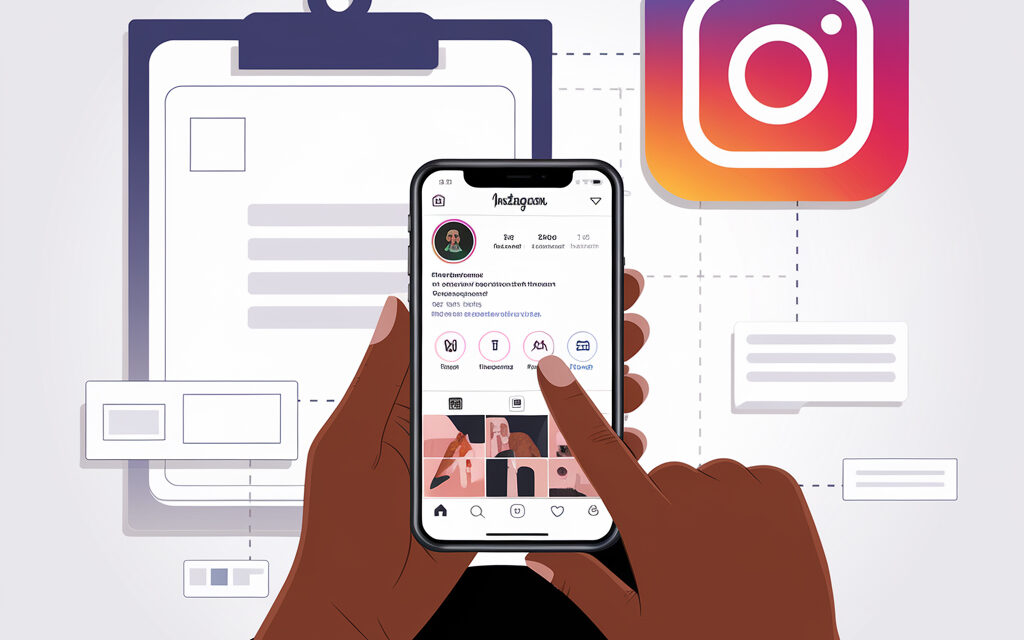
Open the app, tap your avatar in the bottom right, you’ll go to your profile. Next to the Edit Profile button, there’s usually a Share Profile button—tap it. In the system menu, select Copy—the link will go to your clipboard.
Method 2 – Via QR Code
If there’s no Share Profile button, open the menu in the top right—the three-line icon. Select QR Code, then the Share button and find Copy. The link to your profile is attached to this QR code.
Method 3 – Manually by Username
Go to Edit Profile and look at your username. The link always looks like this: https://instagram.com/username. Copy your username and put it after instagram.com/—check that there are no spaces.
A Little Story
Once, after an update, my Share Profile button disappeared. The QR code saved me—I got the link in a minute and sent it to colleagues. Since then, I’ve kept the quick method via username in mind—it works even if the interface changes again.
What to Do on Android if There’s No Button
If you’re struggling with how to copy your Instagram profile link on Android, and you don’t see the Share Profile button—don’t worry. On Android, the QR code or manually assembling the link usually helps. Below are three calm paths.
Try Via QR Code Again
Open Menu → QR Code → Share → Copy. If you don’t see Copy, scroll through the list of apps—sometimes this button hides at the end.
Assemble the Link Manually
Open Edit Profile, copy your username, paste it after instagram.com/. For example: instagram.com/solomia.design. This method is reliable and doesn’t depend on the app version.
Via Browser on Your Phone
Open any browser, go to instagram.com and log in. Tap your avatar—you’ll go to your profile. Copy the address from the address bar—that’s your link.
A Reader’s Story
A reader wrote that on a business trip they urgently needed the link, and the app was glitching. They went through the browser, copied the address—solved everything in five minutes. Simple, but often helps.
How to Calmly Do This on iPhone
The question is the same: how to copy your Instagram profile link from your phone, but on iOS. On iPhone, the Share Profile button most often helps—there’s Copy right there, or Copy in the system menu.
Via the Share Profile Button
Go to your profile, tap Share Profile. In the iOS share menu, select Copy. If there’s no button—swipe the menu to the right to the More item and find Copy Link.
Via QR Code
Open Menu → QR Code → Share → Copy. Sometimes it’s more convenient to immediately save the QR code image to put it on a business card or slide.
Manually by Username
Find your username in Edit Profile and put it after instagram.com/. This method works even if the app temporarily lags.
How to Copy Your Instagram Profile Link on a Computer
On a computer, it’s all simple, and this is still relevant even if you’re searching for how to copy your Instagram profile link in 2026—the logic doesn’t change. Open instagram.com in a browser, click on your avatar in the top right and go to your profile. Copy the address from the browser’s address bar—done.
Why It’s Sometimes More Convenient to Do This from a PC
If you’re putting a link on a website, in a resume, or formatting a signature for email—it’s more convenient to copy and check from a computer. Plus, it’s easier to spot extra characters.
How to Check That the Link Works
I’ve noticed that the mistake is most often in the username: an extra period or space. You can check yourself literally in a minute.
Quick Checklist Before Sending
- Open the link in a private/incognito browser tab—the page should load without your logins.
- Compare the username in the link with the one in Edit Profile—character for character.
- Remove spaces and capital letters—they’re not needed in addresses.
- If the profile is private, ask a friend who doesn’t follow you to open the link—they should see a page with a lock icon.
- If you recently changed your username, the old link no longer works—update it everywhere you’ve placed it.
Short Methods Table
| Method | Where it works | How to do it | Pros | When it’s useful |
|---|---|---|---|---|
| Share Profile | iOS, Android | Profile → Share Profile → Copy | The fastest | When you need the link right now |
| QR Code | iOS, Android | Menu → QR Code → Share → Copy | Works even with interface quirks | For print, presentations, offline |
| Manual Assembly | Everywhere | instagram.com/your_username | Doesn’t depend on app version | When buttons disappear |
| Via Browser | Phone, PC | Go to profile → copy URL from address bar | You clearly see the address | For checking and edits |
Useful Little Things People Often Forget
Many people encounter that after changing their username, the old link suddenly stops leading to their profile. This is normal—the address always equals the current username. In my opinion, it’s better to immediately update the link everywhere: website, bio of other social networks, email signature.
A Private Account is Normal
The link to a private profile also works; a person without a subscription will just see a profile page with a lock icon. Everything’s fine here—the privacy mechanism is preserved.
Characters in a Username
Dots and underscores are allowed in usernames; Ukrainian letters usually aren’t used—Instagram suggests Latin letters. If in doubt, look in Edit Profile and double-check.
Reliable Sources if You Want to Dive Deeper
Here you can peek at details from the platform itself:
A Short Micro-FAQ
Can I Share a Link to a Private Profile?
Yes. The link will open, but only followers will see the content. Others will see the profile page with a lock icon.
Why Don’t I Have a Share Profile Button?
The interface sometimes changes. Try the QR code or assemble the link manually using your username. Updating the app also helps.
If I Change My Username, Will the Old Link Work?
No. The link always equals the current username. Update it everywhere it’s placed.
Is There a Difference Between instagram.com/username and www.instagram.com/username?
For the user—almost none. Both versions open the same profile.
How to Quickly Check a Link?
Open it in a private/incognito browser tab. If the profile loads—everything’s good.
What to Take Away from This Article
Your profile link is simple: instagram.com/your_username. The fastest way to copy it is via Share Profile or the QR code. And if something breaks—manual assembly always saves the day.
If You Want—Share How It Went for You
Write which method is convenient for you and what worked faster. Such little things later save a lot of time for other people.