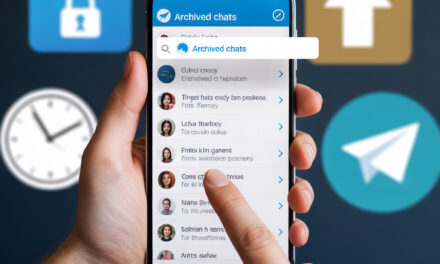
No fluff, no complications here. I’ll tell you how to build a working system right in Telegram: to-do lists, reminders, deadlines, and a bit of order in your head. This is what has genuinely worked for me and people I know, without a thousand tools or unnecessary subscriptions.
It’ll be simple, step-by-step, with a couple of short stories and a 10-minute checklist.
Quick Answer
The fastest way to get organized: a separate chat for tasks, a pinned message with a list, reactions as statuses, and Telegram reminders for key dates. For projects, add folders and hashtags; for teams – a group with topics and rules. Duplicate hard deadlines in Google Calendar. Start simple; you can always complicate things later.
How to Set Up a Telegram Task and Deadline System for Yourself
If you need a basic to-do list, reminders in Telegram, and don’t want to dive into complex planners, the built-in features are enough. It works simply: one personal chat, a pinned message with tasks, reactions as statuses, quick filters via hashtags and folders. At any moment, you can turn a task into a timed notification.
Step 1. Create a Personal “Inbox”
Create a separate chat with yourself or use Saved Messages. This is the place where all thoughts and tasks land, so you don’t have to keep them in your head.
Step 2. Pin the First Message with a Structure
For example: Inbox, Today, This Week, Someday. Drag items between blocks. The pin stays at the top – it’s easier for you not to get lost.
Step 3. Mark Progress with Reactions
I put 👍 for “done,” ⏳ for “in progress,” ❗ for “urgent.” You can see it at a glance, without new messages and extra noise.
Step 4. Set Reminders
Long-press a message with a task – Remind Me – choose a date and time. Extremely convenient when you need to remember a call or a payment.
Step 5. Use Hashtags and Folders
A simple set: #work, #home, #personal, #waiting. Search by hashtag – and tasks on the topic are right in front of you. Folders in Telegram help separate personal and work into different tabs.
Short Story
A friend of mine was falling apart until he started using #waiting. He began marking messages where he was waiting for a reply or payment. Once a day, he types #waiting in search and quickly pings people. Funny, but this reduced his anxiety more than any “super-method.”
What to Do If You Have Many Tasks and Need to Distribute Them Across Projects
When your to-do list grows, a quick-and-dirty Kanban in Telegram helps: a separate group for the project, a pin as columns, hashtags for statuses, and chat search. The focus stays, and conversations and tasks don’t scatter across different places.
Option 1. One Chat – One Project
Create a group for the project, enable discussion topics to separate streams of tasks. In the pin, drop a mini-board: Backlog, In Progress, Done.
Option 2. Shared Chat and Hashtags
If you have many projects, use hashtags like #projX and #status. Search instantly gathers all tasks for a project.
Option 3. Folders and Notifications
Collect work chats into one folder and disable unnecessary notifications. You’ll only see important pings and deadlines.
Mini-Story
A reader wrote that tasks were “getting lost.” It turned out messages were arriving, but the phone was in battery saver mode, and Telegram didn’t always wake the app. He turned off battery restriction for the messenger – and the reminders stopped being “silent.”
How to Set Up a Telegram Task and Deadline System Without Bots
A common question: can you manage without bots for tasks and extra integrations? Yes. Built-in tools are enough for a personal system: pins, reminders, folders, search, and reactions. The key is to maintain one entry point and simple update rules.
Basic No-Bot Scheme
- One inbox chat for all incoming tasks.
- A pinned message with structure and current priorities.
- Hashtags for topics and statuses.
- Reminders only for real deadlines, not every “would be nice.”
- Daily review of incoming items and a small weekly review once a week.
Which Bots Help When Built-In Features Aren’t Enough
If you need recurring reminders or template-based tasks, look for a reminder bot or a task bot in Telegram’s search. Check the last update date, reviews, and privacy policy. Usually, it helps to have one bot for “repeaters” and leave the rest to built-in tools.
How to Choose Calmly
- Check when the bot was last updated.
- Read the description to see if it supports recurring reminders and export.
- Don’t give the bot unnecessary permissions without need.
A Simple Bot-Free Alternative
Write a recurring task once in Google Calendar as a repeat event, and in Telegram keep only the operational steps. The extra noise disappears, and dates aren’t lost.
How to Sync Deadlines with Google Calendar Without the Headache
Sometimes integration with Google Calendar is needed to see the weekly picture and practice timeboxing. My approach is simple: hard deadlines live in the calendar, and in Telegram – steps and discussions. I only duplicate key dates and meetings.
Three Setup Steps
- Create a separate color in your calendar for “Deadlines” and enable notifications for 1 day and 1 hour before.
- Once at the end of the day, skim through the task chat and move only the “big rocks” to the calendar.
- In the event description, paste a link to the Telegram message for context.
Useful Links
- Official Telegram post about scheduled messages and reminders
- Google Calendar Help about reminders and notifications
How to Set Up a Telegram Task and Deadline System for a Team
For a team, a shared chat with topics, a pinned message with rules, and a simple prioritization order are convenient. You can build a Kanban in Telegram via pins and hashtags. The main thing is to agree on how to mark “done,” where to put the deadline, and who’s responsible.
15-Minute Mini-Setup
- Create a supergroup and enable discussion topics.
- In the pin, describe 3 statuses: Backlog, In Progress, Done.
- Decide how to set deadlines: reaction ❗ plus a reminder from the responsible person.
- Disable unnecessary notifications for “chit-chat,” leave sound only for mentions and replies.
How Not to Lose Decisions
Summarize important discussion outcomes into one message and pin it. Add the date and project hashtags to the message – easy to find later via search.
What to Choose: Built-in, Bots, or Calendar
I’ve noticed a mixed scheme works best: Telegram for actions and communication, a calendar for dates, and bots as needed. Below I’ve briefly compared the options.
| Tool | When It’s Suitable | Pros | Cons |
|---|---|---|---|
| Built-in Telegram Features | Personal lists, small projects | Simple, fast, nothing extra | No recurring reminders, no charts |
| Bots for Reminders & Tasks | Recurring tasks, templates | Automation, flexibility | Dependence on a third-party bot |
| Google Calendar | Hard deadlines, meetings | Notifications, repeats, overall view | Not suitable for small steps and correspondence |
10-Minute Checklist
You can save this and do it tonight.
- Create a personal inbox chat or use Saved Messages.
- Make and pin a message with your list structure.
- Choose 3 reaction-statuses and agree with yourself what they mean.
- Set up hashtags for topics: #work, #home, #waiting, #today.
- Add a “Work” and “Personal” folder in Telegram.
- Set a reminder for one nearest real deadline.
- Transfer 1-2 key dates for the week to Google Calendar.
- Enable notifications only for mentions and replies.
How to Tell If the System Is Working and Not Choking You
Many face the issue where the system works for a week and then dies. Usually, two simple rituals help: 5 minutes in the morning and 10 minutes on Friday. No fanaticism, no KPIs.
Morning: Quick Run-Through
Open the pin, mark 1-3 important tasks, and set reminders where needed. That’s enough.
Friday: Gentle Review
Look at what’s been hanging for weeks – either delete it or simplify it to the first step. In my opinion, it’s better to do something small than to keep a “big and scary” thing for another month.
Mini-FAQ
- Can I manage everything in Saved Messages and not create extra chats? – Yes, if that’s more convenient for you. The key is a pin with a system and hashtags.
- Does Telegram support recurring reminders natively? – No, not natively. For repeats, Google Calendar or bots are suitable.
- How to move overdue tasks? – Reply to the old message with a new date and reminder and put the reaction «⏭». The old one can be archived.
- How not to drown in notifications? – Leave sound on only for mentions, important deadlines, and personal chats. Put the rest on silent mode.
- Do we need a separate bot for the team? – Not necessarily. Often topics, pins, and clear rules are enough.
Key Takeaways
- Start with one chat, a pin, and reaction-statuses.
- Set reminders only for real deadlines.
- Hashtags and folders save a lot of time searching.
- Duplicate key dates in Google Calendar.
- 5- and 10-minute rituals keep the system running without pressure.
In Short
The system in Telegram works when it’s light and alive. A little discipline, a few reminders, and your to-do list stops weighing you down.
If you want – share how it worked out for you and what was most useful.
Glossary
- Inbox – The place where all incoming tasks and thoughts are collected.
- Pin – A message that always stays at the top of the chat.
- Hashtag – A label in the text that makes it easy to search for tasks.
- Topics – Discussion threads in groups to separate conversations.
- Reactions – Quick emoji marks on messages.
- Deadline – The final date for completing a task.
- Timebox – A block of time allocated for a specific task.
- Recurring tasks – Tasks that occur on a schedule.
- Kanban – A visual board with columns “Backlog – In Progress – Done.”
- Folders in Telegram – Grouping chats into tabs for convenience.